My external hard drive started showing errors and some files won’t open anymore. I’m looking for real experiences with disk repair software for hard drive recovery before I risk making the data loss worse. What tools worked for you, and what should I avoid?
Before you try to “fix” the drive, get your files off it if you can. That’s the main thing. If Windows still sees the disk, or it shows up in Disk Management, copy the important stuff first or run recovery software before doing any repair attempts.
A lot of disk repair tools write changes to the drive. They might touch the file system, rebuild partition info, remap sectors, or make other changes that are fine on a healthy disk but risky on one that’s already failing. If the drive has a physical problem, every extra read or write can make recovery harder.
Also, “disk repair software” is kind of a broad term. Some apps are for file recovery, some are for checking hardware health, and some are for partition or file system repair. I wouldn’t expect one tool to be the best at all of it.
The three I’d look at first are these:
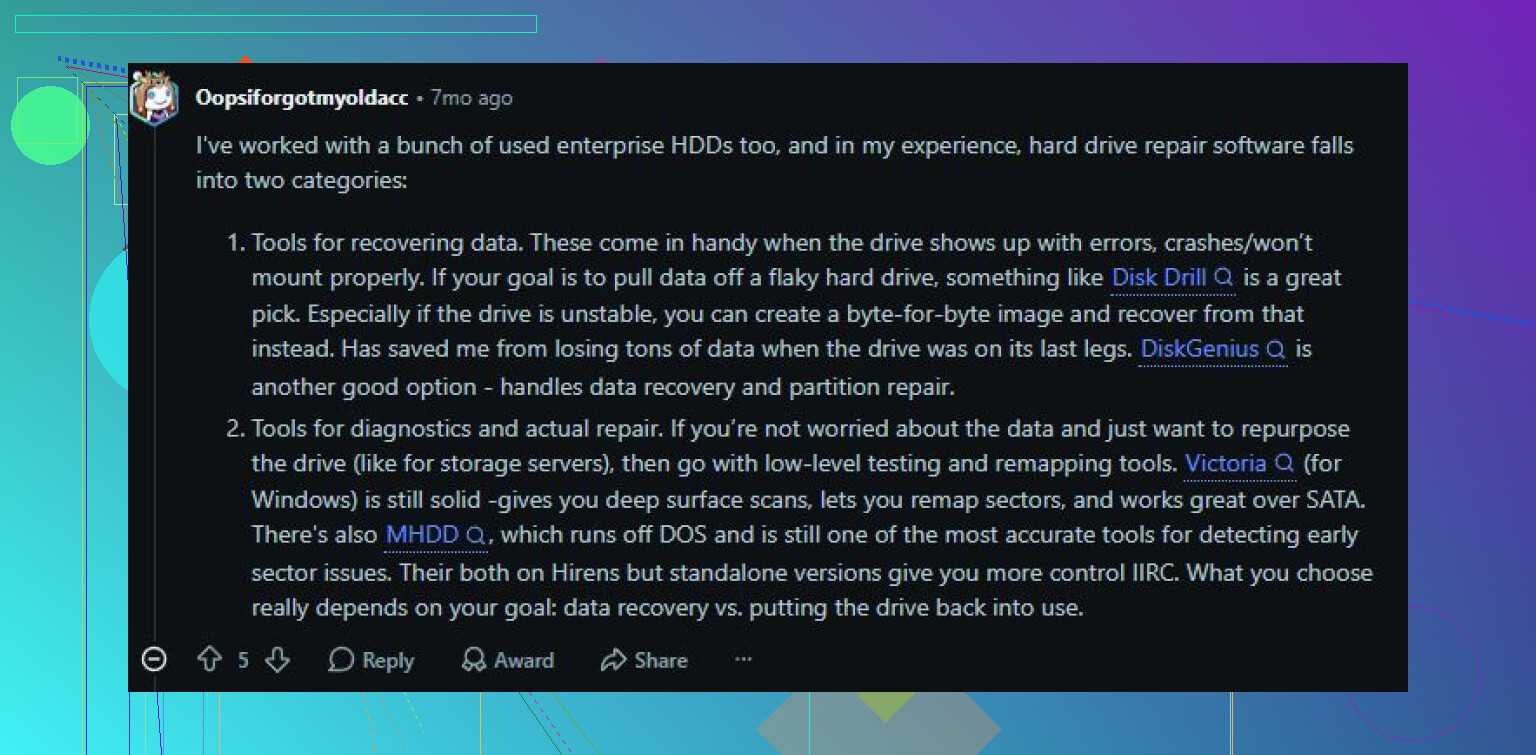
Disk Drill is the one I’d use first if the goal is getting files back. It’s a good fit when a drive turns RAW, Windows wants to format it, or files are suddenly missing. The nice part is that it focuses on recovery before repair. It can also create a byte-to-byte image, which is useful if the drive is unstable because you can recover from the copy instead of beating up the original disk. It also has S.M.A.R.T. monitoring, and the interface is pretty easy to deal with.
Pros
- Simple to use.
- Good for RAW, formatted, and corrupted drives.
- Can make an image of a failing drive before recovery.
- Includes drive health monitoring.
Cons
- It’s not meant for repairing partition tables.
Victoria HDD/SSD is more of a diagnostic tool, especially for bad sectors. If the drive is crawling, throwing errors, or acting like certain areas are hard to read, Victoria can scan the surface and show weak or slow sectors. It can also try remapping unstable sectors. Just don’t treat that as a real fix for a dying drive. It can help the system avoid bad areas, but it doesn’t undo physical damage.
Pros
- Free.
- Very good for surface scans and bad sector checks.
- Can remap unstable sectors.
- Shows detailed S.M.A.R.T. data.
Cons
- Not as beginner-friendly.
- Doesn’t recover deleted files.
Hard Disk Sentinel is what I’d use when you mainly want to know if a drive is still trustworthy. It watches S.M.A.R.T. data, temperatures, sector counts, and other health info, so it’s more about catching problems early than repairing anything. For an older HDD you’re not sure about, it’s useful for deciding whether to keep using it or replace it.
Pros
- Detailed health reports.
- Good early warnings for failing drives.
- Works with HDDs, SSDs, USB drives, and RAID setups.
Cons
- No file recovery.
- No corrupted partition repair.
If the drive has bad sectors, clicks, randomly disappears, freezes while reading, or the S.M.A.R.T. numbers keep getting worse, don’t waste a ton of time trying every repair app you can find. Recover what matters, then replace the drive. Software can help with logical problems, but it can’t fix worn-out hardware. And if the disk is not detected at all or is making obvious mechanical noises, stop using it and consider a professional recovery service instead of risking the data.
16 Likes
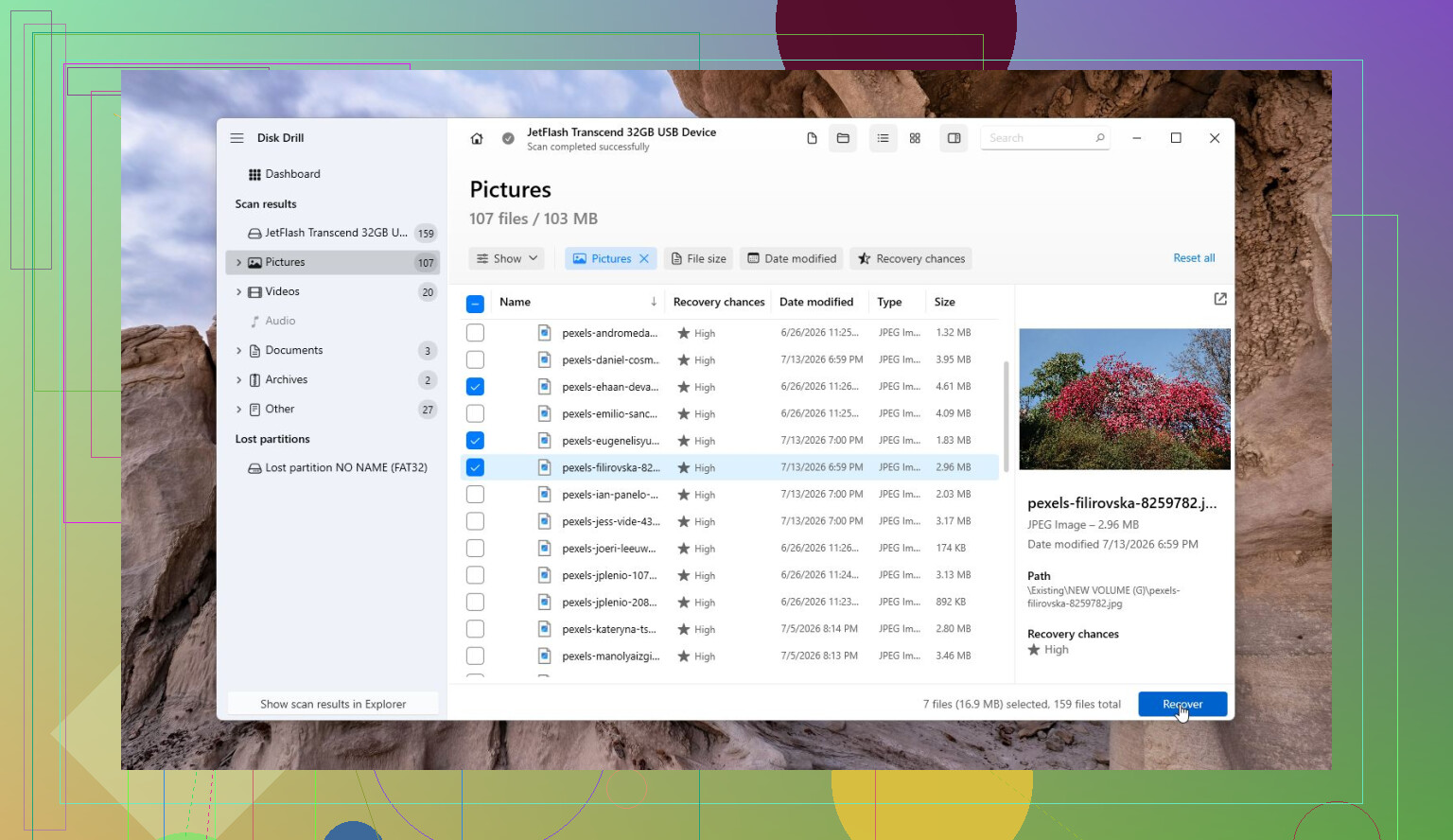
Do not run CHKDSK or any “repair errors automatically” button until you have a copy of the drive or the files you care about. That’s the trap a lot of people hit, because Windows makes it sound harmless, but it can clean up the file system by throwing broken entries into found.000 or making damaged folders harder to recover from. If the drive is still readable, I’d use something like Disk Drill only to scan and recover to a different disk, not back onto the same external drive. After that, sure, test the bad drive, format it, whatever, but don’t treat repair software as step one when the data still matters.
Check the boring stuff first.
With external drives, the problem is not always the disk itself. A flaky USB cable, weak power from a hub, or a dying enclosure can make the drive look corrupted when the actual platters are still readable. I’d try a different cable, a rear motherboard USB port, and no hub. If it is a 3.5’ external drive, make sure the power brick is solid too. Don’t keep unplugging it ten times while it’s grinding away, but one clean test on a better connection is worth doing before assuming software is the answer.
I mostly agree with the warnings above about not “repairing” it first. The word repair is misleading here. Recovery software like Disk Drill, R-Studio, DMDE, etc. is useful when the file system is damaged or Windows can’t make sense of it. It is not magic glue for a failing drive. If the drive is clicking, dropping offline, or taking minutes to open one folder, I’d rather make an image/clone first and scan that. Scanning a sick drive for hours can be the thing that finishes it off.
For a cheaper route, if the files are only mildly messed up and the drive stays connected, try copying the most important folders manually before running any full scan. Start with irreplaceable stuff, not the giant movie folder. Recovery tools can wait. People often do a 6-hour scan first and then find out the drive died before they copied the one folder they actually cared about.
Do not click “Initialize,” “Format,” or any Windows prompt that says it has to prepare the disk before you can use it. That can turn a recoverable file system problem into a messier job. Same goes for trying to make the drive “usable” again before the files are somewhere safe.
Disk repair software can work, but only in the boring logical-failure cases: deleted partition, damaged directory, RAW volume, corrupted file table, that kind of thing. If the drive is physically sick, the software is mostly just a very patient reader, and patience is exactly what a dying drive may not have. Disk Drill or similar recovery tools are fine for scanning and pulling files out, but I would treat the “repair” part as something you do after recovery, not before it.
The annoyance people forget is that recovery needs space. If it is a 4 TB external with 3 TB used, you need another drive big enough for the recovered data, and ideally room for an image too. Don’t plan on recovering back onto the same external drive. And if the scan only finds files by type with weird names like file000123.jpg, that does not always mean the tool failed. It may mean the folder structure was the part that got damaged. Better to get ugly recovered files than run a repair button and lose the chance entirely.