I’m trying to pick between Dropbox and Google Drive for everyday file storage, backups, and sharing with a small team. I’ve used Google Drive casually for docs, but I’m worried about sync reliability and easy organization across multiple devices. Dropbox seems cleaner for syncing, but I’m unsure about long‑term costs, collaboration features, and privacy. Can anyone share real‑world pros and cons, especially around performance, security, and how well they handle large folders and backups?
So, here is how it shook out for me
After bouncing between both for a while, this is how I’d summarize it in plain, practical terms:
-
Go with Google Drive if:
- You already live inside Gmail, Google Docs, Sheets, and probably use an Android phone.
- You care about lots of free storage and reasonably priced upgrades.
- You rely on search a lot. Google Drive’s search is basically “oh, you forgot the file name? No problem, we’ll still find it.”
-
Go with Dropbox if:
- You move big files around all the time, like 4K footage, audio projects, design assets, etc.
- Sync speed actually matters to you and you notice when it lags.
- You need more control over how you share stuff, who can see what, and how your folders are structured.
That split has held up pretty consistently in my day-to-day use.
When using both turns into a mess
What ended up happening to me:
Drive for shared docs with clients and teammates.
Dropbox for big creative files, archives, project folders.
It worked, but my laptop didn’t love it. Suddenly I had:
- Two different desktop apps
- Sync icons everywhere
- SSD space evaporating for files I barely touched
If you’re juggling multiple clouds at once, it gets annoying fast. You either:
- Selectively sync, then later realize the one folder you need is the one you unchecked, or
- Sync everything, then watch your free space cry.
The tool that bailed me out
I eventually landed on a small utility that made this way less painful:
CloudMounter. What it does, in normal-person terms:
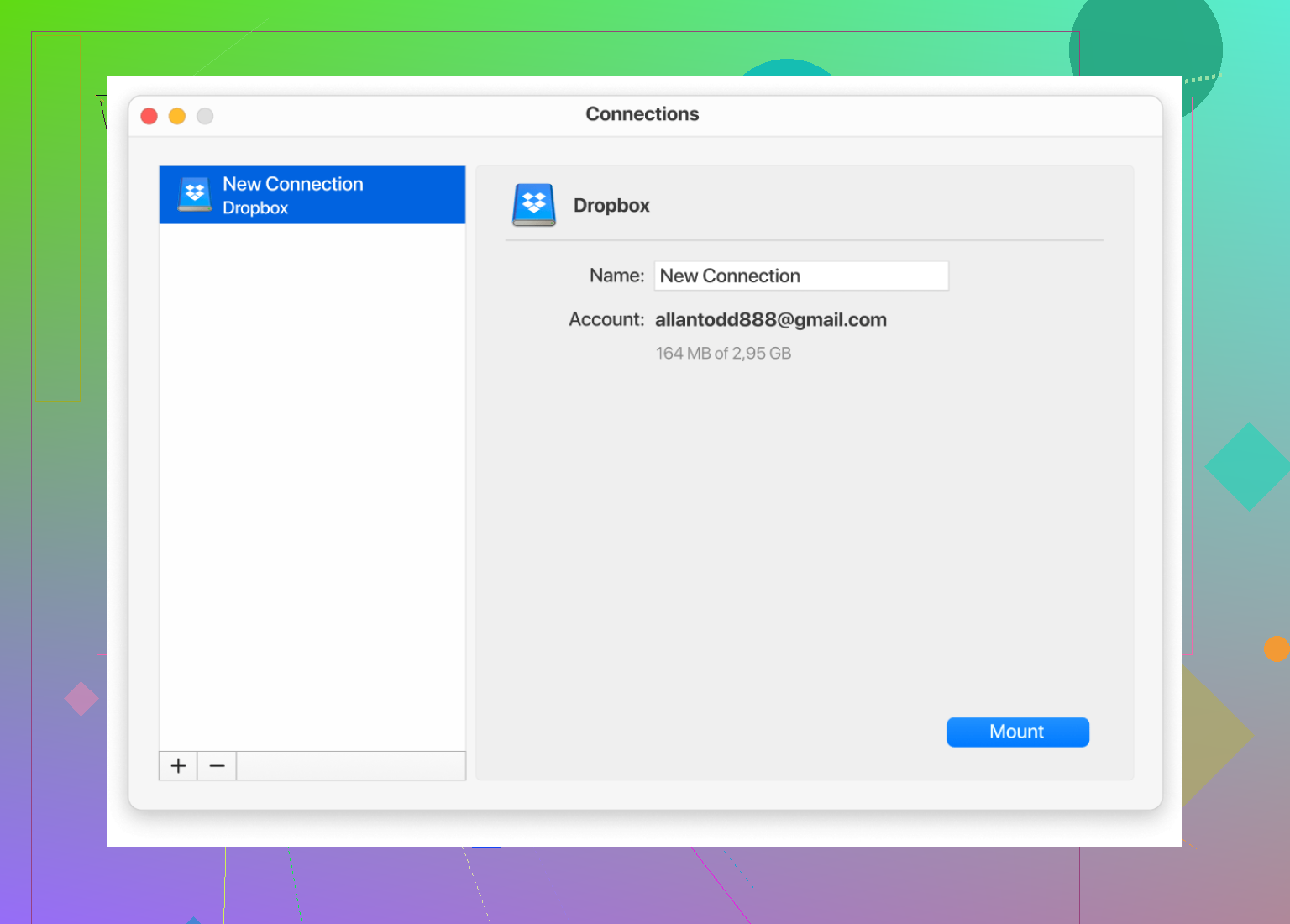
It lets you hook up your cloud accounts (Google Drive, Dropbox, OneDrive, Amazon S3, and a few others) and then they just show up on your computer like extra drives. You can do this on Mac or PC.
So instead of:
- Installing a separate app for each service
- Having each one sync huge folders locally
You just:
- Mount the account
- Browse it from Finder or File Explorer like an external disk
Why it actually helped
Two things made it stick for me:
-
Disk space does not get wrecked
- Files stay in the cloud.
- You open, move, copy, or edit them straight from the mounted drive.
- No more “why is Dropbox using 80 GB” moments unless you explicitly download stuff.
-
Everything is in one place
- All clouds show up in the same sidebar.
- Dragging a file from Google Drive to Dropbox feels like moving files between two folders on the same machine.
- No jumping between apps, tabs, or web UIs.
I ended up keeping Drive for what it’s good at (shared docs, light files) and Dropbox for heavier creative work, but I stopped letting both of them colonize my SSD. CloudMounter turned the whole multi-cloud thing from “ugh, too many apps” into “ok, these are just extra drives.”
18 Likes
I’m gonna be a bit more blunt than @mikeappsreviewer here: for “everyday file storage, backups, and sharing with a small team,” the decision is mostly about your people more than the tech.
1. Team reality check
Ask yourself:
- Are most of you already using Gmail / Google Calendar / Docs?
- If yes, forcing Dropbox on them will feel like swimming upstream.
- Do you share a lot of Office files (Word, Excel, PPT) and big binaries (video, PSD, CAD, etc.)?
- If yes, Drive can feel sluggish and clunky, especially with large folders.
2. Sync reliability
Drive File Stream / Drive for Desktop has gotten better, but:
- Dropbox still wins on rock solid sync, fewer weird conflicts, and faster propagation.
- Drive is “fine” for normal usage, but if you constantly move folders around or work out of nested project structures, it can get weird.
I’ve seen:- ghost duplicates
- “lost” shared folders that are still there but buried in “Shared with me”
- permission mismatches when people drag shared folders into “My Drive”
If your anxiety is specifically about sync and folder integrity, I’d lean Dropbox.
3. Organization & permissions
Where I slightly disagree with @mikeappsreviewer: Google Drive’s sharing model is powerful, but for non-technical users it’s confusing as hell.
- Drive:
- File-level and folder-level sharing everywhere.
- “Shared with me” vs “My Drive” vs Shared drives.
- People accidentally create personal copies instead of editing the original.
- Dropbox:
- “Here’s a folder, you’re in it or you’re not.”
- Team folders are easier to reason about.
- Less flexible, but also less chaos.
For a small team that you don’t want to constantly support like IT, Dropbox is usually more predictable.
4. Cost vs sanity
- Google Drive / Google Workspace:
- Great if you want one bill for email + storage + docs.
- Strong value for money and built-in collaboration.
- Dropbox:
- Often a bit pricier for equivalent storage.
- You’re paying mostly for sync quality, sharing clarity, and better handling of large files.
If everyone is already on Gmail and lives in Docs, then yeah, paying extra for Dropbox can feel dumb.
If you’re doing anything creative or file-heavy, the cost is justified.
5. Backups reality check
Neither of these is a real “backup” in the strict sense. Both are:
- Sync tools with version history.
- Vulnerable to:
- User error deleting stuff
- Malicious mass deletion or overwrites
If “backup” is truly critical, use one of them for daily work and then back that up to a separate place entirely (Backblaze, Wasabi, external drive, etc).
6. Where CloudMounter fits in
Here is where I 100% agree with @mikeappsreviewer on concept but not on approach:
I don’t like installing both full Dropbox and full Drive apps on my machine unless I absolutely have to. Too much local clutter, too much CPU, too much “where is this actually stored.”
CloudMounter solves this nicely:
- It mounts Dropbox and Google Drive as virtual drives.
- Files stay in the cloud unless you explicitly download them.
- You can browse both from Finder / File Explorer without full sync.
- Drag & drop between Drive and Dropbox is way easier.
The practical setup I’ve seen work really well for small teams:
- Pick one primary:
- If your team is doc-first and mostly text/spreadsheets → Google Drive (Workspace).
- If your team is file-first and works with heavy assets → Dropbox.
- Use CloudMounter on your main machine to:
- Access the “secondary” service without syncing everything locally.
- Keep archives or client-specific stuff in the secondary.
- Avoid your SSD getting obliterated by two sync clients fighting for space.
7. Simple recommendation
If I had to give you a no-nonsense call:
-
You mostly do docs, light files, already on Gmail
→ Use Google Drive, add Shared Drives, and maybe pair it with CloudMounter if you occasionally touch Dropbox or other clouds. -
Your concern is “I do not want sync drama, I move big folders a lot, my team is not super techy”
→ Use Dropbox as your main hub and optionally connect Google Drive via CloudMounter just for the odd Docs/Sheets collaboration.
If your #1 fear is sync reliability and folder chaos, you’re not imagining it. In that case, Dropbox + CloudMounter for any extra accounts is the quieter, less stressful life.
Short version: for “everyday file storage + small team,” I’d pick one main platform, then patch the gaps instead of over-optimizing the choice itself.
I agree with a lot of what @mikeappsreviewer and @viajeroceleste said, but I think you can simplify even more, and I’m not as scared of Google Drive as they are.
1. Start with your workflow, not the feature list
Ask 3 brutally simple questions:
-
Where do people already live all day?
- Gmail / Calendar / Docs → heavily tilts to Google Drive
- Local apps, Office, big media projects → tilts to Dropbox
-
What are your heaviest files?
- Mostly docs, PDFs, some images → both are fine, Drive wins on price + integration.
- Lots of video, design files, big ZIPs → Dropbox handles those more gracefully.
-
How organized / techy is your team really?
- If people already get confused by folders and permissions, Drive’s “Shared with me vs My Drive vs Shared drives” can be a mess.
- Dropbox’s “here’s a folder, you’re in or out” is mentally easier.
That’s basically the entire decision tree.
2. Sync reliability: how bad is Drive actually?
I’ll mildly push back on the Drive panic. Is Dropbox sync cleaner? Yes. Is Drive a disaster? Not anymore.
In my experience:
- For basic use (shared project folders, mostly docs, some media), Drive for Desktop is reliable enough if:
- You don’t constantly drag whole shared folders around.
- You stick to Shared Drives for team stuff instead of random personal folders.
- Real sync nightmares usually happen when:
- Everyone mixes “My Drive” and “Shared with me” like a junk drawer.
- People yank shared folders into random personal trees.
So if you go Google, treat Shared Drives as “the office file server” and tell everyone:
“If it’s team work, it lives in Shared Drives, not in your personal My Drive.”
That one rule kills 80% of the chaos.
If you constantly juggle huge folders, move stuff between projects, or have flaky internet, then yeah, Dropbox still feels more trustworthy. It’s just harder to get it into a weird state.
3. Organization & permission sanity
Where I think both @mikeappsreviewer and @viajeroceleste are slightly dramatic:
-
Google Drive looks confusing, but with a couple of team rules it’s managable:
- Use Shared Drives by default for anything shared.
- Only use individual file shares for exceptions (one-offs with clients).
- Turn off “anyone with the link can edit” as a default habit.
-
Dropbox feels simpler and clearer:
- Folders map nicely to teams / projects.
- Easier mental model for non-technical folks.
- Less “wait, where did this go” when someone drags something.
So:
- If you want structure and clarity more than fancy search, Dropbox wins.
- If your team is already used to “Google everything” and can handle a tiny bit of training, Drive will be fine.
4. “Backup” vs “sync” reality check
Both are bad as your only backup:
- They sync deletions and ransomware just as enthusiastically as normal changes.
- Version history helps, but it’s not a full disaster recovery strategy.
For real backup:
- Pick one of them as your daily working hub.
- Then back that up elsewhere:
- External drive using something like Time Machine / built-in backup.
- Or a true backup service (Backblaze, etc).
Treat Drive / Dropbox as “live workspace with undo,” not as your final safety net.
5. Using both without turning your laptop into a space heater
Where I 100% agree with both of them: running both official sync apps full-time is annoying:
- CPU hit
- Two sync overlays
- SSD eaten by duplicate local copies of stuff you rarely touch
This is where CloudMounter actually makes sense and is not just some random add-on:
- It mounts Google Drive and Dropbox as virtual drives.
- You see them in Finder / File Explorer like external disks.
- Files stay in the cloud; they’re not auto-synced locally.
- You only download what you actually open or copy.
Practical setup that works in real life:
- Pick a primary:
- Docs-heavy, Gmail-based team → Google Drive as your main.
- File-heavy, media projects → Dropbox as your main.
- Use CloudMounter to:
- Access the “secondary” platform without installing its full sync client.
- Keep old client archives in the secondary without clogging your SSD.
- Drag files between Drive and Dropbox like you’re just moving folders locally.
That avoids the classic “why is Dropbox using 120 GB” meltdown.
6. Concrete recommendation for your case
Given what you wrote:
everyday file storage, backups, sharing with a small team
already used Drive casually but worried about sync & organization
My honest take:
- If your team is already comfortable with Google stuff, try this:
- Go Google Workspace + Shared Drives for all shared work.
- Very clear rule: “No shared stuff in ‘My Drive’, only in Shared Drives.”
- Use version history + a separate real backup for important folders.
- If you’ve got even one person doing heavy media or you personally hate dealing with weird sync conflicts:
- Go Dropbox as main.
- Keep Google Drive only for Docs/Sheets collaboration.
- Use CloudMounter to mount Drive so you can grab the odd doc without running both sync clients.
Both paths work. The “right” one is mostly about which one your people will actually use without pinging you every 3 days asking “where did that file go.”
You’ve already got solid takes from @viajeroceleste and @mikeappsreviewer, so I’ll zoom in on what usually decides it for small teams and where a tool like CloudMounter actually helps (and where it doesn’t).
1. Choosing between Dropbox and Google Drive for a small team
Use Google Drive as your default if:
- Your team already uses:
- Gmail / Google Calendar
- Docs, Sheets, Slides
- You care about:
- Strong search across content and titles
- Simple permission models tied to Google accounts
- You mostly share:
- Documents, spreadsheets, presentations
- Light media, PDFs, contracts
Drive’s weak spot:
- Desktop sync can be clunky with lots of small files.
- Folder hierarchy + “Shared with me” gets confusing for non‑technical teammates.
- Offline work on desktop is less predictable than Dropbox for large, constantly changing folders.
Use Dropbox as your default if:
- Your team handles:
- Video, audio sessions, big design folders, ZIPs
- You need:
- Very reliable, file‑system‑style sync
- Clear folder ownership and predictable paths
- You care about:
- Fewer “where did this go?” moments
- Better handling of conflicted copies on desktop
Dropbox’s weak spot:
- Web editing of docs is inferior to native Google Docs experience.
- You often end up juggling external tools for real‑time document collaboration.
I slightly disagree with the idea that it must be “Drive for light stuff, Dropbox for heavy.” For a small team that wants less cognitive load, it is often cleaner to pick one primary home and only add the second when there is a clear use case, like a single video editor on the team who really needs Dropbox.
2. Where CloudMounter fits in (and where it doesn’t)
You already saw how @mikeappsreviewer uses CloudMounter to tame the “two‑clouds, one laptop” problem. That use case is real, but it is not magic. Think of CloudMounter as:
A way to treat Google Drive, Dropbox and others like network drives instead of local folders.
Pros of CloudMounter for your scenario:
-
Saves disk space
- Files stay online; you only fetch what you open or copy.
- Good if your team uses big assets but your laptops have small SSDs.
-
One unified access point
- Both Dropbox and Google Drive appear side by side in Finder / File Explorer.
- Drag and drop between them behaves like normal folder moves.
-
Cleaner than running multiple sync clients
- Avoids dueling sync icons and background daemons from each cloud provider.
- Less “why is my fan loud” caused by sync reindexing.
-
Flexible if your stack changes
- If later you add OneDrive, S3, etc., you don’t need yet another sync client.
Cons of CloudMounter you should weigh:
-
Depends on constant internet
- It is more like a remote drive than a sync tool.
- If you need robust offline work for whole folders, native sync from Dropbox/Drive can be safer.
-
Another app to manage and trust
- You are placing an extra layer between your data and you.
- Security policies, updates and compatibility become part of your stack.
-
Performance not equal to true local sync
- Large project folders with thousands of small files can feel slower to browse.
- Heavy workflows (video editing directly over the mounted drive) can be hit or miss.
-
Per‑machine configuration
- Each team machine needs CloudMounter installed and configured.
- That is overhead compared to everyone just using one standard sync app.
Compared to what @viajeroceleste and @mikeappsreviewer describe, I’d say:
CloudMounter is perfect if you accept that the cloud is your “main drive” and local disk is basically a cache. It is less ideal if your team expects everything to be fast and offline‑friendly all the time.
3. A simple decision path
For a small team focused on everyday docs and sharing:
-
Start with Google Drive only
- Use shared drives (if on a paid plan) to avoid the “Shared with me chaos.”
- Standardize folder names and simple access rules.
-
Add Dropbox only if you have a concrete pain
- Example: video editor or designer hitting sync issues or slow performance with Drive.
-
Use CloudMounter if you:
- Want to mix clouds without bloating SSDs.
- Prefer “mount and browse” over running both sync apps.
-
Skip CloudMounter (for now) if:
- Your team is not storage‑constrained.
- You would rather keep things dead simple with the official client of whichever service you pick as primary.
If your priority is less mental overhead for a small group, I’d lean:
- Pick one primary (probably Drive).
- Give Dropbox only to the people whose workflow actually breaks in Drive.
- Bring in CloudMounter when disk space or multi‑cloud headaches become real, not preemptively.