My old iPad has been running really slow lately, with apps taking forever to open and everything feeling laggy. I restarted it hoping that would help, but I’m not sure if that actually improves performance on an older iPad or if there’s something else I should try. Looking for help with old iPad speed issues, slow performance, and easy ways to make it run better.
I went through this on an older iPad, and the slowdown got bad enough that even swiping across the home screen felt delayed. It sucks when a tablet you used daily starts dragging inside simple stuff like Safari or YouTube. Still, I got decent results without replacing it, and without jumping straight into a big iPadOS update.
Restarting helped more than I expected. I know people throw out “restart it” for everything, but on iPad it did make a difference for me. A full reboot clears temporary memory and shuts down background tasks that got stuck or started eating resources. I try to restart mine once a month or so, especially if it sat asleep for days or weeks. After booting back up, the UI usually feels a bit cleaner and less sticky.
The first thing I’d check, though, is storage. On old iPads, low free space tends to wreck performance fast. I saw it with mine, and I’ve seen the same thing on older iPhones. When storage gets close to full, iPadOS has less room for cache files and other temporary data. Apple says to keep at least 1GB free, but my experience was worse before reaching that point. If your iPad is sitting around 95 percent full, I’d treat that as the main suspect.
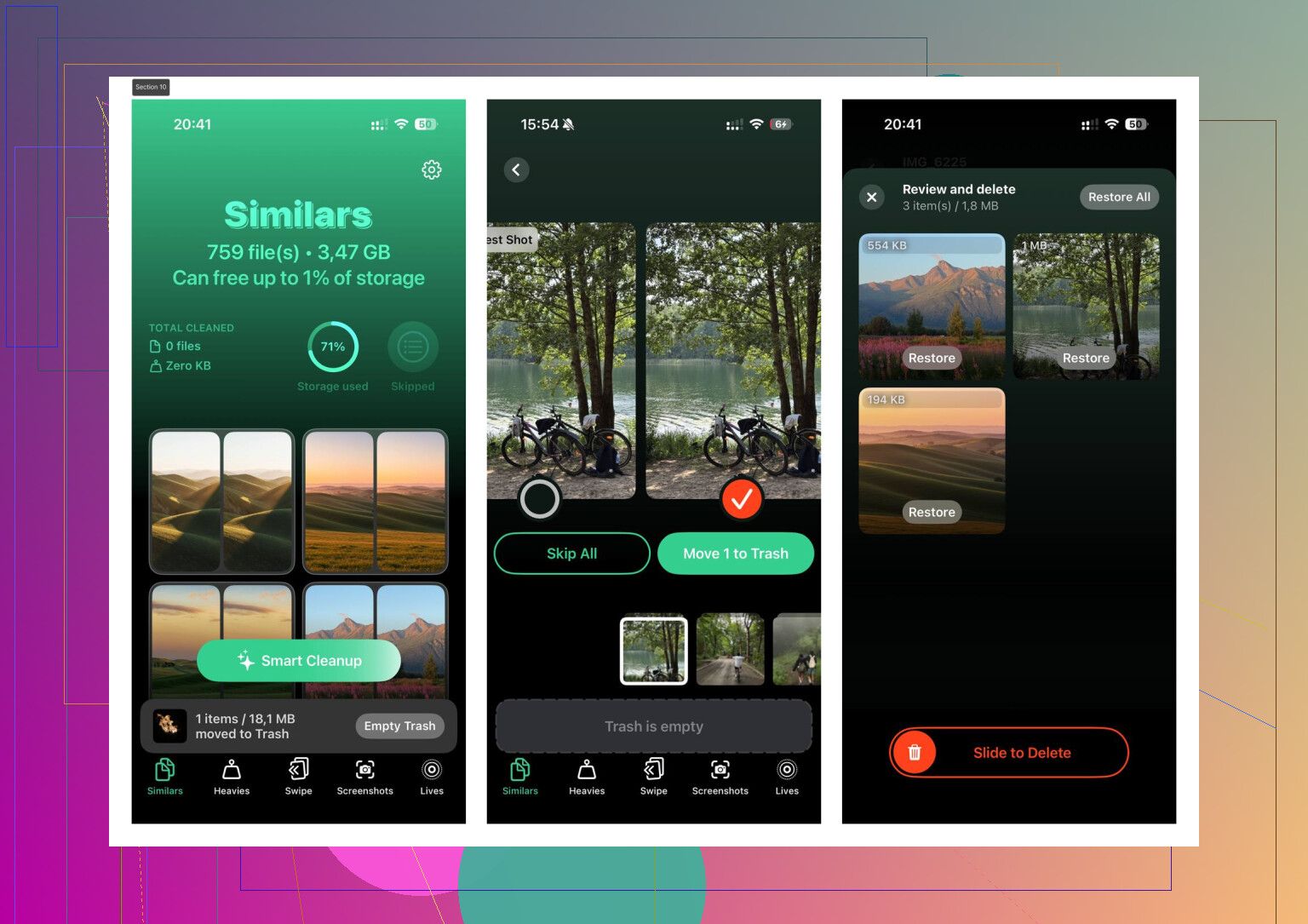
I used to clean photos by hand, and it was miserable. Endless scrolling, random screenshots, duplicate shots, giant videos I forgot existed. I ended up using Clever Cleaner. What stood out to me was simple. It didn’t hit me with ads, and I didn’t run into a paywall five taps later.
The part I used most was the Heavies section. It sorts media by size, so you spot the giant 4K clips first and free up space fast. There’s also a Similars section for near-duplicate photos, burst leftovers, and junk screenshots. It shows file sizes clearly, which matters more than people think when you’re trying to recover space in chunks instead of deleting things blindly. From what I saw, it handles the scanning on the device itself, which felt better than tossing private photos onto some random server. I cleared roughly 10GB, and the iPad felt less bogged down right after.
If storage cleanup doesn’t fix it, I’d go into settings next.
-
Reduce Motion
Open Settings > Accessibility > Motion, then turn on Reduce Motion. This cuts down the zoom-heavy animations and swaps them for simpler transitions. On older hardware, I noticed the interface felt faster right away. -
Background App Refresh
Go to Settings > General > Background App Refresh and shut it off, or at least limit it hard. A bunch of apps quietly pulling data in the background adds up. I turned mine off fully. Battery life improved too. -
Safari cleanup
If web browsing is where the lag shows up most, open Settings > Safari and clear History and Website Data. Safari gets bloated over time. Mine used to freeze on heavier pages, and this helped more than I expected.
One more thing worth checking is battery health. If the battery is worn out and capacity dropped under 80 percent, the system might slow things down to avoid shutdowns under load. If your battery is in rough shape, tweaks and cleanup won’t fully solve it. At that point, a battery replacement made more sense to me than chasing settings forever.
If none of this changes much, I’d do a factory reset. It’s the last step, but it’s also the one that fixed the deepest slowdowns on an old tablet I kept around. Back it up first, wipe it, set it up clean, then test performance before restoring too much clutter. Old iPads usually aren’t dead, they’re clogged up. That was the pattern I kept seeing.
13 Likes
Yes, for a while.
A restart helps when your iPad is bogged down by stuck apps, memory leaks, or background processes. On older models with 2GB or 3GB RAM, you often feel the difference right after rebooting. App launch times drop a bit. Animations feel smoother. Then the slowdown often comes back after a few days.
I agree with part of what @mikeappsreviewer said, but I think people overrate restarts. If your iPad is old, the bigger cause is often aging hardware, old flash storage, or apps built for newer chips. A reboot won’t fix any of thsoe.
A few things I’d check instead:
-
Look at battery behavior, not only health.
If the iPad gets warm doing simple stuff, or drains fast at idle, some process is looping in the background. Restarting hides it for a bit. It does not solve the cause. -
Check which apps are slow.
If Apple apps open fine but third-party apps crawl, the issue is app optimization. Newer app versions often run worse on old iPads. -
Turn off widgets and extra clutter on the Home Screen.
Older iPads hate constant widget refreshes. Remove the ones you don’t need. -
Update apps selectively.
I know people say update everything. I don’t fully agree. On old devices, newer app builds sometiems get heavier. If one app became slow after an update, that’s your clue. -
Use storage cleanup tools faster, not manually.
If your iPad is packed with photos and videos, Clever Cleaner is worth a look for quick cleanup. Also, this Clever Cleaner review for freeing up iPhone and iPad storage gives a decent overview.
So, yes, restarting makes an old iPad faster in the short term. If you want lasting improvement, find what is eating resources. That part matters more.

Yeah, restarting can make an old iPad feel faster, but usually only temporary. It’s more like clearing the traffic jam than fixing the highway.
I kinda disagree with how often people treat rebooting like magic. @mikeappsreviewer is right that it can smooth things out, and @nachtdromer is right that the effect fades. If your iPad is old enough, the real bottleneck is often the processor choking on newer apps, not just RAM getting messy.
A few things I’d check that weren’t really covered:
-
Disable Location Services for apps that don’t need it
Settings > Privacy & Security > Location Services. Some apps keep poking GPS in the background and old devices hate that. -
Turn off automatic downloads
App Store auto-updates and background downloads can make an older iPad feel weirdly sluggish. -
Check Mail accounts
If you have several email accounts fetching constantly, that can slow stuff down more than people think. Set fetch manually or less often. -
Remove browser tabs
Not just Safari history. Actual open tabs. Old iPads can get super laggy with 30 half-dead tabs sitting there lol. -
Watch for website lag vs device lag
Sometimes the iPad is “slow” because modern websites are bloated as heck.
If storage is tight, then yeah, cleanup matters a lot. Clever Cleaner is actually one of the less annoying options for clearing duplicate photos, big videos, and general media junk. If you want a solid overview, this piece on free AI iPhone and iPad cleaning tools that actually help storage is worth a skim.
So, short version: restart = short-term boost. Actual speed fix = reduce background junk, free storage, and accept that some old iPads are just… old. Sad but true tbh.
Restarting absolutely can help, but I’d frame it as a reset, not a speed upgrade. It clears RAM, kills stuck processes, and can stop one misbehaving app from dragging down the whole system. That’s why it feels snappier right after.
Where I slightly disagree with @nachtdromer and @sterrenkijker is this: sometimes the issue is not “old hardware” first, but a bloated system state. An old iPad that has never been shut down for months can act way worse than its hardware would suggest.
A couple things I’d check that weren’t really covered:
-
Low Power Mode
If it’s on all the time, some tasks and syncing get throttled oddly. -
Accessibility settings
Too many enabled visual features can add overhead on older models. -
Network bottlenecks
People blame the iPad when slow Wi-Fi or DNS is making apps seem slow to open. -
Keyboard lag
Third-party keyboards can make the whole device feel delayed.
Also, if the lag is mostly from no free space, Clever Cleaner is a practical option.
Pros: easy media cleanup, helps find large files fast, less tedious than manual deleting.
Cons: cleanup apps can only do so much, photo suggestions are not always perfect, and if the real problem is battery or CPU age, it won’t fix that.
So yeah, restart helps short term. Long term, it depends whether your slowdown is memory mess, storage pressure, battery wear, or just an iPad that’s aged out. @mikeappsreviewer had the right general idea there.