I’m running low on iPhone storage and started seeing the Offload App option, but I’m not sure how much space it actually saves. I want to understand whether offloading apps reduces app storage without deleting important data, because I need to clear space for photos, updates, and everyday use.
Why “Applications” on iPhone Storage Looks Wrong
I ran into this too. The part labeled “Applications” looked bloated, then one morning it was almost twice the size. I had deleted stuff the night before, so it made no sense.
What iPhone shows there is not only the apps you installed. It bundles a few different parts together:
What goes into “Applications”
-
The app itself
This is the core file needed to launch it. -
Your saved data
Logins, settings, in-app files, downloaded content. -
Support files
Language packs, helper files, extra resources. -
Cache
This is the messy part. Social apps, video apps, shopping apps, even browsers stash temp data all over the place.
So if your storage jumps fast, cache is often the reason.
Why it sometimes doubles overnight
I saw this after watching a bunch of video and scrolling through apps for an hour or two. iOS does not always update the storage numbers right away. It catches up later. When it finally re-counts cached data, the graph looks like it exploded out of nowhere.
Photos tend to stay predictable. Apps do not. The more you use them, the more junk they hang onto. A chat app with media history or a game with downloaded assets grows fast.
Offload App is not the same as Delete App
This part confused me at first.
When you use Offload App, iPhone removes the app file, but keeps your documents and stored data. So if a game takes 200 MB for the app itself and 4 GB for maps, textures, and other downloaded stuff, offloading only removes the 200 MB part.
If you want the full space back, you need Delete App.
Even then, the storage screen is sometimes slow to update. I had cases where I deleted something and the number stayed high for a while. iOS was lagging behind, or some leftover system storage had not cleared yet.
Where to check the real breakdown
Go here:
Settings > General > iPhone Storage
Wait a bit. It loads slowly on some phones.
Tap any app. You’ll usually see two useful lines:
- App Size
- Documents & Data
That screen gives you the closest thing to a real answer. If Documents & Data is huge, the problem is not the app install itself. It’s all the stuff the app built up over time.
Why low storage makes the phone feel bad
This was the part I noticed before I understood the storage issue. My phone got sluggish. Camera opened slow. Apps froze. A few crashed. Typing felt delayed, which is a nasty one.
Once free space gets low, iOS has less room for temp files and routine background tasks. You feel it everywhere. Not in one dramatic way, more like the whole phone turns sticky.
What I tried first
I did the usual cleanup:
- old messages
- Safari data
- random downloads
- files in the Files app
- unused apps
It helped, but not much. It was slow work, and I kept chasing tiny wins.
The app I ended up using
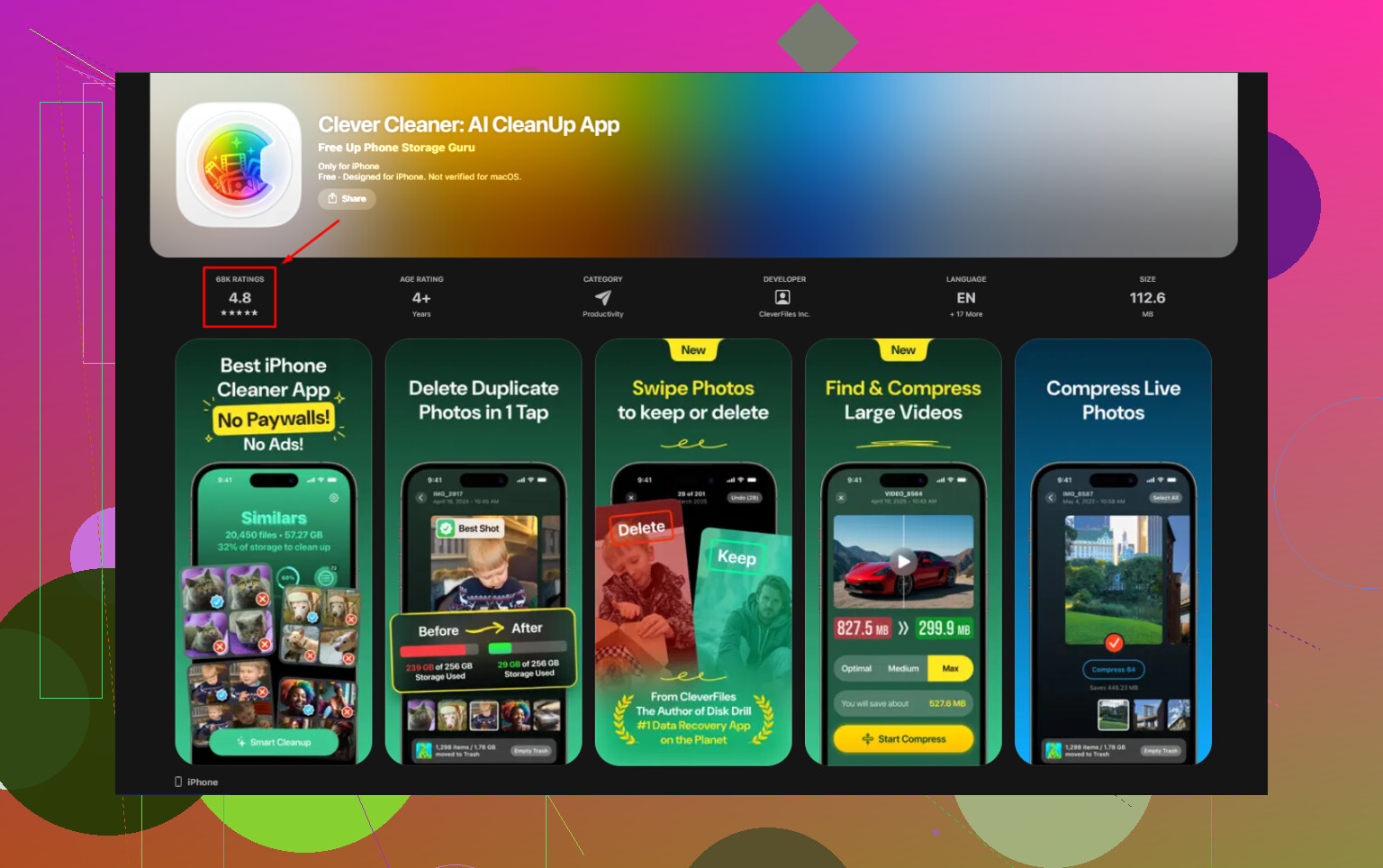
I used Clever Cleaner after getting tired of doing it all by hand.
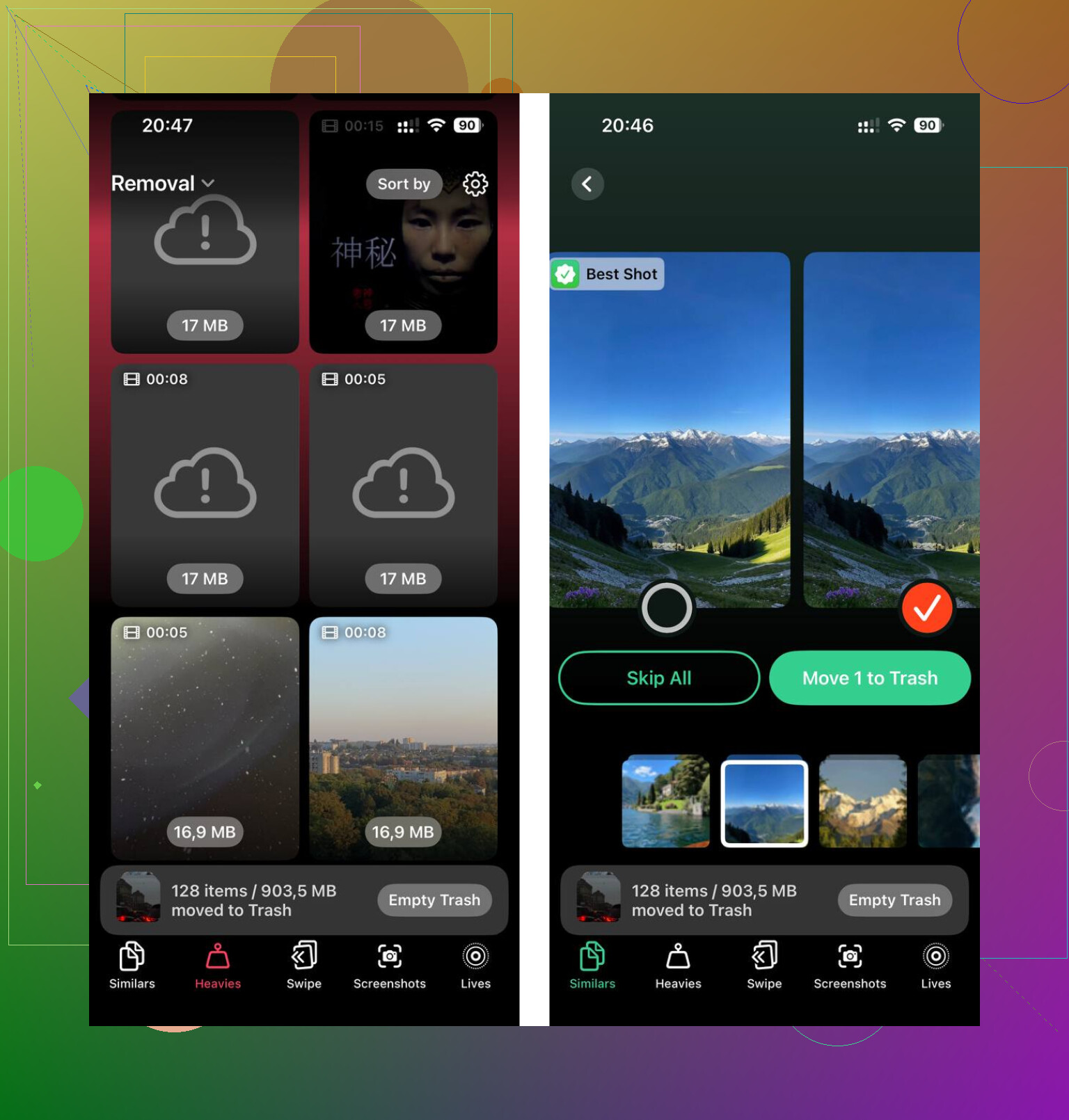
What helped me most was seeing large files sorted in one place. Their “Heavies” section made it easy to spot giant videos and old recordings I forgot were sitting there. A few of mine were multi-gigabyte clips, which was… yeah, embarrasing.
The duplicate photo finder was useful too. I had too many burst shots and near-identical screenshots. It showed file sizes clearly, so I knew what deleting each batch would save.
One detail I cared about, it says processing stays on-device. I tend to avoid apps which ship my photo library off somewhere.
Short version
If “Applications” looks too large, it usually means cached files and app data, not only installed apps.
If offloading barely changes anything, that tracks. Offloading removes the app file, not the bulk of stored data.
If you want to confirm where the space went, check each app under iPhone Storage and compare App Size with Documents & Data.
That’s what finally made the whole thing click for me.
15 Likes
Yes, but only a little in some cases.
Offloading removes the app itself. It keeps your app data, settings, logins, and local files. So your iPhone Storage number for Applications goes down by the size of the app binary, not by the full footprint.
Simple example:
If Instagram shows:
App Size: 320 MB
Documents & Data: 2.8 GB
Offload saves about 320 MB.
Delete saves about 3.1 GB.
So if you need space fast, offloading helps most with apps where App Size is large and stored data is small. Games are often good candidates. Streaming, social, podcast, and chat apps often keep tons of data, so offloading them does less than people expect.
I slightly disagree with @mikeappsreviewer on one point. Cache is a huge factor, yes, but for many people the bigger storage hog is downloaded media inside apps, not temp junk. Netflix downloads, Spotify offline songs, WhatsApp attachments, TikTok drafts, those pile up fast.
What I’d do:
- Check biggest apps first.
- Compare App Size vs Documents & Data.
- Offload apps with big App Size.
- Delete and reinstall apps with bloated Documents & Data, if you know your stuff is synced.
- Clean photos and large videos too, becuase those usually beat app savings by a mile.
If you want a faster cleanup pass, Clever Cleaner is worth a look for finding duplicate photos and heavy files. It also shows up often in guides covering the best free iPhone cleaning apps.
Short answer, offloading reduces Applications storage, yes. It does not remove most of the data hoarded by the app. That part trips people up alot.
Yep, but usually not by as much as people hope.
Offloading an app does reduce the Applications category, but only by removing the app package itself. Your account info, saved files, downloads, and a lot of the app’s leftover data can stay behind. So the storage drop might be tiny if the app is mostly bloated with data instead of the actual install.
That’s where I slightly disagree with @mikeappsreviewer and a bit with @voyageurdubois too. People focus a lot on app cache or downloaded media, but sometimes the bigger issue is that iOS storage labels are just kinda vague and laggy. You offload something, and the number doesn’t always update right away. Super annyoing.
The practical answer:
- Offload = keeps your data, removes the app
- Delete = removes app + its data
- Best use for offload = apps you rarely open but want to keep set up
So yes, offloading helps, just not in a miracle way. If you tap an app in iPhone Storage and see a small App Size but huge Documents & Data, offloading won’t do much at all.
Honestly, for fast cleanup, photos and videos usually free way more space than offloading apps. If you want to speed that up, Clever Cleaner is useful for spotting duplicates and heavy files without doing the whole treasure-hunt thing manualy.
Also, if you want a visual walkthrough, this is a decent one on how to clear iPhone storage for free.
Small correction to what @voyageurdubois, @cacadordeestrelas, and @mikeappsreviewer covered: offloading does reduce the Applications total, but that number is not always a clean before-and-after measurement because iOS can reclassify storage in the background. So yes, space is freed, but the category graph may not drop exactly how you expect.
The useful rule is this:
- If an app has a big App Size, offloading helps
- If an app has huge Documents & Data, offloading barely matters
- If the app stores cloud data and can be safely re-downloaded, deleting is usually the stronger move
One thing people skip: some apps let you clear downloads inside the app itself. That is often better than offloading because you keep the app installed and remove the real hogs.
About Clever Cleaner:
Pros:
- good for spotting duplicate photos and large media fast
- easier than manually hunting through storage
Cons:
- won’t magically shrink app Documents & Data for every app
- less useful if your problem is mostly message attachments or app-specific downloads
So yes, offloading lowers app storage, just not the whole app footprint. In a lot of cases, deleting downloads, videos, or using Clever Cleaner for media cleanup gets better results.