I emptied the Recently Deleted folder in the Photos app, but my iPhone still shows a large amount of Documents & Data or storage being used by Photos. I expected the space to clear right away, and it did not. I need help understanding why this happens and what steps can actually free up the storage on my iPhone.
I ran into the same mess on my iPhone. “Documents and Data” kept swelling like a junk drawer nobody admits to owning. One week it was a chat app sitting at 5 GB, next week Photos claimed a pile of space after I had already wiped my library, and the phone started dragging its feet on everything.
Once storage drops into the red zone, iPhones tend to get weird. I saw apps hang on launch, the camera miss quick shots, and once my phone kept restarting until I freed space. “Documents and Data” is a catch-all label, which is part of why it feels impossible to clean. It usually includes cache files, saved sessions, cookies, download leftovers, and media buried inside apps.
If your biggest storage hog is a messaging app, start there. WhatsApp handles this better than most. Open WhatsApp, go to Settings, then Storage and Data, then Manage Storage. It lists large chats and files so you can cut the fat without removing the whole app.
Messenger and Facebook are more annoying on iPhone. iOS does not give you a proper cache wipe button for those. “Offload App” won’t help much because it removes the app binary but leaves the stored junk behind. What worked for me was deleting the app fully, then installing it again. It’s blunt, sure, but I watched apps shrink from multiple gigabytes down to a few hundred megabytes after a reinstall.
Photos is its own special headache. I had one stretch where the app reported around 10 GB used while my main library was empty. If you’re seeing ghost storage, check Shared Albums and My Photo Stream first. Those often hold data outside the main camera roll, and the storage total still counts it. I’d also restart the phone, because iOS sometimes gets stuck and fails to recalculate space. If the number still looks wrong, toggling iCloud Photos off and back on has fixed the local cache for me a couple of times.
Streaming apps are another common sinkhole. YouTube, Netflix, and Apple TV often stash offline downloads inside their own storage. I once found YouTube had saved videos I forgot existed. Open each app and inspect its downloads or offline section. If you want a quicker sweep, go to Settings, then iPhone Storage, and sort through the list from largest to smallest. Safari is worth checking too. Tap it and clear Website Data. I’ve freed a few hundred MB there without much effort.
For months I kept doing this by hand, app by app, folder by folder, and it got old fast. The slowdown on my phone traced back to storage every single time. I ended up trying Clever Cleaner, mostly because I was tired of apps asking me to pay for simple cleanup.
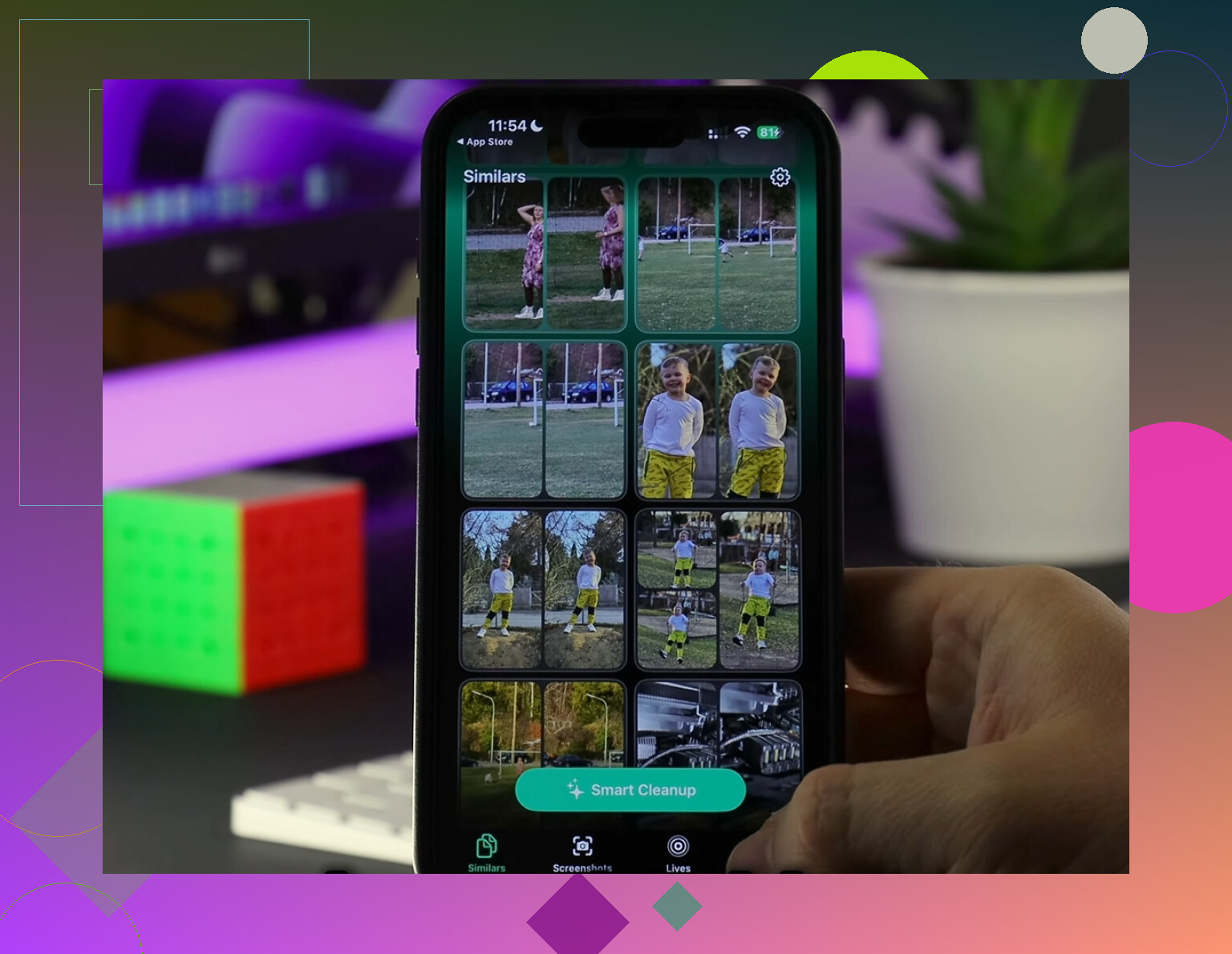
What stood out to me was how direct it felt. The Heavies section groups your largest media first, so you see the giant 4K clips and bloated screen recordings right away. There’s also a Similars section, which groups near-duplicate photos. Mine was packed with repeated shots from concerts, receipts, and blurry attempts at taking one decent pic in low light. I kept one, trashed the rest, done.
I also liked one small thing most cleanup apps gloss over. It handles the scan on the device itself. I’m picky about photo privacy, so I did not want my library sent off somewhere for analysis. It also shows file sizes clearly before deletion, which made sorting screenshots and videos much less annoying.
After I cleared space, the difference was not subtle. The lag faded, the camera stopped choking when I opened it fast, and those “Storage Almost Full” popups stopped showing up every time I tried to film something. If you go this route, finish the job and empty Recently Deleted after cleanup. I missed that step once. Dumb mistake, lol. The space didn’t come back until I did.
90 Likes
Emptying Recently Deleted does not always drop the Photos storage number right away. iOS often waits to re-index the photo library. That cleanup job might take minutes, hours, or even a day if your library is large.
A few things cause the “ghost” usage:
- Photos database lag. The library database and thumbnails stay behind for a bit.
- iCloud Photos sync. If sync is running, storage numbers look wrong until it finishes.
- Edited photos and video render files. Crops, filters, slo-mo data, and Live Photo data sit outside the visible album count.
- Shared Albums storage. Those items do not live in Recently Deleted.
- System cache. iOS labels some photo cache as Documents & Data, which is annoyng.
I slightly disagree with @mikeappsreviewer on one point. Toggling iCloud Photos off and on is not my first move. It sometimes creates a long re-sync and more local cache for a while.
Try this order instead:
- Restart iPhone.
- Plug into power and Wi-Fi.
- Leave Photos open for a few mins.
- Check Settings, General, iPhone Storage, Photos again after a few hours.
- Make sure Shared Albums is empty if you use it.
- Check for iOS updates.
If the storage still looks huge after 24 to 48 hours, the library is often bloated with duplicates, edited clips, or giant videos. Clever Cleaner is useful for spotting those fast. If privacy matters, read this first, see why security researchers rate AI cleaner apps as safe.
Also, if you use “Optimize iPhone Storage,” the number under Photos does not always shrink the way you expect. iOS keeps some local files no matter what. Kinda dumb, but taht’s how it works.
What usually trips people up is that Photos storage on iPhone is not just the visible photos/videos count. Emptying Recently Deleted removes the items, but iOS can still show space tied up by:
- photo library databases
- thumbnail caches
- face/object recognition data
- edited-photo render files
- Shared Library / Shared Albums leftovers
- synced-but-not-yet-purged iCloud copies
So yeah, sometimes the number looks “wrong” even when it’s technically not wrong. Just very Apple.
I agree with parts of what @mikeappsreviewer and @chasseurdetoiles said, but I’d push back a bit on waiting forever for iOS to “figure it out.” If it stays huge for more than a day or two, that usually means there’s still actual photo-related data somewhere, not just a delayed graph.
A few things I’d check that they didn’t really dig into:
-
Screen Recordings folder
A lot of people delete from Recents and forget the Media Types section still has giant recordings or ProRes clips. -
Hidden album
Stuff in Hidden still counts fully. -
Files app downloads
If you saved images/videos from Photos into Files, deleting from Photos won’t touch those. -
Messages attachments
Photos sent in iMessage can exist separately under Messages storage. -
Shared Library
If you use Apple’s Shared Library feature, deletions can be less obvious than with a normal library.
Also, check whether Photos is doing background indexing. If your phone is warm, charging, and idle, it may still be chewing through cleanup.
If you want a faster way to spot what is actually taking space, Clever Cleaner is decent for surfacing huge videos, duplicates, and similar shots that Photos itself hides behind bad menus. Not magic, but useful.
For anyone searching this issue later: iPhone Photos storage still large after deleting Recently Deleted usually means cached photo data, hidden media, shared albums, edited files, or delayed iOS storage recalculation. Also worth reading real Clever Cleaner app reviews for clearing iPhone photo storage.
If the number is still bloated after 48 hours, I’d honestly suspect leftover media, not just a visual bug. Apple’s storage panel is kinda trash at explaining this stuff tbh.
I’d split this into two buckets: real leftover data and bad reporting.
I slightly disagree with @chasseurdetoiles and @byteguru on the “wait and see” part if the number is massive. A small delay is normal. A giant Photos footprint after a full purge usually means something else is still anchored to the library subsystem.
Stuff that gets missed a lot:
- On My iPhone > Photos-related exports in Files
- Cinematic, slo-mo, and ProRAW sidecar data
- Image search / People indexing blobs
- Third-party editors like Lightroom or Instagram drafts duplicating media outside Photos
- Recently saved attachments in Messages, which people mistake for Photos storage issues
One thing worth trying that wasn’t really emphasized: take a fresh local backup, then check storage again after the phone has been idle and charging overnight. I’ve seen iOS reclaim weird media bookkeeping only after backup and maintenance tasks complete. Not guaranteed, but less disruptive than flipping iCloud settings around.
Also check Settings > Privacy & Security > Analytics & Improvements > Analytics Data only if storage is critically tight. Rarely, giant log buildup makes the overall problem look like Photos.
If you want to identify actual large media fast, Clever Cleaner is fine for that.
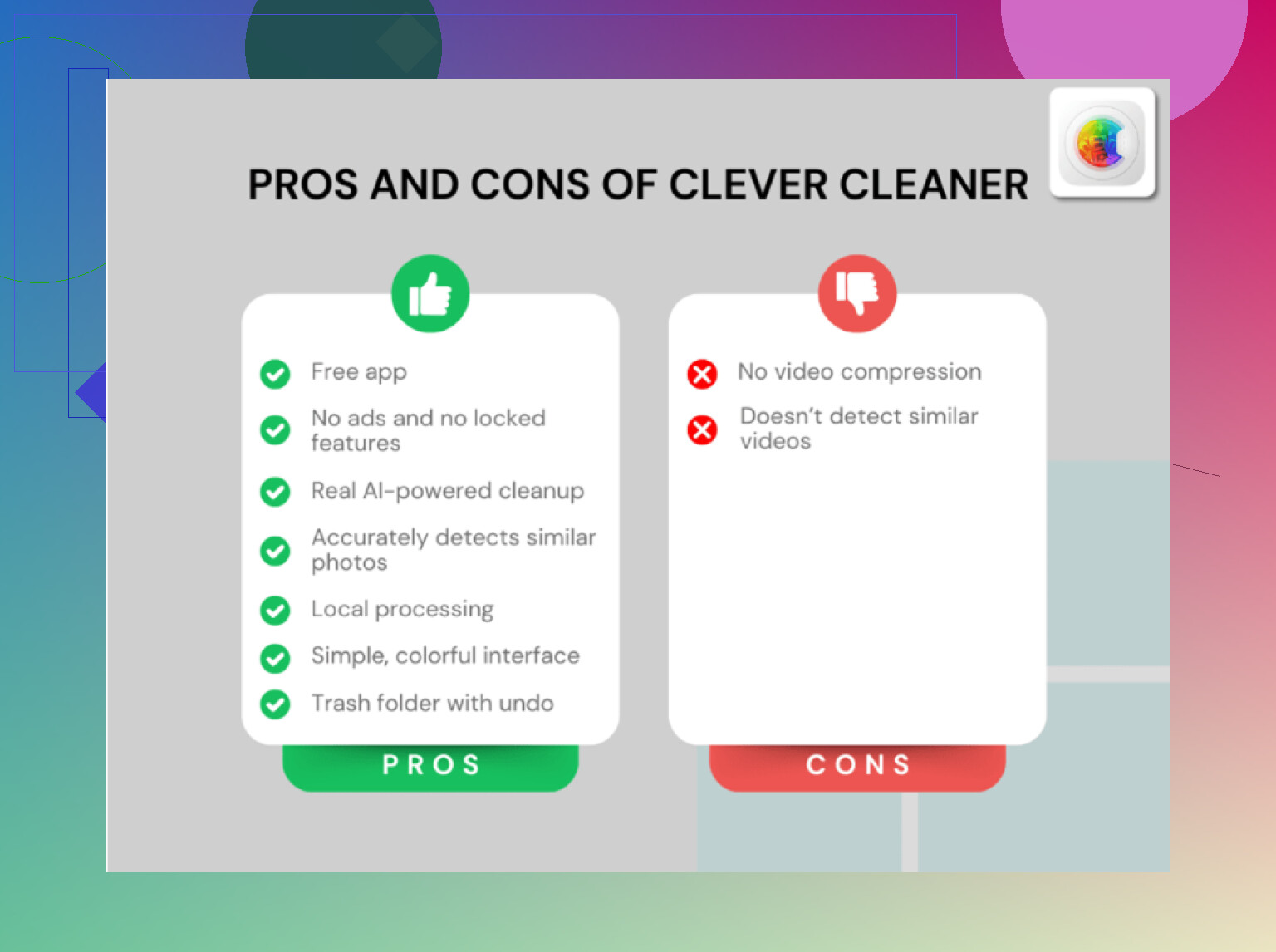
Pros:
- quick duplicate and large video detection
- easier overview than Apple’s Photos menus
- useful if hidden clutter is the real cause
Cons:
- won’t fix iOS storage misreporting by itself
- cleanup apps can still miss media stored inside other apps
- you still need to verify before deleting
So: if it drops within a day, probably reporting lag. If not, I’d suspect leftover render files, hidden media, exports, or duplicated app copies before assuming iOS is just confused.
Try forcing Photos to refresh its storage database.
Take one new photo. Edit it slightly, then save it. Delete the photo and empty Recently Deleted again. Next, lock your iPhone and leave it charging for 30 minutes. This small library change often triggers iOS to recalcuate Photos storage.
Then open Settings, General, iPhone Storage. Stay on the screen for one minute while the totals update.
This avoids changing iCloud settings, reinstalling apps, or using cleanup tools. If the number stays unchanged after several hours, the issue is likely stuck indexing rather than real photo files.
The thing nobody flagged yet: if you have Optimize iPhone Storage turned on, deleting stuff can actually make the local number stubborn, not smaller. iOS keeps a mix of full-res and optimized copies, and after a big purge it sometimes pulls fresh optimized versions of what you kept. So you clear space, and the phone quietly backfills part of it. That alone explains a lot of ‘why didn’t it drop’ posts.
Second thing worth checking before you go chasing render files and hidden albums. Recently Deleted syncs through iCloud. If you emptied it on the iPhone but you also have a Mac or iPad on the same account, the count you see in Settings can still reflect what iCloud thinks is there until every device agrees. Give it time on Wi-Fi and don’t panic on hour one.
@hidden_gadget’s trick of snapping a photo, editing, deleting to nudge the recalc is genuinely fine, and it’s the lowest-risk thing in this whole thread. But it only helps if the problem is a stuck counter. If there’s real leftover media, no amount of poking the database makes it go away. That’s the part people keep conflating. Stuck number and actual bloat look identical in the storage bar, and the fixes are completely different.
Where I’d push back a little: @byteguru and @boswandelaar are right that a giant footprint after 48 hours usually means real data, but I’d narrow it down before assuming render files or indexing blobs. Nine times out of ten it’s plain large video sitting somewhere you forgot. ProRes and 4K60 clips eat storage faster than any thumbnail cache ever will. Sort iPhone Storage by Photos, then look inside for the biggest single items first instead of theorizing about databases.
On Clever Cleaner, it fits for exactly that step, spotting the heavy videos and near-duplicates faster than Apple’s menus let you. I’d treat it as a flashlight, not a fix. It shows you what’s fat so you can decide, but it won’t touch iOS reporting lag and it can’t see media locked inside other apps like Messages or Files. So use it to find the real hogs, delete, empty Recently Deleted, then wait out the counter.
My blunt take: don’t toggle iCloud Photos off, don’t reinstall anything, don’t back up just to force maintenance yet. Restart, verify Optimize Storage isn’t the reason, hunt the big videos, wait a day. If it’s still wrong after that, then it’s real data and you keep digging.