I deleted a ton of photos from my iPhone, emptied Recently Deleted, restarted the phone, and checked iCloud Photos, but my iPhone storage still hasn’t gone down. Photos seem removed, yet storage is still full and I can’t install apps or take new pictures. What else can I try to actually free up iPhone photo storage?
I’d start with Recently Deleted before doing anything more complicated. A lot of people delete a bunch of photos and assume the space is gone, but iOS keeps them around for 30 days unless you manually clear that folder.
Go to Photos, open Albums, scroll down to Utilities, then open Recently Deleted and hit Delete All. If you deleted stuff from the Files app too, check Recently Deleted there as well. Until you clear those out, the files can still count against your storage.
After that, restart the phone. Not just lock and unlock it, actually power it off and back on. iOS can be weird about recalculating storage, so sometimes the free space doesn’t show up right away. I’ve had the available storage jump after a reboot because the phone finally refreshed the numbers.
Also check whether you have iCloud Photos with “Optimize iPhone Storage” turned on. If that’s enabled, your phone may only be storing smaller local versions of your photos while the full-size ones live in iCloud. So deleting a ton of photos can feel like it should free up a huge amount, but locally you might only be removing thumbnails or smaller cached versions.
If the phone still says it’s full, look at System Data. That used to be called Other, and it can get huge from app caches, Safari data, streaming apps, failed update files, and random leftovers. If System Data is sitting around 20GB or more, something may be stuck. You can try clearing Safari cache, offloading apps, deleting big app caches where possible, but it gets annoying fast.
The thing that helped me most was using Clever Cleaner. I’m usually pretty skeptical of cleaner apps because a lot of them are packed with ads or trial traps, but this one is free and doesn’t have the usual paywall nonsense.
It’s useful because it catches the stuff you don’t always notice in Photos. The Similars section finds near-duplicate shots, like ten versions of the same picture, and lets you keep the best one. The Heavies tab shows the biggest files, which is usually where the real storage damage is hiding, especially 4K videos. The Screenshots section is also handy because it shows the file size for each screenshot. That made it pretty obvious how much space was being wasted on random junk.
One more odd fix: the Date and Time trick. Sometimes deleted photos are stuck somewhere in the database but don’t show in Recently Deleted. Go to Settings > General > Date & Time, turn off Set Automatically, and set the year back a couple of years. Then check Recently Deleted again. If old “ghost” photos show up, delete them permanently. Just make sure you turn automatic time back on afterward, because apps can break when the date is wrong.
If none of that works, the last resort is a factory reset. Back up to a computer first. If System Data is actually corrupted or bloated beyond fixing, wiping the phone and doing a fresh iOS install is usually the cleanest way to reset it.
So yeah, do the simple stuff first: clear Recently Deleted, restart, check iCloud optimization, then look for big videos and duplicate photos. Most of the time the space is there, iOS is just being stubborn about showing it.
23 Likes
Deleting the photos isn’t the same as freeing the space instantly. If iCloud Photos is still syncing or the phone is low on power/storage, iOS can sit there with a stale Photos number for hours, sometimes longer, until it finishes rebuilding the library index.
Leave it plugged in on Wi-Fi overnight before doing anything drastic like a reset.
Check the free space number in Settings > General > iPhone Storage, not just the colored Photos category. That category can lag or be flat-out wrong while iOS reindexes, so you may have gained space even if the Photos label still looks huge. I agree with @codecrafter that leaving it plugged in on Wi-Fi is worth doing, but I’d be careful about toggling iCloud Photos off and on while storage is tight, since that can start a messy sync/download cycle. If the actual available GB has not changed after a night, plug the phone into a Mac or PC once and leave it unlocked for a few minutes. Weirdly, that can force housekeeping and storage recalculation without jumping straight to a wipe.

Don’t start deleting from iCloud.com unless you’re fine with those photos disappearing from every device tied to that Apple ID. A lot of storage advice skips that warning, and it matters if you have a Mac, iPad, or another iPhone syncing the same library.
The thing I’d check that hasn’t really been called out is the sync status inside the Photos app itself. Open Photos, go to Library, scroll all the way to the bottom, and look for the little status line. It may say something like syncing paused, updating, restoring from iCloud, not enough iPhone storage, or waiting for Wi-Fi. If Photos is stuck there, the storage screen can keep showing nonsense because the local photo database has not finished reconciling what was deleted.
Low Power Mode can make this worse too. Turn that off, plug the phone in, connect to Wi-Fi, open Photos once, then leave it alone for a while. Not “use it while charging,” actually let it sit locked. iOS does a surprising amount of photo cleanup when the phone is idle.
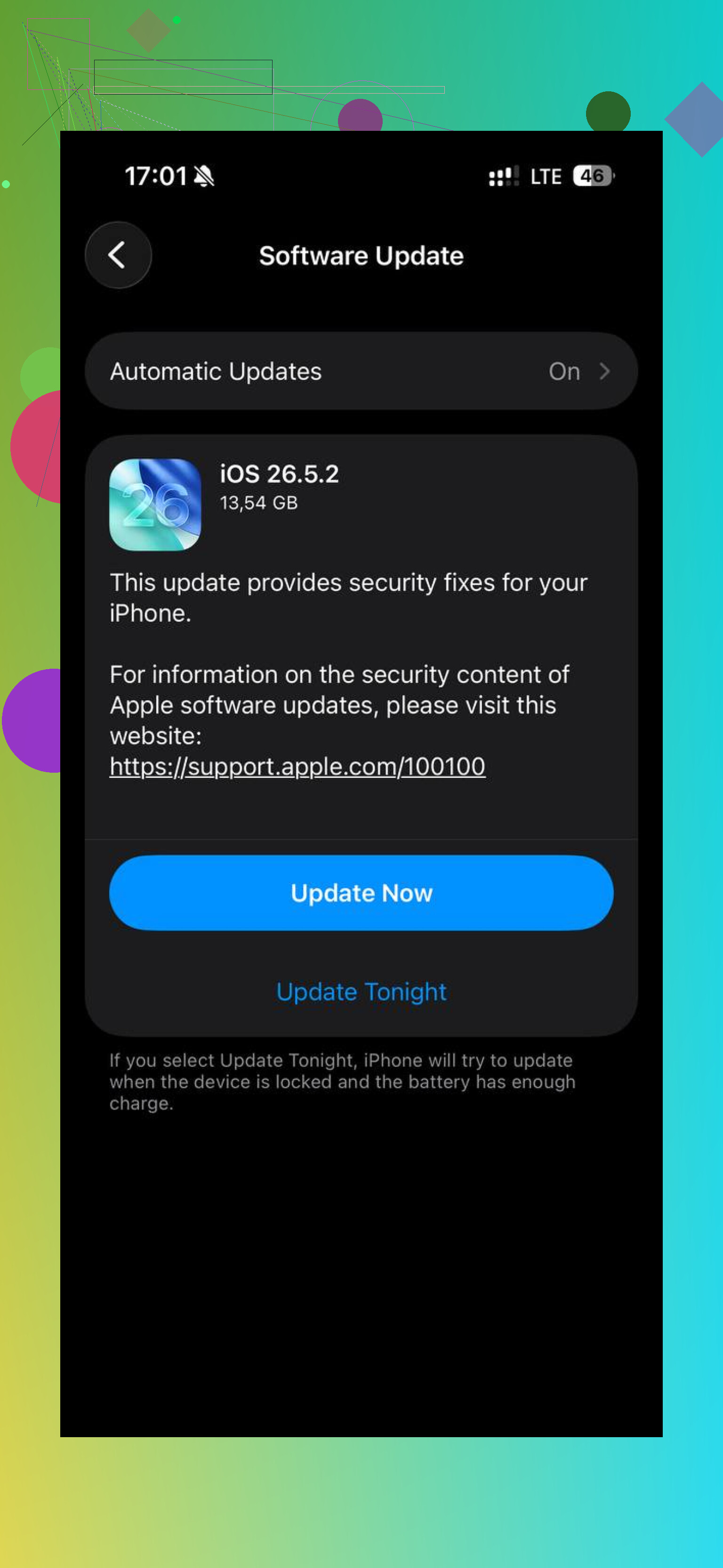
If the phone is completely jammed with almost no free space, you may need to free a small amount somewhere else first before Photos can clean itself up. Delete a downloaded Netflix/Spotify/YouTube cache, remove offline maps, offload one large game, or delete old iOS update files if one is sitting there. It sounds backwards, but iOS sometimes needs working room before it can finish deleting and rebuilding indexes.
I’d be skeptical of any cleaner app fixing the actual stuck storage calculation. Something like Clever Cleaner can be useful for finding large videos or duplicate junk inside Photos, but if you already deleted everything and emptied Recently Deleted, the remaining problem may be iOS housekeeping, not more visible photos. At that point I’d focus on getting a few GB of temporary breathing room and checking the Photos sync status before going anywhere near a factory reset.