I accidentally deleted the wrong partition while managing my drive, and now I’m trying to recover it without formatting or losing the files that were on it. The partition had important data, and I need help figuring out the safest way to restore a deleted partition and recover my files before I make the problem worse.
I messed this up once too, and the first thing I learned was simple. Don’t write anything to the drive.
When a partition gets deleted, Windows often removes the partition record first. Your files are sometimes still sitting there, untouched, until new data lands on top of them. So right now, leave the disk alone. Don’t format it. Don’t build a new partition on the empty space. Don’t copy random stuff over to it because “it’s only one file.” That’s how recovery gets worse.
Open Disk Management and check what Windows shows.
- If the partition still appears and only lost its drive letter, adding the letter might fix the whole thing.
- If the area shows as Unallocated, I’d skip repair attempts at first and go straight for file recovery.
What I used was Disk Drill. It found deleted partitions for me, and in my case it also kept folder names and filenames instead of dumping everything into chaos. That part mattered more than I expected.
Here’s the short version of the recovery flow.
- Install Disk Drill on a different drive. Not the damaged one.
- Start it, then pick the physical disk where the deleted partition used to live.
- Hit Search for Lost Data.
- If it’s an external drive, Disk Drill might ask which recovery mode you want. I’d pick Universal Scan for most jobs. If the lost files came from a camera card or drone footage, use Advanced Camera Recovery.
- Wait. On big drives this takes a while, and yeah, it feels endless.
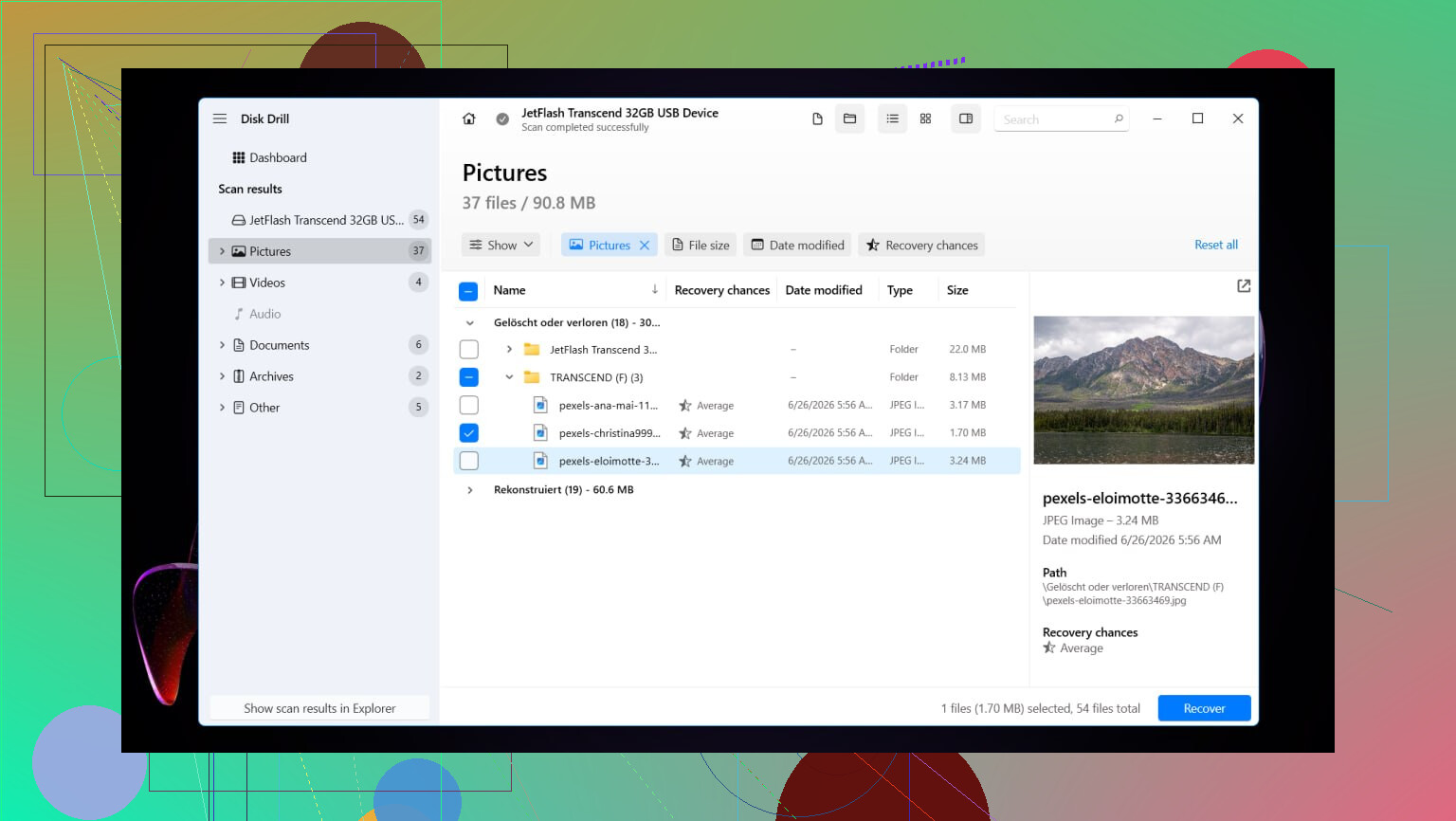
- If the deleted partition shows up, open it and check the contents.
- Preview a few files before restoring anything. I always test docs, photos, and one larger file.
- Select the files you need and click Recover.
- Save everything to another drive. Don’t send recovered files back to the same disk.
After your files are safe, you’ve got two paths. You can try to rebuild the old partition layout with TestDisk, or you can quit messing around and make a new partition in Disk Management. If your goal is data first, then rebuilding later is easier on the nerves.
I did this on Windows 11. Windows 10 is close enough where the same process still applies. A few menus look older, that’s about it.
Restore the old partition with TestDisk
If you want the original partition back instead of only pulling files off the disk, TestDisk is the free tool I’d try.
- Download TestDisk, extract it, and run testdisk_win.
- Choose Create when it asks about the log file.
- Select the physical drive with the deleted partition.
- Leave the detected partition table type unless you know it’s wrong.
- Pick Analyse, then run Quick Search.
- If nothing useful appears, run Deeper Search.
- When the missing partition shows up, highlight it and choose Write.
- Confirm the change, then restart the PC.
If the partition table wasn’t overwritten too badly, the partition often comes back after reboot. Not always, but often enough to be worth the try after your files are secured.
Make a new partition instead
If you already recovered what matters and only want the drive usable again, this route is quicker.
- Press Win + X and open Disk Management.
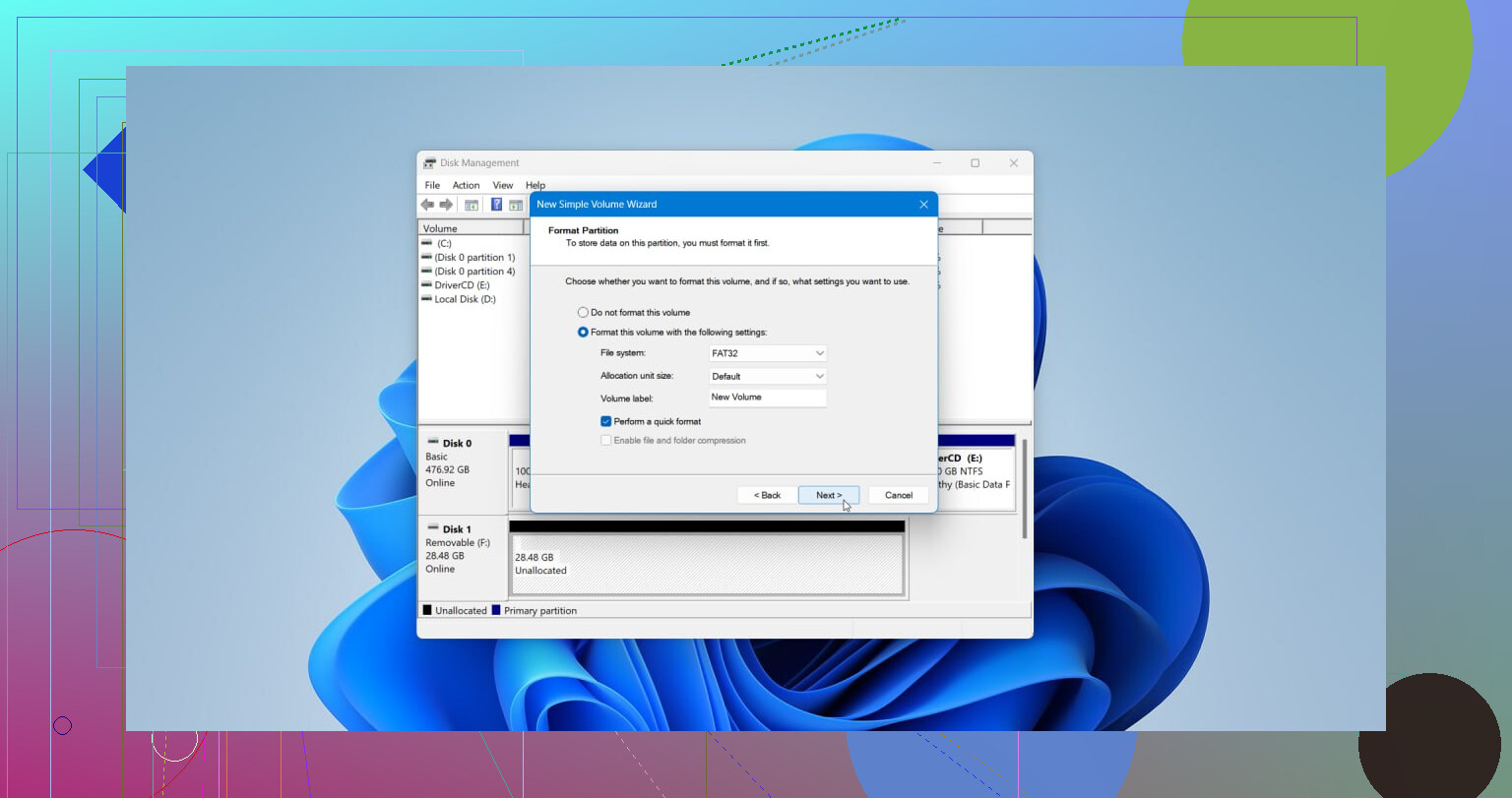
- Right-click the Unallocated space and choose New Simple Volume.
- Walk through the wizard. Set the size if needed, assign a drive letter, and choose NTFS unless you need something else.
- Keep Perform a quick format checked, then finish.
Once it’s done, copy your recovered files back over and move on with your life. That’s the cleaner option if you don’t care about preserving the old partition exactly.
15 Likes
Stop using the drive first. That part from @mikeappsreviewer is 100 percent right.
I’d add one thing. Check if you deleted a partition entry, or if the file system itself got damaged. Those are different problms. If the disk still shows the old size in tools like DiskPart, but Windows says RAW or asks to format, I would try reading SMART first with CrystalDiskInfo or smartctl. If health is bad, clone the disk sector by sector before doing anything else. ddrescue is better for flaky drives than working on the original.
I would not rush into rebuilding the partition table unless the data is backed up somewhere else. Writing the wrong partition map makes recovery harder. Data first, repair second.
If you want the files without formatting, Disk Drill is a solid option because it scans the physical disk and often finds deleted partition data by signature plus file system records. R-Studio and UFS Explorer are also strong if Disk Drill misses stuff, esp on damaged NTFS or exFAT.
Two quick checks people skip:
- In DiskPart, run list disk, select disk X, list volume. Sometimes the volume exists and only lost its letter.
- In Device Manager and BIOS, confirm the drive size is correct. Wrong size often points to hardware trouble, not a simple delete.
If this is an SSD, move fast. TRIM can wipe deleted blocks after the partition is removed. On HDDs, odds are better.
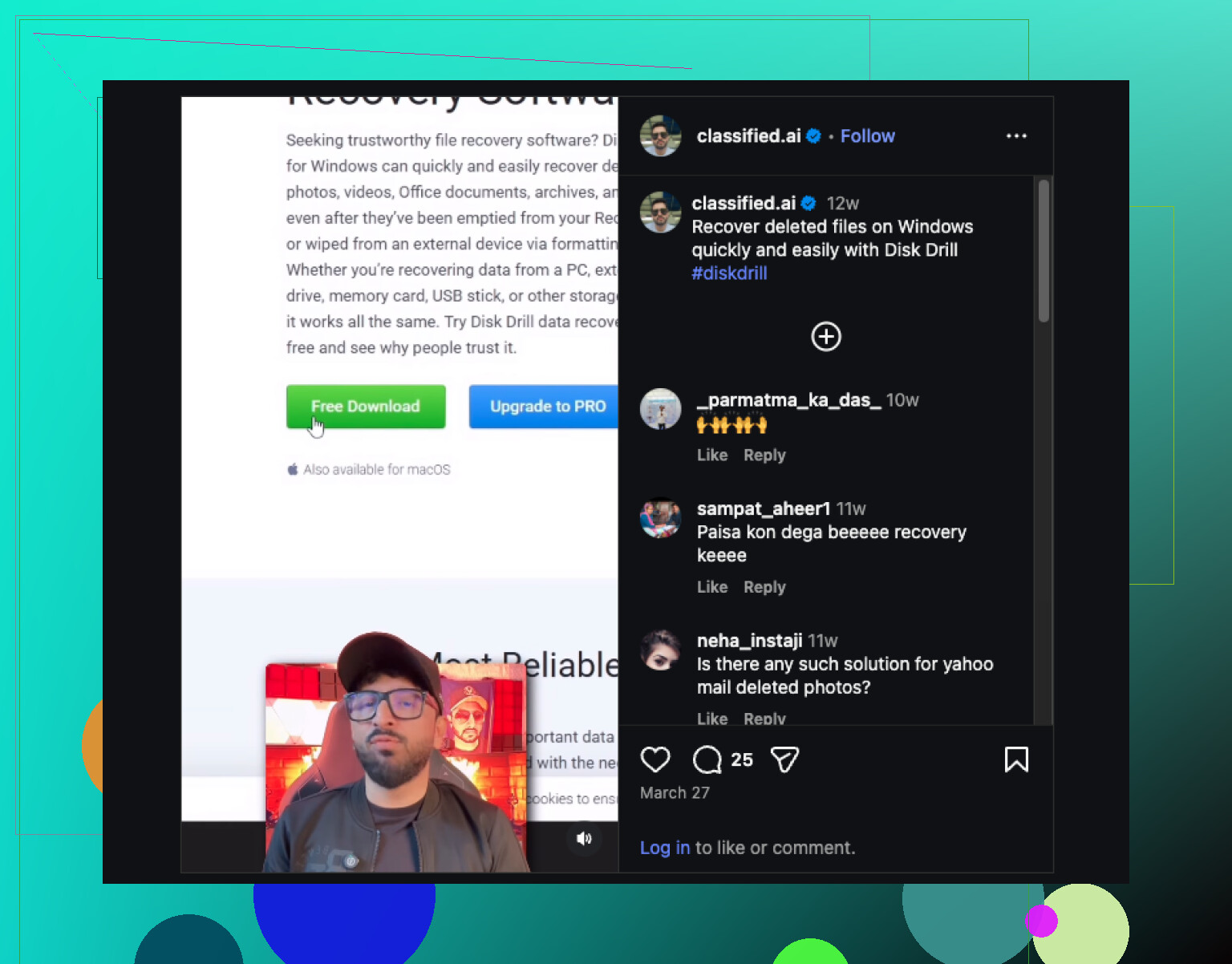
Also, if you want a quick visual guide, this Windows data recovery video walkthrough is easier to follow than a wall of menus.
So yes, restore without formatting is possible. Best path is scan the disk, recover files to another drive, then decide if you want to rebuild the partition. Thas the safer order.
One small disagreement with @mikeappsreviewer and @shizuka: I would not jump straight into trying to restore the partition structure unless you’re very sure nothing else touched that disk. If Windows, Disk Management, or some wizard already “helped,” the safer move is to treat this like data recovery first, partition repair second.
A few things that matter:
- If it was an HDD, chances are decent.
- If it was an SSD, TRIM can make this way uglier, way faster.
- If the deleted partition was BitLocker-encrypted, recovery is still possible, but you’ll need the key and the recovered partition/filesystem may not mount cleanly.
What I’d check that hasn’t been said much:
- See if the disk is Dynamic, Storage Spaces, or part of RAID. If yes, stop using normal partition repair advice. That stuff changes the game.
- Boot from another OS or a USB stick and inspect the drive read-only if possible. Sometimes Windows gets a little too eager.
- If you only need a few critical files, prioritize those first. Don’t waste hours trying to make the whole partition pretty before grabbing the tax docs / photos / project files.
Disk Drill is a solid call here because it can scan the whole physical device and often detect the lost partition’s contents even when Windows just shows unallocated space. I’d use it for recovery before messing with rebuilding anything. Then if you still care about restoring the original layout, do that after your files are off the drive.
Also, this is a pretty decent read if you want more practical deleted partition recovery tips that actually make sense.
Main thing is do not format, do not create a new volume, and do not “test stuff” on the same disk. That’s how a fixable mistake turns into a permanant one.
I’m with @codecrafter on one thing: recover the data first, repair later. I slightly disagree with any “just write the partition back” instinct unless you’re sure nothing touched that space after deletion.
A couple checks I’d add:
- If the disk is GPT, compare the primary and backup GPT headers. Sometimes one survives and tools can rebuild from that without formatting.
- Check whether the lost partition was encrypted, compressed, or part of a VM/container file. That changes what “successful recovery” looks like.
- If this happened on an external USB enclosure, test the drive through a direct SATA/NVMe connection if possible. Bad bridge chips can fake partition problems.
About Disk Drill: good choice if you want file recovery without messing with the partition table first.
Pros:
- easy preview of recoverable files
- scans the whole physical disk, not just mounted volumes
- usually handles deleted partition cases well
Cons:
- not the cheapest option
- deep scans can lose original folder structure on badly damaged file systems
- less surgical than specialist tools when metadata is heavily broken
So my order would be:
- Stop using the disk
- Verify hardware and SMART
- If unstable, clone first
- Use Disk Drill to pull important files to another drive
- Only after that, consider TestDisk or manual partition rebuild
@shizuka, @codecrafter, and @mikeappsreviewer already covered the obvious safety rules well. The only real mistake now would be formatting or creating a new volume before getting the files off.