I deleted some downloaded files on my iPhone and now I’m trying to figure out if they were moved to Recently Deleted first or removed right away. I need help finding out where deleted downloads go in the Files app so I can see if there’s still a way to recover them.
I hit this wall more than once, and iPhone storage cleanup still feels weirdly split up. You delete stuff, then your phone acts like you did nothing. If your iPhone is throwing the ‘Storage Almost Full’ warning, or typing feels delayed and apps stutter, low free space is often part of it.
Streaming app downloads are one of the first gotchas. Netflix, Spotify, YouTube, Disney+, stuff like that usually keeps offline files inside the app itself. You will not clear most of those from the main iPhone storage menus. You need to open each app, find its Downloads or Offline area, and remove the files there.
One small shortcut exists for Apple Music. If you want to wipe downloaded songs fast, go to Settings > Music > Downloaded Music, tap Edit, then remove All Songs. If you only check the main storage screen and skip this part, old media tends to sit there eating space.
The other thing people miss is ‘Recently Deleted.’ On iPhone, deleted does not always mean erased.
If you remove a PDF or document in the Files app, it usually sits in Recently Deleted for 30 days. To clear it for real, open Files, go to Browse, then Recently Deleted, and remove it from there. Photos works the same way. Delete a bunch of videos, feel productive, then notice storage barely moved. Yep. Those files are often still parked in the Photos app under Recently Deleted in the Utilities section. If you need space now, you have to delete them again.
There is one useful trick if you want a file off the phone but still want access later. In the Files app, if the item lives in iCloud Drive, press and hold it and choose ‘Remove Download’ instead of Delete. I use this a lot. It clears the local copy from your iPhone, but keeps the file in iCloud. Later, you tap the cloud icon and pull it back down.
Browser downloads get buried too. Chrome and Firefox often stash files in their own folders inside Files. Open Files, go to ‘On My iPhone,’ and look for folders with the app names. I found old ZIP files, PDFs, and random junk there, stuff I had forgotten I ever downloaded.
If storage still looks wrong after a cleanup, two usual reasons show up. First, one of those trash folders still has your deleted files. Second, iOS takes its time updating the storage breakdown, especially System Data. A restart sometimes nudges it into showing the freed space.
I ran into this a while back when my phone got so slow I was mistyping every other sentence. Turned out I had a pile of duplicate photos and old 4K video downloads clogging things up. Doing it by hand was miserable and slow.
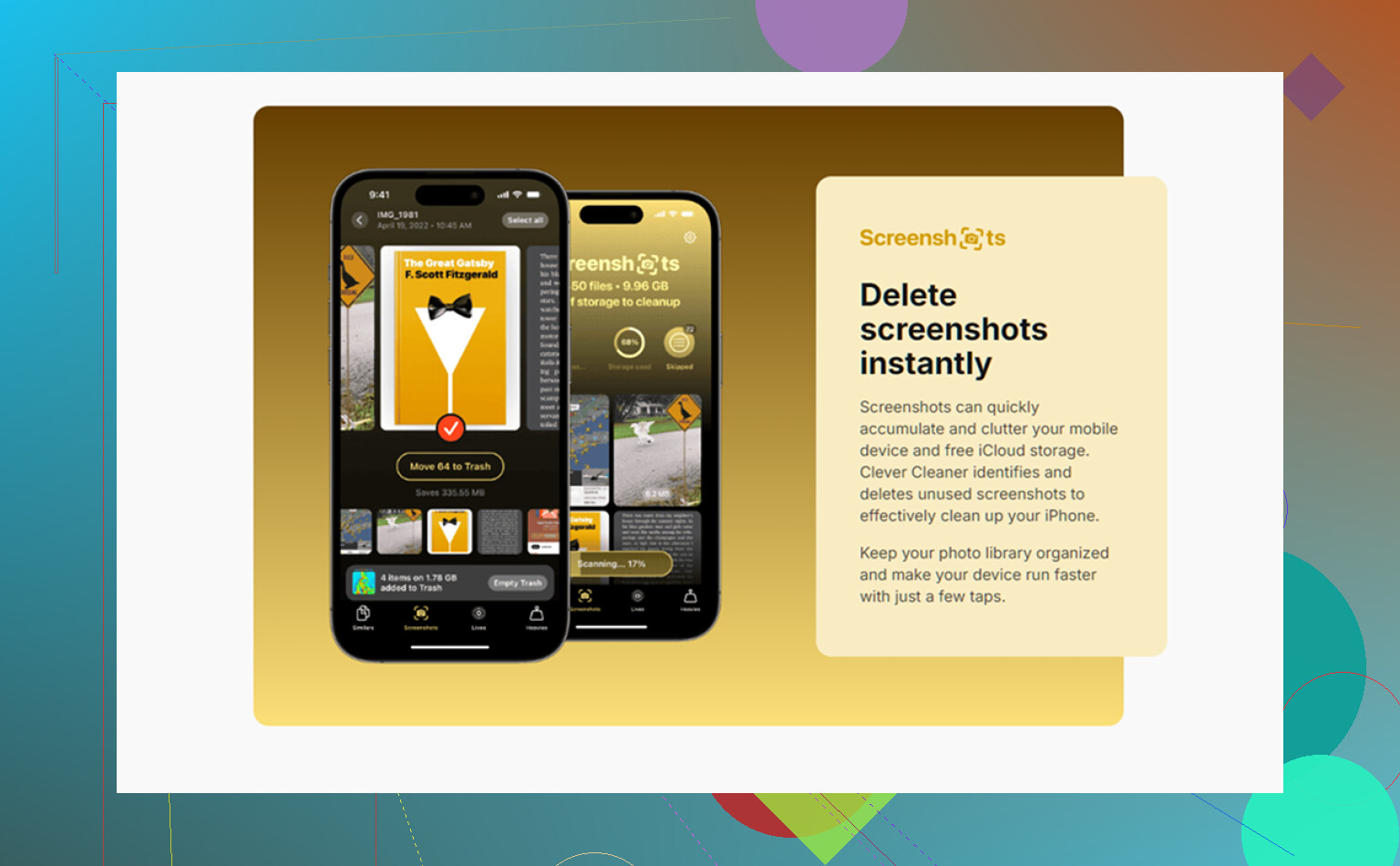
I ended up using a cleanup app called Clever Cleaner. Out of all the ones I tried, this was the only one I kept. Most of the others felt like trap apps with subscriptions, locked features, or ad spam. This one was free, no paid tier shoved in my face, no ad mess.
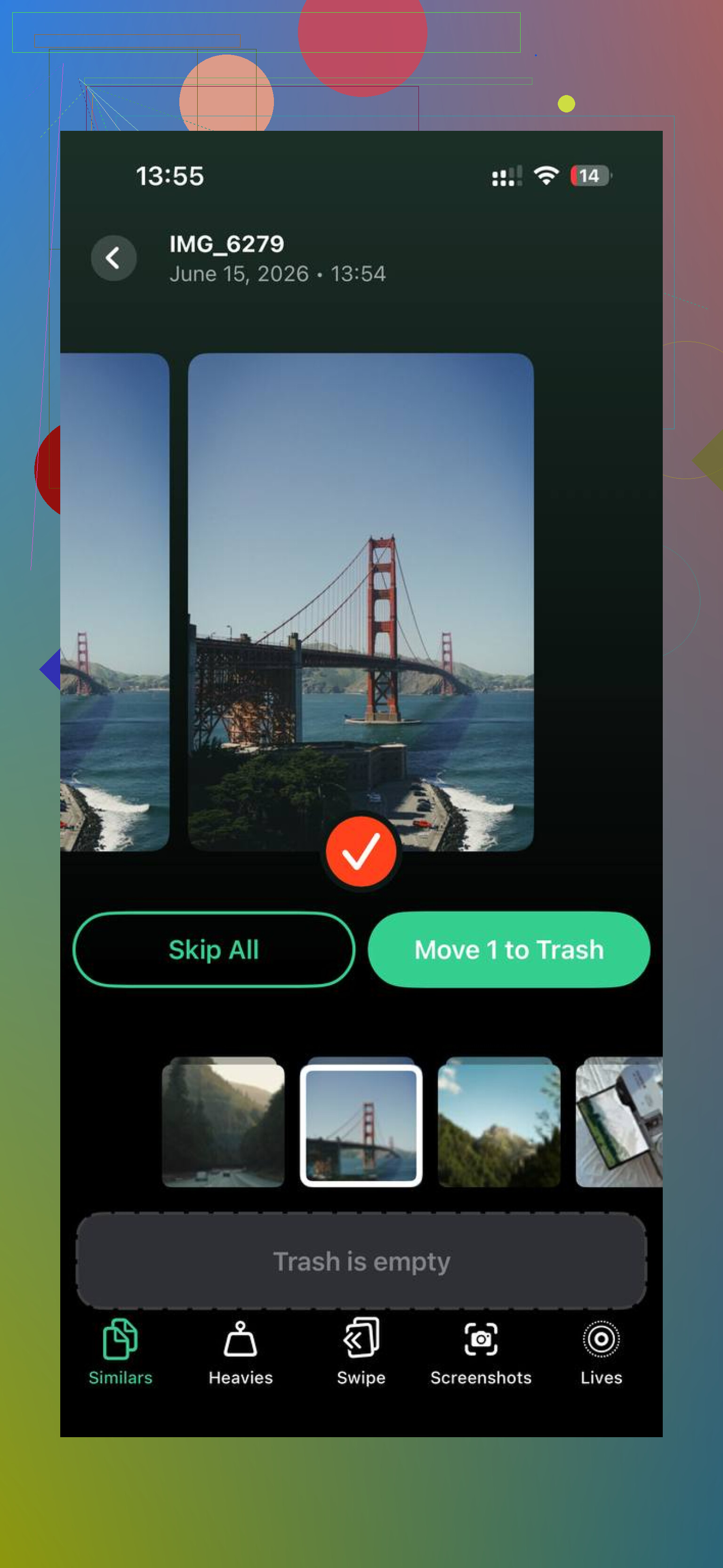
The part I kept using was the Heavies tab. It lists photos and videos by file size, so you can spot the biggest storage hogs fast. If one random video is taking 2GB, it stands out right away. There is also a Similars tab, which groups near-duplicate photos, like the eight versions of the same shot you took without noticing. It picks a best shot, then you decide what stays.
What sold me was how it handled privacy. The sorting and scanning stayed on the device, so my photo library was not being pushed to some unknown server. After I cleared around 30GB of duplicate images and oversized videos, the lag was gone on my phone.
So yeah, if you are cleaning up storage, check these in order:
- Streaming apps, from inside each app.
- Files app, especially Recently Deleted.
- Photos app, especially Recently Deleted.
- iCloud Drive files, use Remove Download when you want to keep them in the cloud.
- Browser folders under Files > On My iPhone.
- Restart the phone if the storage graph still looks off.
The big mistake is stopping after the first delete. On iPhone, a lot of clutter gets moved before it gets removed.
13 Likes
If you deleted downloads from the Files app, they usually go to Recently Deleted first. They do not vanish right away.
Check here:
Files app > Browse > Recently Deleted
If the files are there, they stay for up to 30 days unless you erase them manualy. Tap Select, then Delete to remove them for good. If you want them back, tap Recover.
Small catch. Not every “download” on iPhone behaves the same way. I’d disagree a bit with @mikeappsreviewer on one part, because some app downloads never touch the Files trash flow at all. If the file came from Safari and saved into Files, yes, look in Recently Deleted. If it came from an app with its own storage system, it often skips Files completely.
Fast way to check where it went:
- Open Files.
- Tap Browse.
- Check Recently Deleted.
- Check iCloud Drive, Downloads.
- Check On My iPhone, Downloads.
If you deleted a file from iCloud Drive in Files, it often lands in Recently Deleted inside Files too. If you removed a local copy only, it might be gone at once.
If your goal is storage cleanup, emptying Recently Deleted matters. Until you do, space may not come back. If Photos are eating space too, a cleanup tool like Clever Cleaner helps spot large files and dupes faster. User feedback and cleanup results are easier to scan here: Clever Cleaner user reviews and real cleanup results.
So, short answer, yes, Files downloads usually go to Recently Deleted first. Check there frst.
Yep, usually if you deleted downloads from the Files app, they go to Recently Deleted first, not poof-gone instantly. That part @mikeappsreviewer and @nachtdromer got right. But I’d push back a little on the idea that all deleted downloads behave that way, because iPhone storage is annoyingly inconsistent.
What actually matters is where the file lived before you deleted it:
- Files app, iCloud Drive, On My iPhone: usually goes to Files > Browse > Recently Deleted
- Photos app attachments saved as images/videos: separate trash, not Files
- App-specific downloads like Netflix or Spotify: often deleted inside the app and may bypass Files completely
- Remove Download is different from Delete. That just removes the local copy, so there may be nothing in Recently Deleted at all
One thing people miss: if you deleted something from a third-party app’s folder, the app itself may clear it right away or keep its own hidden cache. So if you can’t find it in Recently Deleted, that doesn’t always mean you imagined deleting it lol.
If your goal is storage recovery, check the file size in Files after emptying Recently Deleted, then give iPhone a few mins. Storage totals lag sometimes.
Also, if you’re cleaning up bigger space hogs, Clever Cleaner is actually useful for finding giant videos, duplicate pics, and similar junk fast. If you want to see how it works, this Clever Cleaner iPhone storage cleanup video review explains it better than Apple does tbh.
So short version: Files downloads usually go to Recently Deleted first, but not every download on iPhone follows that rule. Apple keeps it weird, as usual.