I imported photos from my iPhone to my computer, but they’re still taking up space on my phone. I noticed the Imports album in Photos and I’m not sure if it helps identify which pictures were already transferred so I can safely delete them. I need help figuring out the best way to remove already imported iPhone photos without deleting anything I still need.
Pulling photos off an iPhone and then deleting the originals should be easy. It isn’t. I ran into different behavior on Windows, on a Mac, and on the phone itself.
Why delete stays grayed out after import
The thing I kept seeing was iCloud Photos getting in the way. If iCloud Photos is on and syncing, the iPhone treats the library like the computer should look but not touch. Apple’s sync copy takes priority, so the delete option on the computer often gets disabled.
What fixed it for me was turning off iCloud Photos for a bit before plugging the phone in. Path is Settings > Photos > iCloud Photos. After that, reconnect and check again.
Windows method
In the Windows Photos app, there’s usually a checkbox during import for deleting items after the transfer. When it was grayed out on my side, iCloud Photos was the reason.
If Photos keeps acting flaky, skip it.
- Plug the iPhone into your PC with USB
- Open File Explorer
- Find the iPhone under Devices
- Go into Internal Storage > DCIM
- Select the photos you already copied, right-click, delete
I had better luck doing it this way. Fewer sync weirdness issues, less guessing.
Mac method
On macOS, Photos also shows a delete-after-import option, but I saw it vanish when iCloud Photos was enabled.
The workaround I trust more is Image Capture, which is already on the Mac.
- Connect the iPhone with USB
- Open Image Capture from Applications
- Pick the iPhone from the sidebar
- Press Command + A to select everything
- Hit the delete icon
Image Capture feels more direct. It works more like a plain file tool, so it tends to avoid some of the Photos app behavior tied to syncing.
Delete them on the iPhone itself
If you want to do it on-device, the Imports album is the easiest place I found.
- Open Photos
- Tap Albums
- Scroll down to Utilities
- Open Imports
- Tap Select, choose the items you already backed up, delete them
One part people miss, I did the first time too. Those deleted files go into Recently Deleted and still take up space for 30 days. You need to clear that too.
Go to Albums > Recently Deleted > Delete All.
Until you do this, your storage number often won’t move. It looks like nothing happened, which is annoyng, but it’s normal for iPhone.
How to verify the space came back
After emptying Recently Deleted, open Settings > General > iPhone Storage and look at Photos. If the number dropped, the cleanup worked.
I’d also reboot once. iOS sometimes takes a minute, or a restart, to recalculate storage properly.
Why the phone still feels full after clearing imports
Deleting imported shots only solves part of it. On my phone, the bigger mess was duplicate-looking pictures, burst sets, and old videos I forgot were there. When free space gets tight, iOS starts tripping over itself. Apps hang, camera feels slow, random stutter shows up.
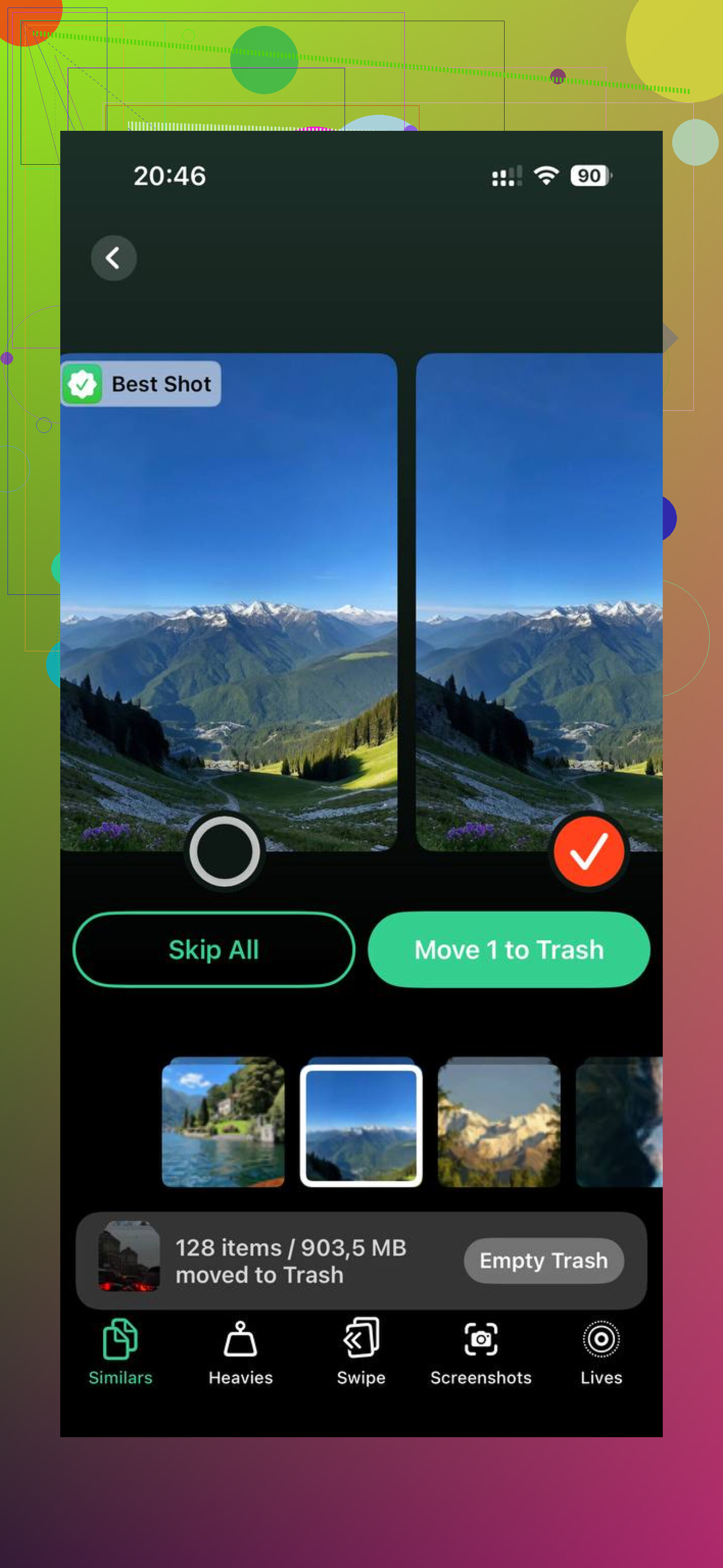
After the manual cleanup, I used Clever Cleaner to sort through the leftover junk. The useful part for me was the Heavies section, which lists the biggest files first with their sizes, so the space hogs show up fast. The Similars section grouped near-matching photos and picked a Best Shot, which helped clear burst runs without going one by one. Sizes were shown before removal, and the processing stayed on the phone.
On my side, running it after the import cleanup freed more storage than I expected, and the lag I still had mostly went away.
38 Likes
Yes, the Imports album helps, but only as a rough sorting view.
It shows photos and videos brought onto your iPhone from other sources, and on newer iOS versions it also helps surface recently imported items. What it does not do is confirm, with 100 percent accuracy, which photos were copied to your computer. So I would not trust it as proof of backup. That part matters.
I slightly disagree with @mikeappsreviewer on using Imports as the main delete method. It’s handy, but it’s not a true “already transferred to PC” list. If your import to the computer skipped files, or made duplicates, the album won’t tell you.
Safer approach:
- Confirm the files open on your computer.
- Check the photo count, or compare a few file dates.
- On iPhone, sort Photos by Recents or use search by month.
- Delete in batches, not all at once.
- Empty Recently Deleted.
If storage still looks full, iPhone often keeps space tied up by large videos, duplicates, and burst photos. That’s where Clever Cleaner helps more than the Imports album. It scans for duplicate pics, similar shots, and big files, so you free space faster without guessing. This covers the common issue of imported iPhone photos still taking up storage after transfer. I found this thread useful for freeing up iPhone photo storage after import.
Short version, Imports is useful, but don’t rely on it alone. Verify first, then delete. Otherwise you risk removing stuff you did not back up, which would suck tbh.
Imports is useful, but I think people give it a little too much credit. @mikeappsreviewer is right that it can be a handy place to look, and @mike34 is right that it is not proof of what made it to your computer.
My take: treat the Imports album like a hint, not a receipt.
The bigger issue is this: importing photos to a PC or Mac does not automatically remove them from the iPhone unless you explicitly used a delete-after-import option and it actually worked. Most of the time, the transfer is just a copy. So yes, they still take up space on the phone becasue they are still there.
What I’d do instead is use your computer’s import folder as the source of truth. Sort the imported files by date, then on the iPhone delete matching date ranges in small batches. That’s safer than trusting the Imports album blindly. Also check whether some of the space is from videos, since those are usualy the real storage killers.
One more thing people miss: Photos storage can stay bloated because of duplicates, edited copies, and large clips scattered through the library. If that’s happening, Clever Cleaner is actually useful for this kind of cleanup. It helps find duplicate photos, similar shots, and the biggest files eating iPhone storage, which is often faster than hunting through Albums manually. This see how to clean up iPhone photo storage fast clip gives a decent quick look at it.
So, short answer: the Imports album helps organize, but it does not reliably tell you “these are safely backed up and ready to delete.”

Imports is useful, but I actually disagree a bit with making it the center of the cleanup. It’s an album view, not a verified “successfully exported to computer” log. So I’d use it only after you confirm your backup another way.
What matters more is this distinction:
- imported to computer = copied
- deleted from iPhone = separate action
That’s why your phone storage didn’t drop.
One thing not mentioned enough by @mike34, @viajeroceleste, and @mikeappsreviewer is that edits can complicate this. If you imported originals to a PC, then later edited or favorited photos on the iPhone, the Imports album still won’t tell you which exact version exists where. Same with Live Photos, which sometimes land on a computer in a less obvious format.
My rule: trust the destination folder on the computer, not the Imports album.
Also check this before deleting a lot:
- are your photos already in iCloud Photos
- are they also in Google Photos, OneDrive, or Dropbox
- did your computer import HEIC videos/photos correctly
If storage still feels weird after cleanup, the culprit may be duplicates, large videos, or hidden clutter rather than just imported shots. That’s where Clever Cleaner can help.
Pros of Clever Cleaner:
- easy way to spot duplicates and similar photos
- finds large files fast
- quicker than manual scrolling
Cons:
- not a backup verifier
- you still need to review before deleting
- “similar” photos are subjective sometimes
So yeah, Imports helps identify candidates, but it does not certify they’re safe to erase.
A simpler option is iCloud Photos with Optimize iPhone Storage.
Go to Settings > Photos. Turn on Sync this iPhone, then select Optimize iPhone Storage. Leave the phone charging on Wi-Fi overnight.
Your full-resolution files stay in iCloud. The iPhone keeps smaller versions and removes local originals when space runs low. This avoids sorting Imports or deleting hundreds of photos by hand.
Check iCloud storage first. Also wait until Photos shows syncing is complete. This wont free space instantly, but it reduces photo storage without risking manual deletion mistakes.
Don’t lean on the Imports album to decide what’s safe to erase. Here’s the part nobody’s said flat out: that album collects stuff that came onto your phone from somewhere else, like an SD card, AirDrop, or another device. It is not a record of what left your phone for the computer. So treating it as your ‘already backed up’ list is backwards from the start, and @mike34 and @himmelsjager are right to keep pointing at the destination folder instead.
Bigger trap though, and this cuts against the tidy iCloud suggestion from @0xserver6: if iCloud Photos is switched on and you start deleting on the phone, those deletes push up to iCloud and every other synced device. Optimize Storage is genuinely handy if you’re paying for enough iCloud room and you want the library to manage itself. But if the whole point was to pull photos to a computer and stop paying for cloud space, turning sync on defeats that. Know which camp you’re in before you touch anything.
My actual workflow is dull but it works. Open the import folder on the computer, sort by date, then delete matching date ranges on the phone in small chunks so a mistake stays small. For the leftover bloat afterward, Clever Cleaner is free and doesn’t ask you to make an account, which is the main reason I bother with it over the built-in stuff. Just don’t expect any tool, that one included, to certify a photo is safely on your computer. That check is still on you.