My hard drive suddenly stopped showing up after my computer froze, and I have important work files, family photos, and personal documents on it that I never backed up. I’m looking for advice on safe hard drive data recovery steps, what to avoid doing, and whether this sounds like something I can fix myself or if I need a professional recovery service.
I’ve been through this once, and the first move is boring but important. Stop touching the drive. Don’t save to it. Don’t install recovery apps on it. Don’t keep opening folders to “check one more time.” If it’s your boot drive, shut the machine down and hook the disk up to another PC as a secondary drive if you can.
What you do next depends on what failed. There’s a big gap between a messed-up file system and a drive with dying hardware.
Run a S.M.A.R.T. check first. On Windows, CrystalDiskInfo works. On Mac, DriveDx is fine. You’re looking for bad sectors, reallocated sectors, read errors, stuff like that.
These signs made me back off fast when I saw them:
- Repeated clicking or ticking
- Grinding or scraping during spin-up or reads
- The drive drops off the system while you’re using it
- Your whole PC locks up when you open the drive
- It spins, but the system never detects it
If you’re getting any of those, don’t hammer it with scan after scan. I did that years ago on an old HDD and it got worse by the hour. At that point, a lab starts making more sense. DriveSavers and Ontrack are the names people keep bringing up for a reason.
If the drive isn’t making ugly noises, check the easy places first. I know this sounds dumb, but I’ve found “lost” files sitting in Trash more than once. Then check backups:
- Windows File History
- Windows Previous Versions
- Mac Time Machine
- Cloud trash folders in OneDrive, Google Drive, Dropbox, and iCloud
- Email attachments, both sent and received
On Windows, right-click the folder and look for “Restore previous versions.” Even on systems where I forgot to set things up right, shadow copies were sometimes there. Weird, but useful.
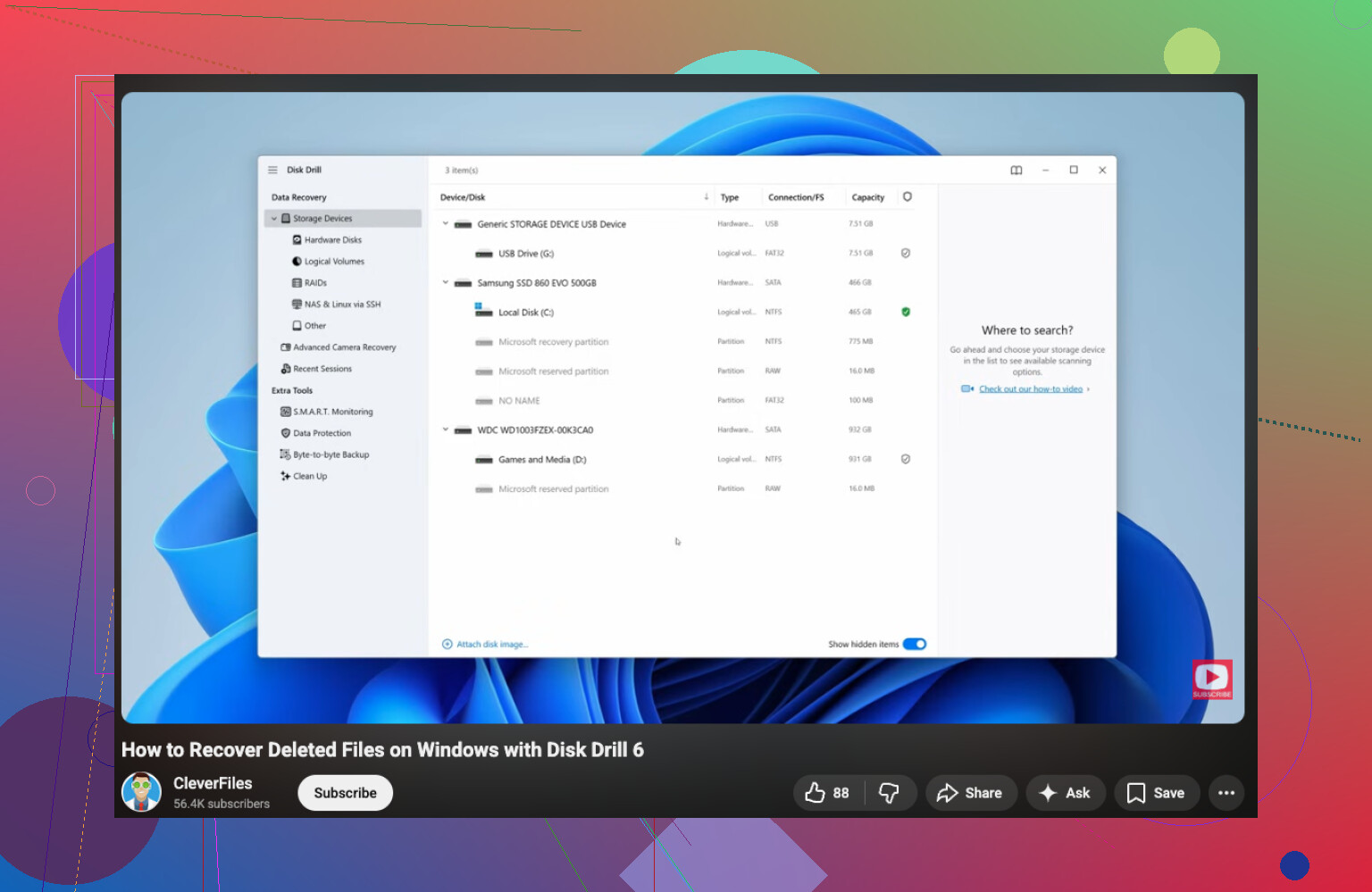
If none of that turns up anything, move to recovery software. I’ve had decent results with Disk Drill. It’s decent for deleted files, broken partitions, formatted disks, and RAW volumes. The file preview helps, since seeing a filename alone means nothing if the file is already trashed.
The order matters here:
- Install the recovery app on another drive.
- Attach the bad HDD as a secondary disk if possible.
- Run a quick scan first.
- Use deep scan only if the quick pass misses your files.
- Preview files before recovery.
- Save recovered data to a different disk, never back onto the same HDD.
- Open a sample of recovered files and check them before you call it done.
If the drive shows bad sectors, I’d image it first, sector by sector, then work from the image. That saved me once when a flaky drive got worse halfway through. You get one cleaner shot at recovery if the original keeps degrading.
If it’s clicking hard, not spinning up, or software sees the drive but finds nothing useful, I’d stop there and send it out. Labs are expensive, usually somewhere around $300 to $1500 or more, depending on how bad it is. Still, if the files matter, that price starts to look less insane.
Best case, it’s a logical issue and you pull the data back with software. Start with S.M.A.R.T., then the easy recovery checks, then scanning. Don’t rush it. taht part matters more than people think.
19 Likes
If the drive vanished right after a freeze, I’d put cable and power issues higher on the list than @mikeappsreviewer did. I’ve seen loose SATA cables and weak USB enclosures make a drive “disappear” with zero warning. Swap ports. Swap cables. Remove the drive from the enclosure if it’s external and connect it direct if you have the gear.
Also, check BIOS or UEFI first. If the drive is missing there, your OS tools won’t help much. If BIOS sees it but Windows Disk Management shows “Not Initialized,” do not initialize it. People click that in panic and make recovry harder.
If it’s an SSD, time matters more. Leave the PC off until you’re ready. TRIM can reduce recoverable deleted data after more system activity.
One thing I disagree on a bit, S.M.A.R.T. is useful, but a drive can fail hard with “good” health still showing. I’ve had one do exaclty that.
If the disk mounts read-only or shows a damaged partition, make a clone first with ddrescue on Linux. Then scan the clone with Disk Drill. Better odds, less wear. For software help, this video guide to HDD recovery software and safe file recovery steps is a decent quick walkthrough.
If BIOS never sees it, or it smells burnt, stop. Lab time.
Freeze + drive disappearing is one of those moments where people make it worse by doing “just one more reboot.” I’d actually add one thing to what @mikeappsreviewer and @vrijheidsvogel said: check whether the problem is the bridge board, not the disk itself. External drives fail because of the USB-SATA adapter inside the enclosure all the time. The actual HDD is sometimes fine.
So my order would be a little different:
- Stop powering it on repeatedly.
- Test with a different cable/port/PC.
- If external, try removing it from the enclosure and connecting it directly.
- Check if the drive model appears correctly in BIOS/UEFI or Disk Management.
- If it does appear, clone first if possible, then recover from the clone.
- If it does not appear anywhere, stop messing with it.
I slightly disagree with relying too much on S.M.A.R.T. as a green light. It’s useful, sure, but “healthy” does not mean safe. I’ve seen drives pass S.M.A.R.T. and still be halfway to the grave lol.
Also, do not run chkdsk, First Aid, or random “repair” tools yet. People hear “scan and fix” and click it, then wonder why filenames turn into confetti. Recovery first, repairs later. Important diffrenece.
If the drive is visible enough to scan, Disk Drill is a reasonable choice because it’s easy to preview what’s still recoverable before copying files out. Just install it on another disk and recover to another disk. Not back to the problem drive. Yes, people still do that somehow.
If you need a step-by-step Windows guide, this is a solid Windows hard drive recovery walkthrough.
If the drive clicks, smells burnt, spins down instantly, or vanishes mid-read, skip software and go pro lab. At that point DIY gets real expensive real fast.
One angle I think @vrijheidsvogel, @cazadordeestrellas, and @mikeappsreviewer only touched lightly is power stability. After a freeze, a marginal PSU rail or bad laptop USB power delivery can make a perfectly readable drive vanish. So before assuming platter damage, test the drive on a powered dock or a desktop SATA connection with known-good power. I would rank that higher than running multiple diagnostics.
Also, if this is an HDD and it spins up but hangs the whole system, try reading it from a Linux live USB instead of Windows. Sometimes Windows Explorer chokes on a damaged file system and keeps hammering metadata, while Linux lets you mount read-only or at least identify whether the issue is partition-level versus hardware-level.
One small disagreement with the usual advice: I would not spend too long on software if the drive capacity shows up wrong in BIOS, like 0 MB or some nonsense size. That often points to firmware or PCB issues, and DIY recovery gets ugly fast.
If the drive does become readable long enough to work with, prioritize irreplaceable stuff first, not a full neat recovery by folder tree. Grab documents, photos, project files, passwords/exported browser data, then worry about the rest.
Disk Drill is fine for post-clone scanning and triage.
Pros:
- easy preview of recoverable files
- good for sorting by file type when the file system is wrecked
- beginner-friendly interface
Cons:
- not my first pick for a physically unstable drive
- deep scans can take forever on large disks
- recovery names/folder structure are not always preserved perfectly
So my version is: stabilize power, test outside the current setup, avoid repair tools, recover the highest-value files first, and if detection is weird at the hardware level, stop before turning a recoverable drive into a lab-only case.