I’m trying to manually install WordPress using FTP because the automatic installer isn’t working on my hosting account. I uploaded the WordPress files, but I’m stuck on the setup and database connection steps. I need help figuring out what I missed so I can get my WordPress site running correctly.
Hey folks, I wanted to share this because I see the question come up pretty often. Most tutorials just say “use Softaculous” and call it a day, but not every host has it. And honestly, knowing how to do this manually is worth it regardless, since you get a much better feel for how WordPress actually sits on your server.
The whole thing takes maybe five minutes once you’ve done it once.
 How to install wordpress using ftp manually
Step 1: Download WordPress
Go to wordpress.org and grab the latest version from the big “Get WordPress” button. Always use the latest stable release, not some older copy you have sitting around, since newer versions have important security patches baked in.
Once downloaded, extract the archive on your computer. You’ll see a wordpress folder with all the files inside. Don’t touch anything yet, just know what’s there.
Step 2: Upload the files via FTP
This is where you’ll need an FTP client. You connect to your server, navigate to the root directory of your domain (usually public_html), and upload everything. One important thing: don’t upload the wordpress folder itself. Go inside it and upload the contents. If you upload the folder, your site will end up at yoursite.com/wordpress instead of yoursite.com, which is probably not what you want.
 Which FTP client to use
As for which FTP client to use, here’s my take on the popular ones:
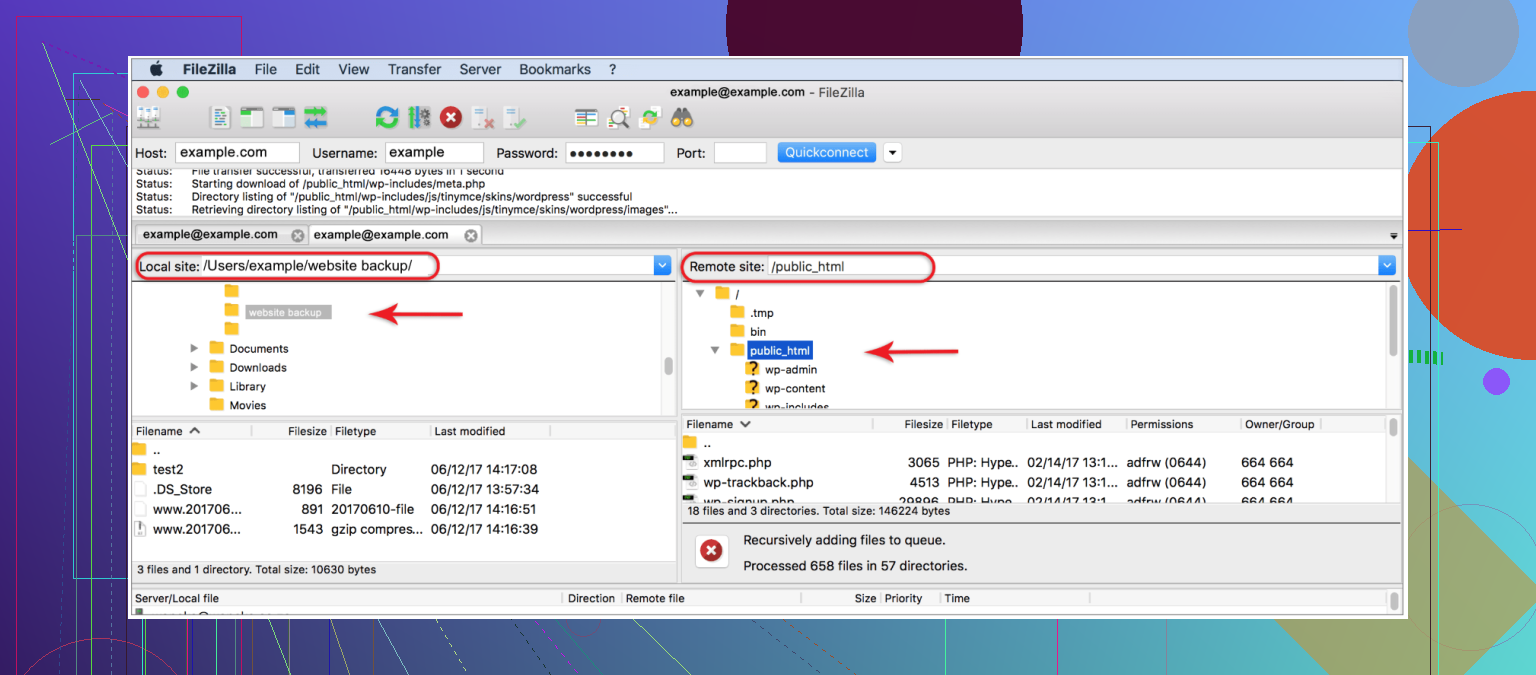
FileZilla is the one most people start with. It’s free, runs on Windows, Mac, and Linux, and does the job for everyday tasks. The downside I’ve personally noticed is that it slows down quite a bit when you’re dealing with large files or uploading a lot of them at once.
Commander One is what I’d suggest for Mac users. It’s paid, but it comes with proper FTP/SFTP support, handles archives natively so you can compress files before sending them to the server, and has a dual-panel layout that makes file management much less painful. If you’re doing development work regularly, it’s worth the cost.
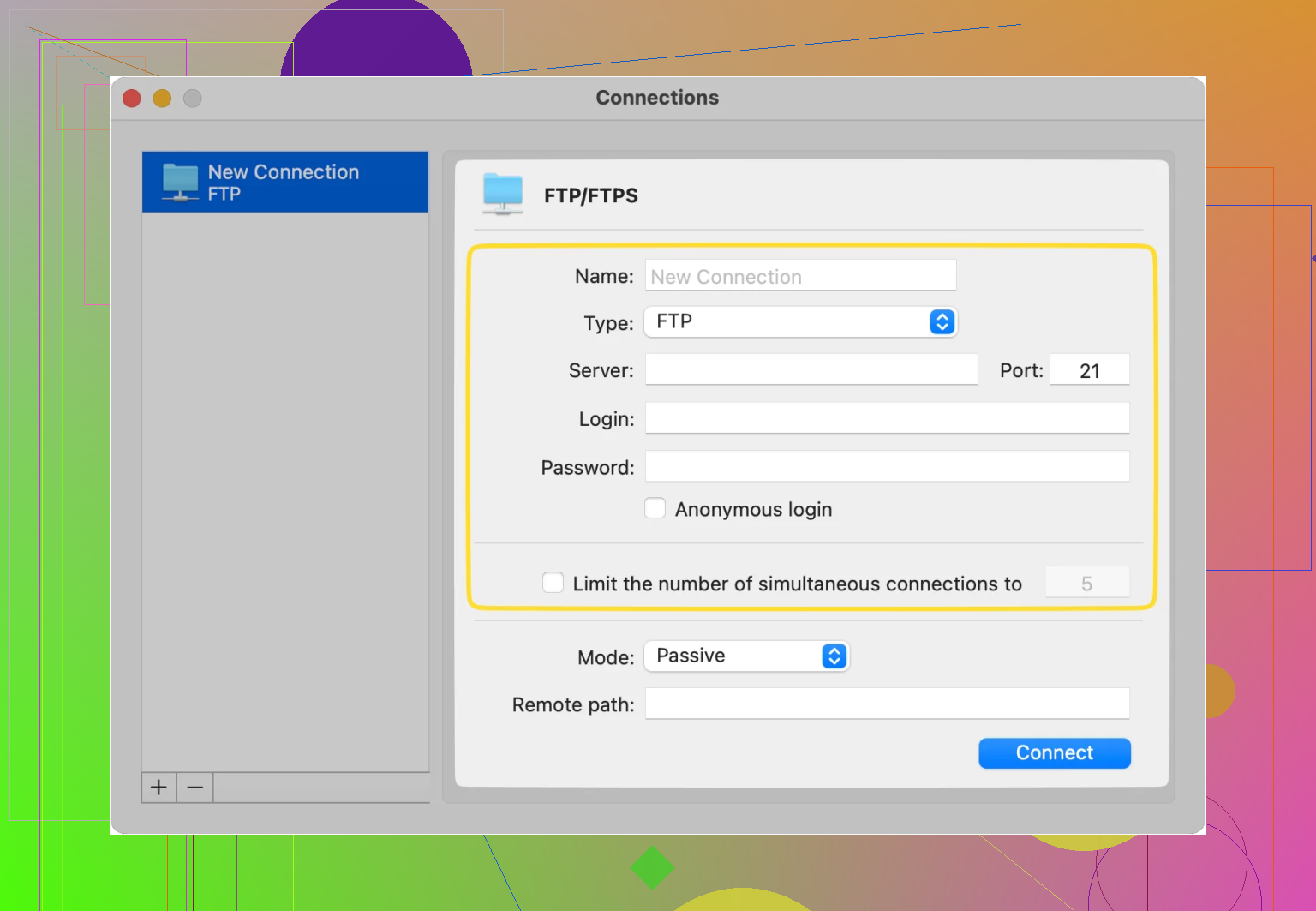
Cyberduck is free and open-source, which sounds great on paper. In practice though, a lot of users (myself included at one point) run into weird issues with basic stuff like renaming or moving files. Usable, but a little unreliable.
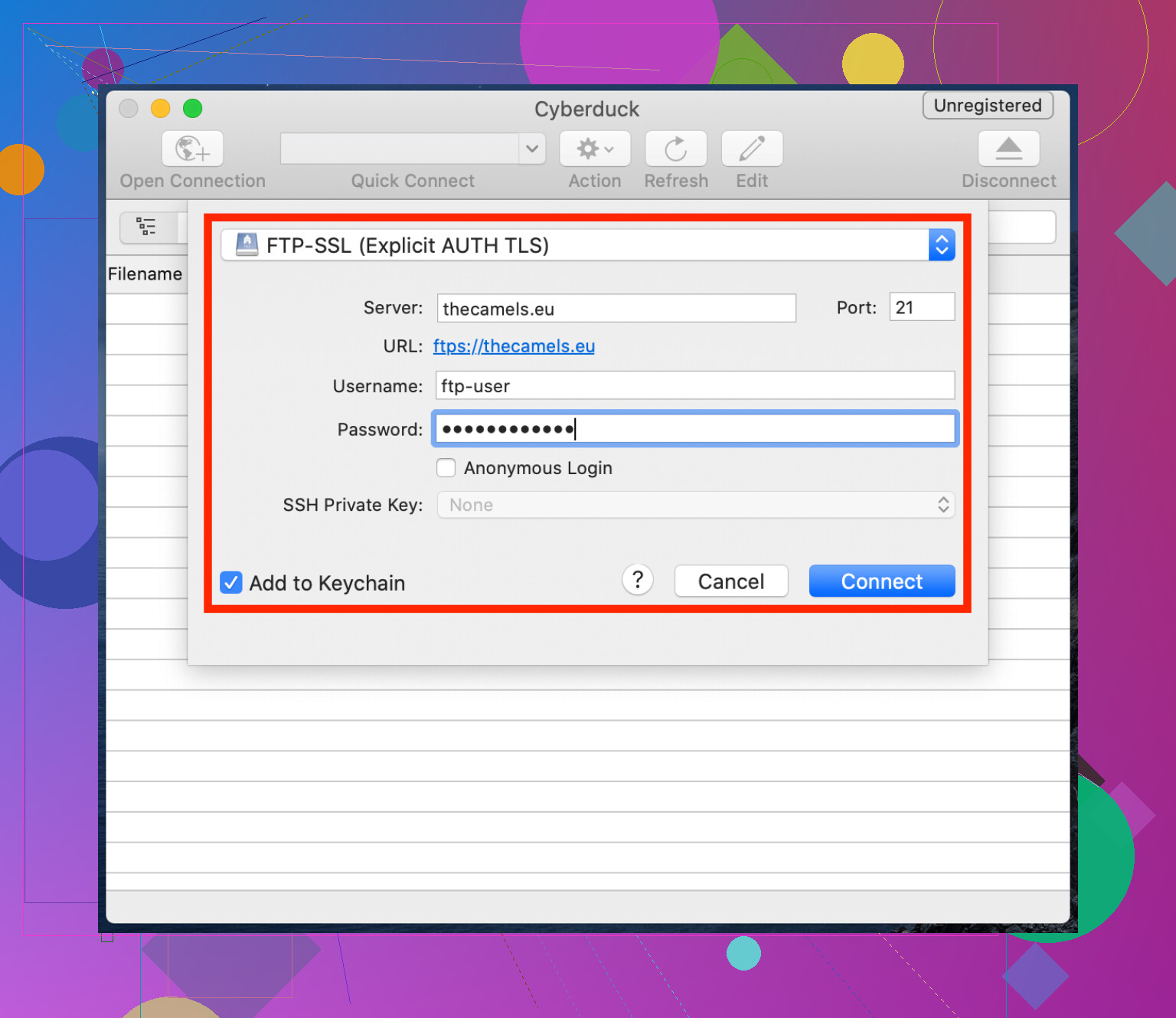
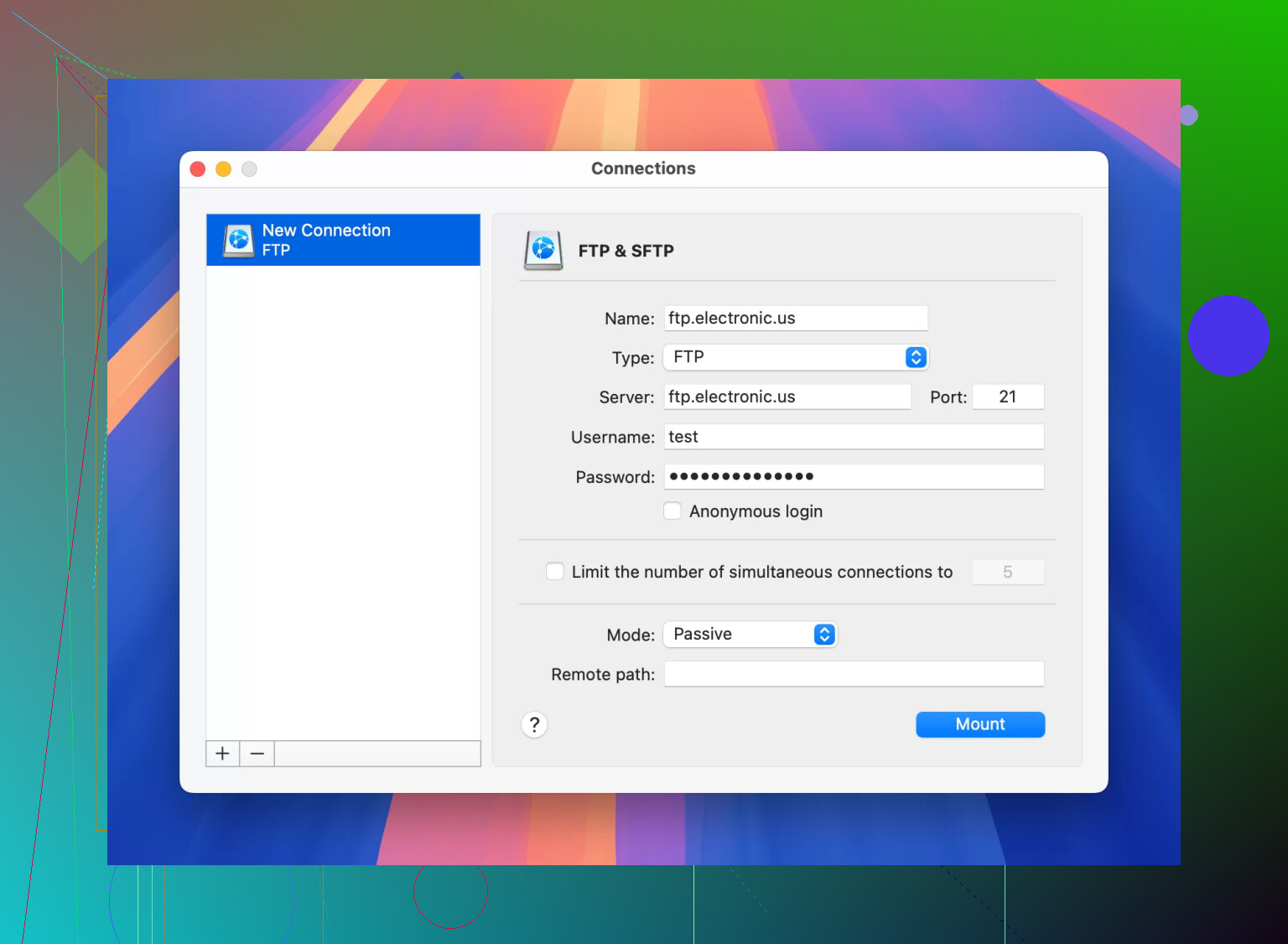
CloudMounter works on both Windows and Mac and takes a different approach entirely. It mounts your FTP server as a local drive, so you browse it straight from File Explorer or Finder like it’s just another folder on your computer. If you’re newer to all this and a traditional FTP interface feels confusing, CloudMounter is probably the most approachable option.
Step 3: Create a Database
WordPress needs a database to function, so before you run the installer you’ll need to set one up. Most hosts use cPanel, where you can find a “Database Wizard” that walks you through it step by step.
Write down the database name, username, and password as you go. You’ll need all three in the next step.
Step 4: Run the WordPress Installer
Once your files are uploaded and your database is ready, open your browser and go to your domain. WordPress will detect the files and start the setup automatically.
It’ll ask you to pick a language first, then on the next screen you’ll fill in your database details:
- Database name — what you named it in cPanel
- Username — the database user you created
- Password — the password for that user
- Database host — usually localhost unless your host told you otherwise
- Table prefix — default is wp_ but changing it to something less obvious is a small security improvement worth doing
Hit Submit, and if everything’s correct it’ll confirm the connection and let you move on.
Step 5: Create Your Admin Account
The last screen asks for your site title, admin username, password, and email. Fill these in carefully and save them somewhere. This is how you’ll log into your dashboard going forward.
There’s also a checkbox to hide the site from search engines while you’re setting things up, which is handy if you’re not ready to go live yet.
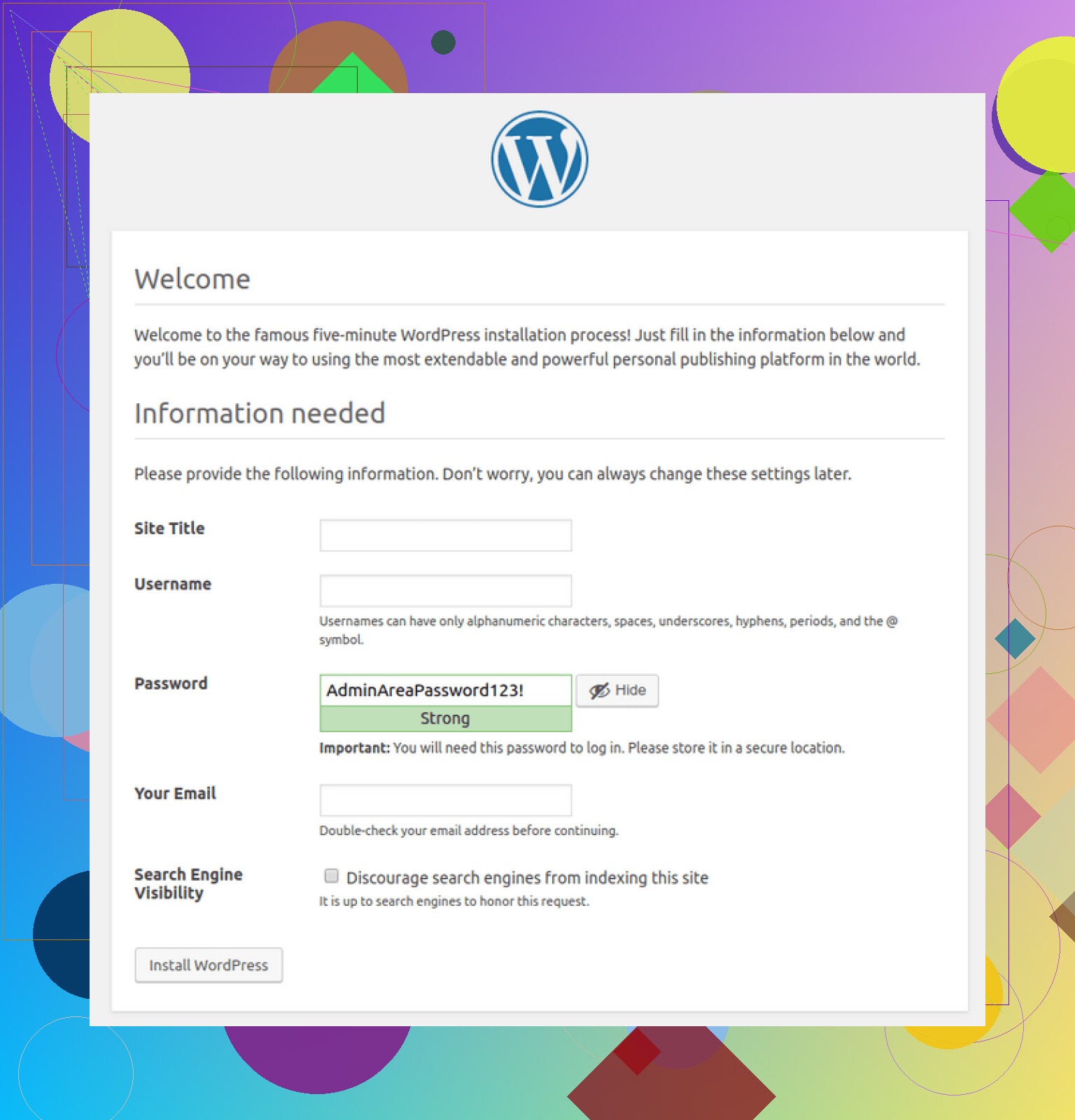
Click install, and that’s it. You’ll see a success screen with a login button.
7 Likes
If the files are already uploaded, you’re past the slow part. The next issue is usually wp-config.php, not FTP.
Do this.
- In your hosting panel, create a MySQL database.
- Create a database user.
- Assign the user to the database with All Privileges.
- Write down the exact database name, username, password, and host.
Now go to your WordPress files on the server.
Find wp-config-sample.php.
Rename it to wp-config.php.
Edit these lines:
define(‘DB_NAME’, ‘your_db_name’);
define(‘DB_USER’, ‘your_db_user’);
define(‘DB_PASSWORD’, ‘your_db_password’);
define(‘DB_HOST’, ‘localhost’);
A lot of people say leave DB_HOST as localhost. I don’t fully agree with @mikeappsreviewer on treating that as the default answer if your host is being weird. Some hosts use a custom DB host, and one wrong character breaks the install.
Then open your domain in a browser.
If wp-config is right, WordPress should jump to the site info screen.
If you see “Error establishing a database connection”, check these first:
- User is attached to the database
- Password has no typo
- DB host is correct
- Database name includes your cPanel prefix, stuff like accountname_dbname
Big one people miss, cPanel often prefixes both the database and username. So “wordpress” might really be “myacct_wordpress”. Easy to miss, super anoying.
If editing files over FTP feels clunky, Commander One is solid for this on Mac. Faster to rename and edit than fighting with some FTP apps.
If you want, paste the exact database error message and I’ll narrow it down fast.
If the files are already uploaded, you’re basically at the part where WordPress stops being “FTP work” and starts being “config work”.
I’d do one thing a little differently from @mikeappsreviewer and @cacadordeestrelas: don’t rely only on the browser installer if it keeps looping or throwing vague errors. Sometimes it’s faster to force the setup manually with wp-config.php.
What to check:
- Make sure
wp-config-sample.phpwas renamed towp-config.php - Open it and fill in:
- DB_NAME
- DB_USER
- DB_PASSWORD
- DB_HOST
Example:
define( 'DB_NAME', 'cpanelprefix_dbname' );
define( 'DB_USER', 'cpanelprefix_dbuser' );
define( 'DB_PASSWORD', 'yourpassword' );
define( 'DB_HOST', 'localhost' );
Two things people miss all the time:
- the cPanel prefix on database/user names
- assigning the database user to the database with full privileges
If you get “Error establishing a database connection”, that usually means one of these is wrong, not that WordPress itself is broken.
Also check whether your host wants 127.0.0.1 or a custom MySQL hostname instead of localhost. That’s less common, but it happens enough that it’s worth checking.
One more thing: if visiting your domain shows a directory listing, blank page, or wrong path, make sure index.php and the rest of the WordPress files are in the actual web root, not one folder too deep. Seen that a milion times.
If editing over FTP is annoying, Commander One is honestly pretty nice for this on Mac because renaming and quick file edits are less painful than in some FTP apps.
If you want, post the exact error text or a redacted screenshot of your wp-config.php values and it’ll be easier to spot the typo.