I’ve heard a lot about Dropbox but I’m still not clear on what people really use it for day to day. Is it just for backing up files, or can it also help with sharing documents, collaborating on projects, and syncing photos across devices? I’m trying to decide if it’s worth setting up for both personal and small business use, so I’d appreciate real-world examples of how you’re using Dropbox and why you chose it over other cloud storage options.
Dropbox is basically a cloud storage service. You use it to store files online, sync them between devices, and share them with other people. Think Google Drive, but with a big focus on simple file syncing.
A lot of people use it for things like backing up documents, sharing project files, moving files between a work and home computer, or collaborating with a team. You just drop a file into your Dropbox folder and it shows up everywhere you’re logged in.
Pros & cons
Pros:
-
Very easy to use
-
Syncing is fast and reliable
-
Good file sharing features (links, permissions, version history)
-
Works on pretty much every platform
Cons:
-
Free storage is pretty small compared to some competitors
-
Paid plans can feel a bit pricey
-
Can take up local disk space if you sync everything
Native app for PC and MacBooks
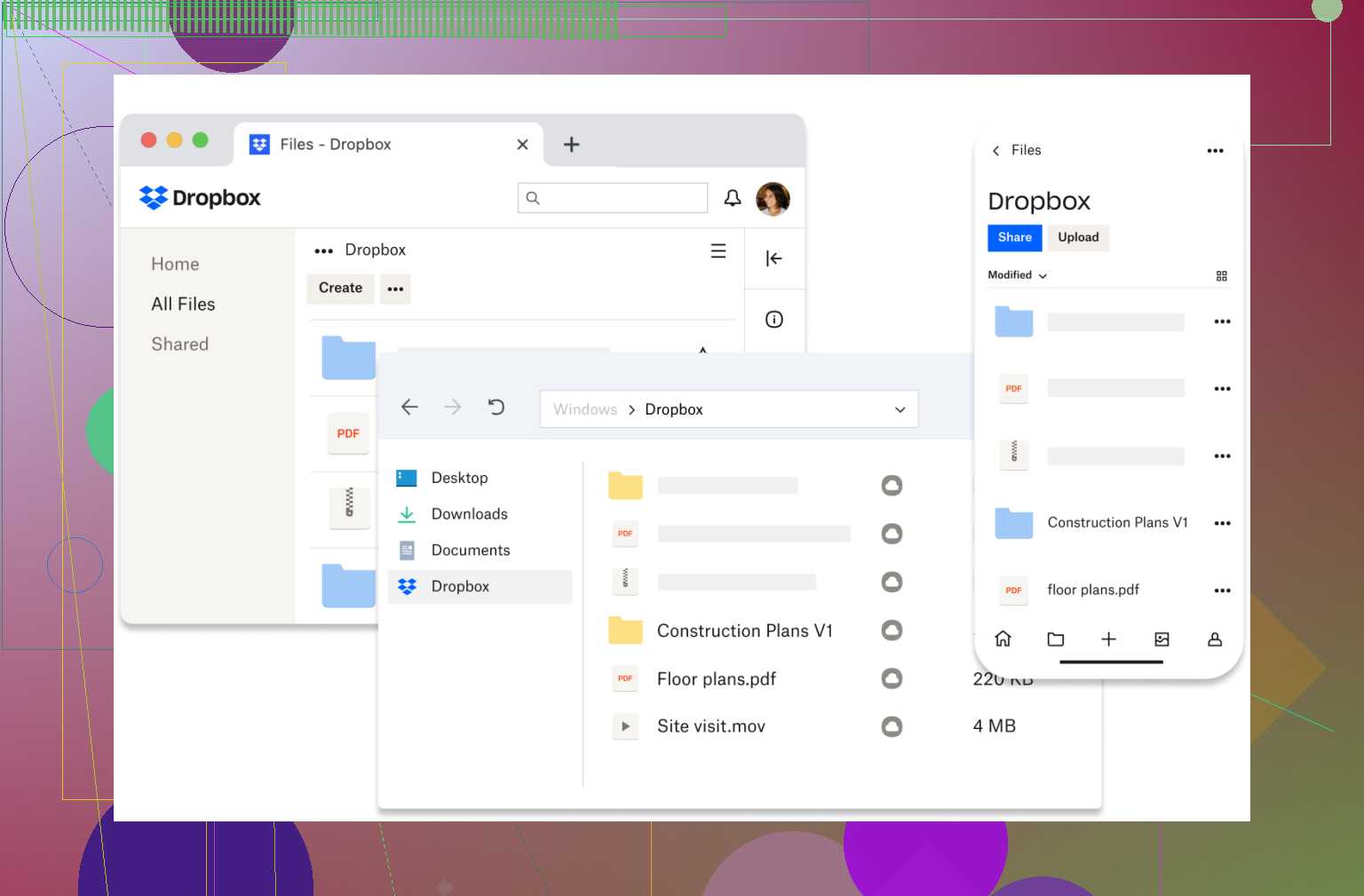
Dropbox has a desktop app for Windows and macOS that basically creates a special Dropbox folder on your computer. Anything you put there syncs automatically to the cloud and your other devices.
On MacBooks especially, it integrates with Finder so your cloud files feel almost like local files. You can also choose which folders stay offline and which are online-only to save space. Same idea on Windows with Explorer integration.
Are there any alternatives?
Besides stuff like Google Drive, Microsoft OneDrive, or iCloud, there are also tools that focus more on how you access cloud storage rather than being storage providers themselves.
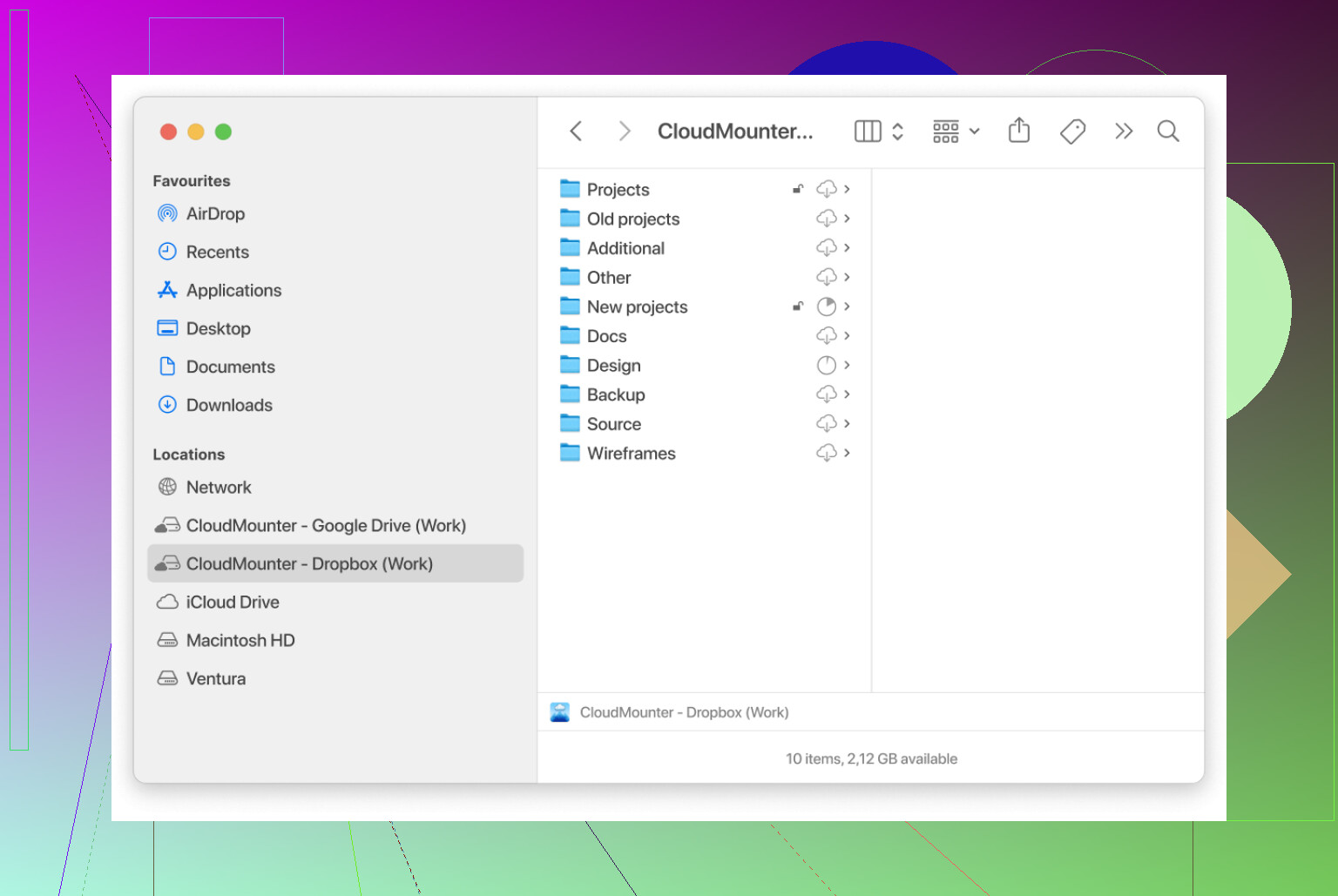
For example, CloudMounter is interesting because instead of being another cloud service, it lets you mount cloud storage like a regular drive in Explorer (Windows) or Finder (macOS).
Main things I like about CloudMounter:
-
Connects to multiple services (Dropbox, Google Drive, OneDrive, FTP, S3, etc.)
-
Lets you manage cloud files directly from Finder or Explorer
-
Doesn’t sync everything locally (so you save disk space)
-
Can encrypt files for extra security
-
Clean, simple interface without much setup hassle
It’s especially nice if you use multiple cloud services and want them all in one place instead of juggling different apps.
If you’re on a MacBook
If you want something more powerful than Finder, I recommend Commander One. It’s a full file manager with a dual-pane interface (like Total Commander on Windows), which makes moving files around much faster.
Some of its nicer features:
-
Dual-pane file browsing
-
Built-in FTP/SFTP/cloud connections
-
Archive support (ZIP, RAR, etc.)
-
Advanced search
-
Queue file operations
-
Built-in file viewer
It’s the kind of tool you appreciate if you manage lots of files or work with servers/cloud storage regularly.
Overall, Dropbox is still one of the simplest ways to keep files synced across devices, especially if you just want something that works without much tweaking. But depending on how you work, tools like CloudMounter or Commander One can sometimes fit better. If you’re trying to solve a specific problem (like storage space or sharing), there might be an even better option.
21 Likes
Dropbox is mainly three things for day to day use: sync, sharing, and history. Backup is more like a side effect than the main point.
What you use it for in practice:
- Sync between your devices
You install the app on each device. It makes a Dropbox folder.
Anything you put there shows up on your other devices with the same account.
Typical uses:
• Work on a doc on your PC, pick it up on your laptop without USB drives.
• Keep a “Current Projects” folder in sync across home and office.
• Sync notes, PDFs, audio files, config files, etc.
Photos:
It handles photo sync, but I would not use it as a dedicated photo library if you take a ton of phone pictures. Google Photos or iCloud Photos fit that better. Dropbox works fine for curated photo sets or client shoots.
-
Sharing with other people
This is where many people get value.
You can:
• Share a folder with others so everyone sees the same files.
• Send a view only link to a single file instead of attaching it to email.
• Let someone upload files to a folder you own.
This is easier for non technical people than FTP, VPN shares, etc. -
Collaboration on documents
Here I slightly disagree with @mikeappsreviewer. The built in collaboration tools are ok, but not on the level of Google Docs or Office online.
Good:
• Multiple people edit files stored in a shared folder, with desktop apps like Word, Excel, Photoshop.
• Version history saves you when someone overwrites or deletes a file.
• Commenting on files from the web interface.
Weak:
• Live multi user editing in the same doc is clunky compared to Google Docs.
• Dropbox Paper exists, but most teams I see prefer Docs, Notion, or Office 365.
So I treat Dropbox more as a reliable file system for shared files, not as the main “document editing” platform.
-
Version history and recovery
Every change you make to a file in Dropbox gets tracked for a period of time, depending on your plan.
Practical uses:
• Roll back a PowerPoint to yesterday’s version.
• Restore a deleted client folder.
• Undo “I saved over the wrong file at 2 a.m.”
This is the feature that saves projects when someone messes up. -
Backup, with caveats
Dropbox is not a full system backup. It only protects what lives in the Dropbox folder or what you explicitly back up from Desktop/Documents if you enable that.
Good for:
• Critical work folders.
• Stuff you use on multiple devices.
Not great for:
• Whole disk images.
• Apps, system configs, huge media libraries.
For real backup, I would pair it with something like Backblaze or Time Machine. -
How it fits with other services
A lot of people end up like @mikeappsreviewer, with Dropbox, Google Drive, OneDrive, iCloud, etc. Then things get messy.
If you already have multiple clouds, a tool like CloudMounter helps a lot.
CloudMounter mounts Dropbox, Google Drive, OneDrive, even S3, as “drives” on your Mac or PC. Files stay online until you open them.
That solves:
• Full SSD from syncing too much.
• Jumping between four different web interfaces.
• Needing the Dropbox client on machines where you do not want local copies.
When Dropbox makes sense for you:
Good use cases:
• You want a simple “shared folder” that behaves like a normal folder.
• You share files with a small team or clients and need something predictable.
• You care about version history and easy restore.
• You like desktop apps and normal file workflows, not living inside browser editors.
Less ideal:
• You want deep real time co editing on docs and sheets.
• You have a tiny SSD and tons of large media files.
• You already pay for big storage in Google Workspace or Microsoft 365 and do not want another subscription.
If you are starting from zero and want clear steps:
- Install Dropbox on your main computer.
- Move one or two important folders into the Dropbox folder.
- Install it on your other device and confirm those folders show up.
- Create a test shared folder with one person and see how the sharing feels.
- If storage becomes a problem, test CloudMounter to keep things online only.
That should give you a feel for what role Dropbox plays in your day to day instead of turning into “yet another cloud account you forget about.”
Think of Dropbox as “shared files that follow you around,” not as a pure backup tool.
@*mikeappsreviewer and @*caminantenocturno already covered the basics really well, so I’ll just fill some gaps and push back in a couple of spots.
What people actually use Dropbox for day to day
-
Syncing stuff between devices
Yeah, that part is accurate: it’s a folder that lives on all your machines and stays in sync. But in practice it’s more specific than “all my files”:- A “Work” or “Clients” folder you always want on both home and office machines
- An “Admin / paperwork” folder that you need on your phone when you’re at the bank, at the DMV, at a client’s office, whatever
- Little “config” or reference stuff: fonts, project templates, code snippets, license keys
Where I disagree a bit with some people is: you really don’t want to just shovel your whole life into Dropbox, especially if your SSD is small. Treat it like “active / shared” storage, not a dumping ground.
-
Sharing with non‑technical people
This is honestly where Dropbox still shines:- “Here’s a folder for the wedding photos, everyone drop in your shots.”
- “Here’s a link to the 3 GB video, just click download” instead of fighting with email limits
- Clients who barely know what a browser is can still click a Dropbox link and figure it out
Compared to Google Drive, the permission model is a bit more straightforward for some folks. Fewer “request access” dead ends.
-
Project collaboration… but file-based, not “live doc” based
@caminantenocturno is right: if you want true real-time multiuser editing of documents, Google Docs / Office 365 is better.
Where Dropbox works well is:- Design projects: PSDs, Figma exports, Illustrator files, InDesign projects, video timelines
- Dev / content projects where each person works in their own editor but shares the same folder tree
- Anything where “the app handles the file” instead of the browser
The collaboration is:
- Shared folders everyone syncs locally
- Comments and previews in the web UI
- Version history saving you when someone saves over the wrong file
So it’s “file collaboration” more than “document collaboration.” Subtle but important.
-
Version history & “oops recovery”
People underestimate how much this matters until they nuke a file.- You can roll back to an earlier version when you wrecked a PowerPoint
- Restore deleted files or folders
- Undo the “I thought I was saving a copy, but I overwrote the original” moment
This is where Dropbox acts kind of like backup. But:
-
Is Dropbox backup? Kind of, but not really
This is the part that confuses most new users.It is backup if:
- The files live in Dropbox (or in folders you explicitly set to be backed up like Desktop/Documents)
- And you only need history for a limited time
It is not a real backup solution because:
- It won’t save your system, apps, or the 900 GB of Steam games
- If ransomware encrypts your Dropbox folder and syncs, congrats, those encrypted files are now everywhere (version history can help, but it’s not bulletproof)
- It won’t handle full “bare metal” restores
True backup is something like Time Machine, Backblaze, etc. Think: “backup = copy of everything if the drive explodes.” Dropbox = “safety net for shared / active files.”
-
Photos & media
It can sync photos, but I’d only use it for:- Curated albums (final edits, delivered sets, specific events)
- Client shoots or media you actively work on
For every photo from your phone forever, Google Photos or iCloud Photos is just saner. Dropbox is better as the “working folder” for photos you’re editing or shipping.
-
Where it gets annoying in real life
Couple spots where I think both of them were a bit generous:- The free tier is tiny by modern standards
- The app can be a hog on some systems
- If you have multiple clouds (Drive, OneDrive, etc.), having every client app installed is a mess, and everything tries to sync its own folder to your SSD
-
If you already use Drive / OneDrive / iCloud
This is where something like CloudMounter actually makes more sense than just piling more folders on your disk.Instead of syncing all your cloud files locally, CloudMounter:
- Mounts Dropbox, Google Drive, OneDrive and others as drives in Finder / Explorer
- Lets you browse them like normal folders
- Streams files when you open them instead of downloading everything
- Keeps your SSD from getting obliterated by 400 GB of random shared folders
So the combo a lot of people end up with is:
- Dropbox for “shared, important, versioned” project folders
- Google Drive for Docs/Sheets
- OneDrive/iCloud because work or Apple forced it on you
- CloudMounter as a single “window” into all of these without fully syncing them
TL;DR use case breakdown:
- Sync: Yes, that’s core. One folder, same files on all devices.
- Sharing: Very yes. Links, shared folders, super simple for non-tech folks.
- Collaboration: Good for file-based work, weaker for real-time docs.
- Photos: Fine for working sets and client delivery, not ideal as your entire photo life.
- Backup: Partial safety net, not a full system backup.
If you treat Dropbox as “the place where active and shared files live” instead of “my entire hard drive in the cloud,” it actually makes a lot more sense and is way less frustrating.
Think of Dropbox as “shared working storage” rather than “backup” or “document editor.”
Where I see it used differently from what @caminantenocturno, @jeff and @mikeappsreviewer described:
-
How small teams actually lean on it
A lot of small agencies / freelancers run their whole file workflow out of a single Dropbox “Company” folder:- /Clients
- /Assets (fonts, logos, templates)
- /Admin (contracts, invoices)
Everyone has that structure synced, so a new hire just logs in and instantly has the same tree. This avoids a ton of “where did you put that” chaos. In that sense, Dropbox often replaces a traditional office file server, not just a personal sync tool.
-
Offline-first, online-second
One thing that is easy to miss: Dropbox is really good when your primary workflow is local apps + occasional internet, not browser-first.- Designers working in Photoshop / Illustrator
- Video editors with Premiere or DaVinci
- Developers who need project folders available on planes or with bad wifi
You work locally; sync catches up later. That is quite different from Google Docs style tools that are awkward offline.
-
“Soft handoff” between people and roles
Instead of formal task systems, many teams just use folders and filenames as a workflow:- /Project/01 Draft
- /Project/02 Review
- /Project/03 Final
When you move a file to “Review” you are basically handing it to the next person. Dropbox plays along nicely because it does not try to enforce its own task model. I slightly disagree with the idea that its collaboration is only “ok”: for file-centric work, that simple model is often exactly what people want.
-
Where Dropbox falls flat
- Auditing and strict compliance are limited compared to more enterprise-focused tools
- Permission management gets messy when you have a lot of nested shared folders
- Mixing personal and work accounts on the same machine can be confusing
- If your team lives in real-time spreadsheets and documents, Drive or Office online feels more natural
-
How tools like CloudMounter actually change the picture
Once you have Dropbox plus at least one of Google Drive / OneDrive / iCloud, the friction is not “what does Dropbox do” but “how do I deal with four separate silos without cloning them all to my SSD.”That is where CloudMounter comes in as a different kind of tool:
Pros of CloudMounter
- Mounts Dropbox, Drive, OneDrive and others as virtual drives in Finder or File Explorer
- Files stay in the cloud until accessed, which is a huge win on 256 GB laptops
- Lets you work with all your clouds from one place instead of four separate sync clients
- Optional client-side encryption on top of what the providers offer
- Fits nicely if you treat Dropbox as partial storage instead of “sync everything”
Cons of CloudMounter
- No real offline cache by default, so if your connection is poor you feel it
- It is not a backup system either; it only exposes what is already in the cloud
- Large file operations can feel slower, since they are remote instead of local
- Adds another app and layer of complexity to your setup
- Power users sometimes expect full sync semantics, which it intentionally does not provide
Where it is interesting with Dropbox specifically: instead of syncing all client archives, you can keep only current projects in the Dropbox app and mount the big archive space through CloudMounter. Active stuff stays fast and offline-capable; the old bulk lives online without eating disk.
-
When Dropbox is the wrong choice entirely
This part does not get said enough:- If your company is already deep into Microsoft 365, OneDrive + SharePoint will usually integrate better with everything else you use
- If your team does nearly all its work in Google Docs, Sheets and Slides, Google Drive becomes the natural “home” and Dropbox turns into an awkward extra bill
- If your main concern is full-machine backup and disaster recovery, a proper backup service should be your primary tool and Dropbox just a convenience layer for daily work
So for your original question:
- It is not “just backup.”
- It is very good at shared, structured file storage across people and devices.
- It is decent, but not best-in-class, for live document collaboration.
- Paired with something like CloudMounter, it fits better into a world where most people already juggle several cloud providers.