I accidentally formatted an external hard drive that had important photos, videos, and work files on it. Before I realized what happened, I copied new files onto the same drive, and now I’m worried the old data may have been overwritten. I need help figuring out if hard drive data recovery is still possible after a format and overwrite, and what steps I should take next to avoid making it worse.
I’ve done this before, picked the wrong drive, hit format, then felt my stomach drop a second later. If you did the same thing, the first move is simple. Stop touching the drive.
If it’s an external disk, unplug it now. If it’s your main internal drive, don’t install stuff, don’t copy files, don’t keep using it like normal. Every write lowers your odds because old data gets replaced piece by piece.
Check backups before doing anything fancy
I’d start here because it saves time, money, and a lot of pointless scanning.
Look in:
- OneDrive, Google Drive, or iCloud Trash / Recently Deleted
- Time Machine on Mac
- File History on Windows
A lot of people forget sync tools were backing up Desktop, Documents, or Photos the whole time. I’ve seen files turn up there when I was sure they were gone.
Try recovery software next
If no backup shows up, I’d move to recovery software fast. Time matters here.
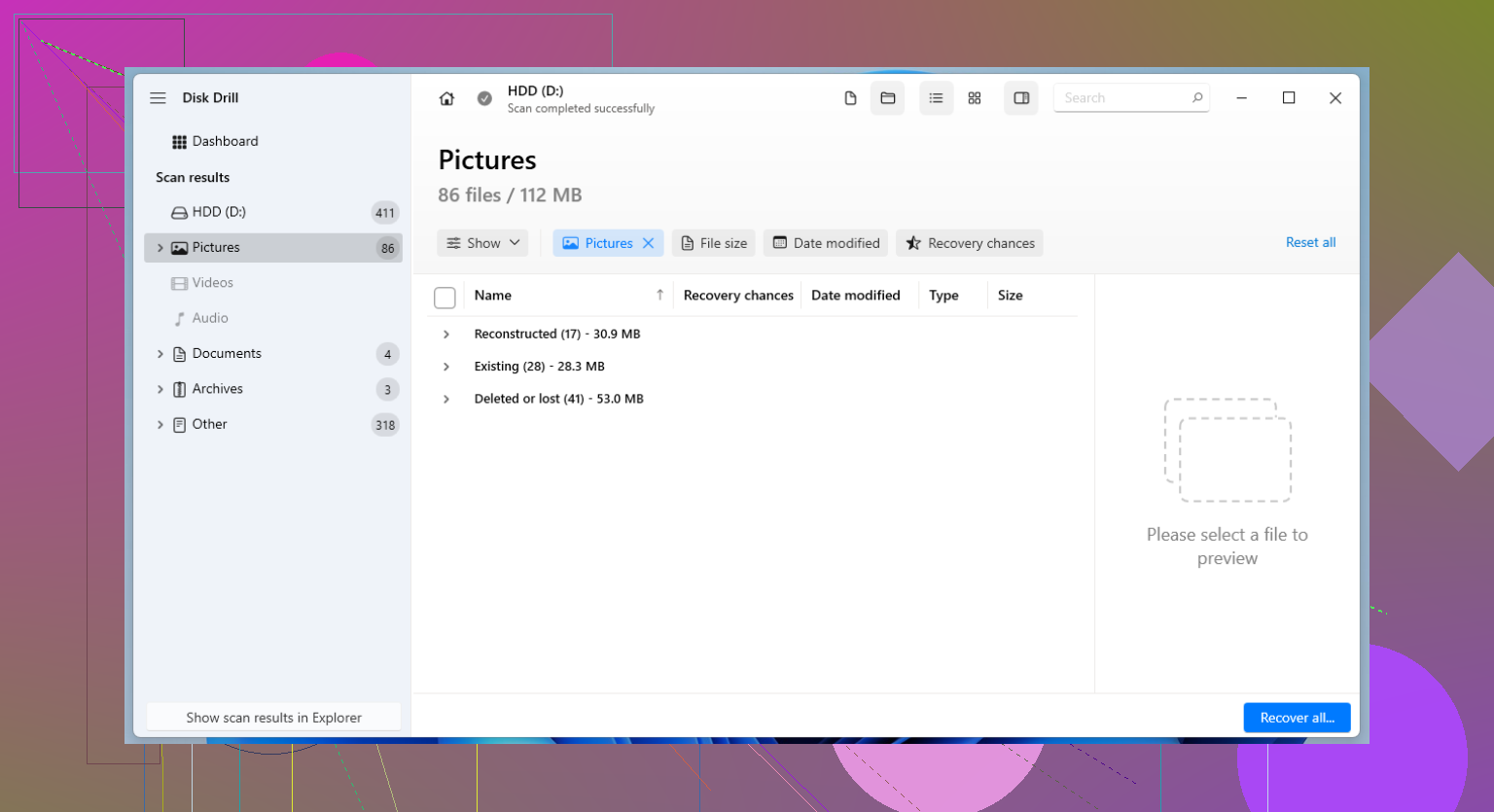
I’ve had decent results with Disk Drill. It works on Windows and Mac, and it tends to handle formatted drives better than some of the easier tools people grab first.
The safe way to do it:
- Install Disk Drill onto a different drive.
- Run a scan on the formatted drive.
- Preview what it finds.
- Recover files onto another disk, not the same one.
If you want free options, PhotoRec does dig up a lot, but it’s rough around the edges and filenames often come back mangled or missing. Recuva is easier on Windows, though I’ve seen it miss a lot once partitions were changed or the format went deeper.
Know when software won’t be enough
If the files matter a lot, work archives, family photos, legal docs, anything you can’t replace, a recovery lab is the next step. It costs more. A lot more, in some cases. Still, labs have tools and methods home software doesn’t.
This is where the type of format matters more than people think.
- Quick Format usually wipes the file system map, not the raw file data right away. I’ve seen drives come back from this if they were left alone after the mistake.
- Full Format is worse. On current Windows systems, it writes zeros across sectors and checks for errors. Once data gets overwritten, consumer recovery tools won’t pull the old files back.
So the short version is this. Stop using the drive. Check backups first. If nothing is there, scan it with a recovery tool and save anything recovered to a different device. If the data is irreplaceable and the scan turns up garbage or nothing at all, send it to a lab before you make it worse. Speed matters here, and yeah, I learned tht the hard way.
6 Likes
Yes, recovery is still possible, but the new files changed the odds.
Formatting alone does not erase all old data on most drives. The bigger issue is the copying you did after. Every new write overwrites old sectors. Anything overwritten is gone for normal recovery. Anything untouched still has a shot.
I slightly disagree with @mikeappsreviewer on one point. People focus too much on the word “formatted” and not enough on file system type and trim support. If this external drive is an SSD, or a USB SSD, recovery gets worse fast because TRIM can wipe blocks after format or delete. If it’s a classic HDD, your chances are better.
What I’d do now:
- Make a sector-by-sector image of the drive first.
- Work from the image, not the original disk.
- Scan the image with Disk Drill and one other tool, then compare results.
- Sort recovered files by size and previewability. Photos and videos often tell you fast what survived.
Why image first? Because rescanning a weak drive adds stress, and if you make a mistake you still have the source frozen in time. On Linux, ddrescue is the usual pick. On Windows, there are GUI imaging tools too.
Also, check if the “new files” you copied were large videos. Large files overwrite large continuous areas, which hurts old video recovery more than scattered office docs. I’ve seen JPGs survive while MP4s were toast. It’s weird, but common.
If the data matters for work, skip the endless DIY loop after one clean attempt. Send the drive to a lab before you burn more time and sectors. DIY works best when you stop early, not after ten rescans and random repair attempts.
For a clean overview of Disk Drill features, scan modes, recovery workflow, and extra tools like byte-level backup and duplicate finding, this video gives a solid walk-through: watch this Disk Drill recovery guide
Short version, HDD has a fair shot, SSD is rougher, overwritten data is gone, and your next best step is imaging the drive befor you do anything else.
Yes, maybe. Fully? Probly not.
The important distinction is not just “formatted,” it’s how much of the old space got reused after you copied the new data. Think of the drive like a parking lot. Format removes the map. New files start taking parking spots. Old files still sitting in untouched spots can sometimes be recovered. Spots taken by the new files are done.
I’d add one thing to what @mikeappsreviewer and @chasseurdetoiles said: don’t run chkdsk, First Aid, or any “repair” tool on that drive yet. People do this thinking it will help the disk mount cleanly, but file system repair can actually reshuffle metadata and make recovery messier.
Also, if the format changed the file system, like exFAT to NTFS or HFS+ to exFAT, recovery can get uglier because the old directory structure may be partly trashed even if file content survives. In that case, file carving is often what you end up with, which means lots of files back but with generic names and folders gone. Photos usually recover better than office projects with dependencies.
My take:
- HDD: some chance
- SSD or flash-based external: much worse
- Big batch of newly copied videos: bad sign
- Small amount of new data: better sign
If you do a DIY pass, Disk Drill is a reasonable choice because it can find both existing and lost data patterns without being a total pain to use. Just don’t judge the result by file count alone. Preview the files. Ten usable photos are worth more than 5,000 corrupted thumbnails.
Also worth reading if you want practical formatted-drive recovery tips: formatted disk recovery tips that actually make sense
Brutally honest version: if the overwritten files were the important ones, no software is going to do magic. If the important stuff lived in areas the new files didn’t touch, you still have a shot. The drive isn’t automatically hopeless, but don’t keep poking at it becasue every extra write makes the answer worse.