I accidentally deleted a folder of family photos from my SD card and only realized it after taking more pictures. I’m a beginner and need easy photo recovery software that’s safe to use and actually works on Windows. Looking for recommendations on the best photo recovery tools for recovering deleted pictures before they’re gone for good.
I’ve been stuck doing photo and video recovery more times than I want to count. A tired misclick, a flaky SD card, a bad import at 1 a.m., same result. Missing files. After enough of those messes, I stopped obsessing over the “best” app and started paying attention to the first 5 minutes after the loss. Those first moves decide a lot.
If your files disappeared, stop using the card or drive right now. Don’t shoot more photos. Don’t move new files onto it. Don’t reformat it again because you “hope it fixes things.” I did that once years ago and made the recovery worse. Most deleted files sit there until fresh data lands on top of them. More use means worse odds.
Once the card is out of rotation and sitting untouched, these are the tools I’d look at.
1. Disk Drill
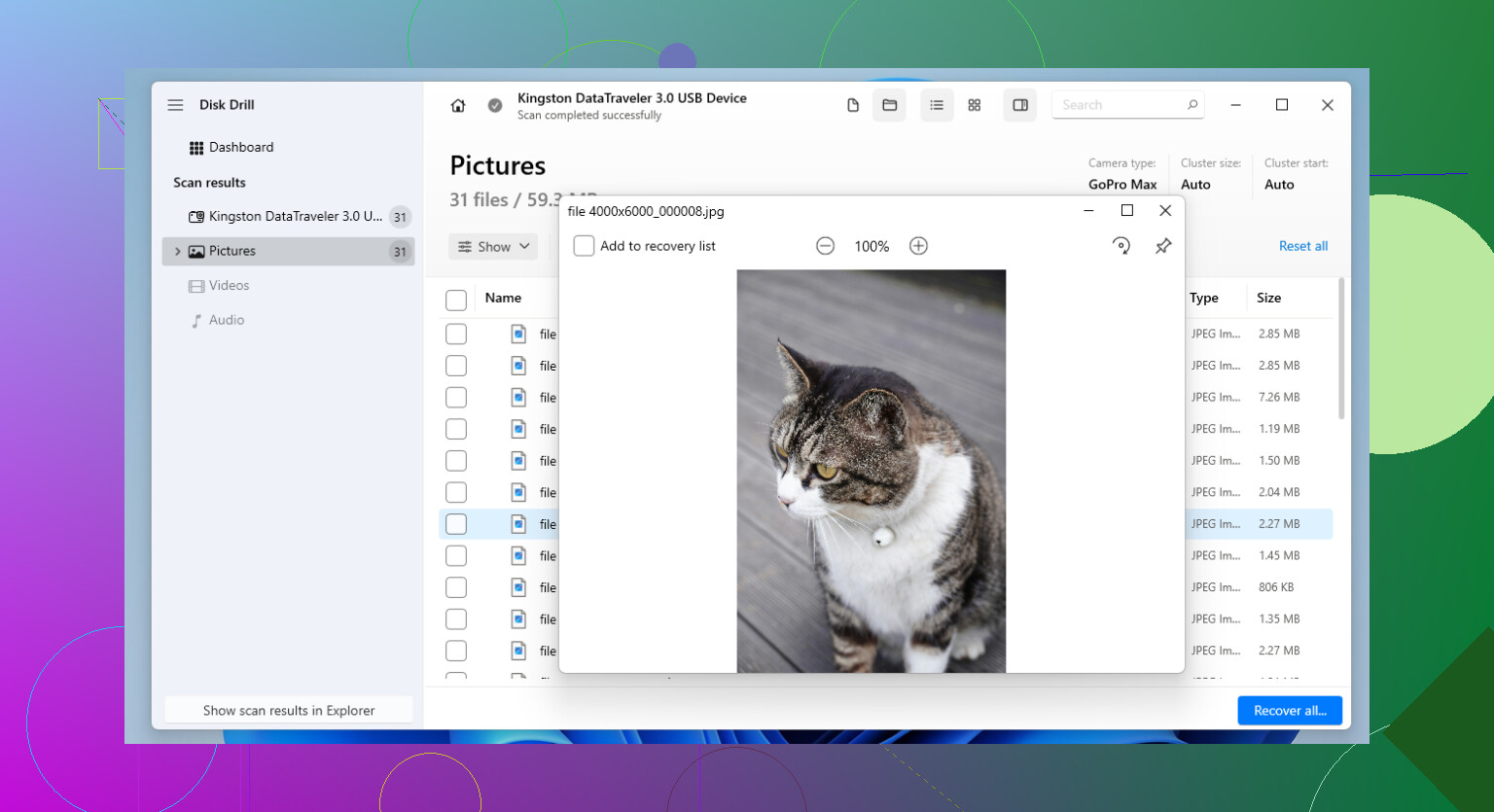
Disk Drill is the one I point people to first when they want something practical and don’t want to fight the software. It handles the usual stuff, SD cards, USB sticks, external drives, SSDs, without much fuss.
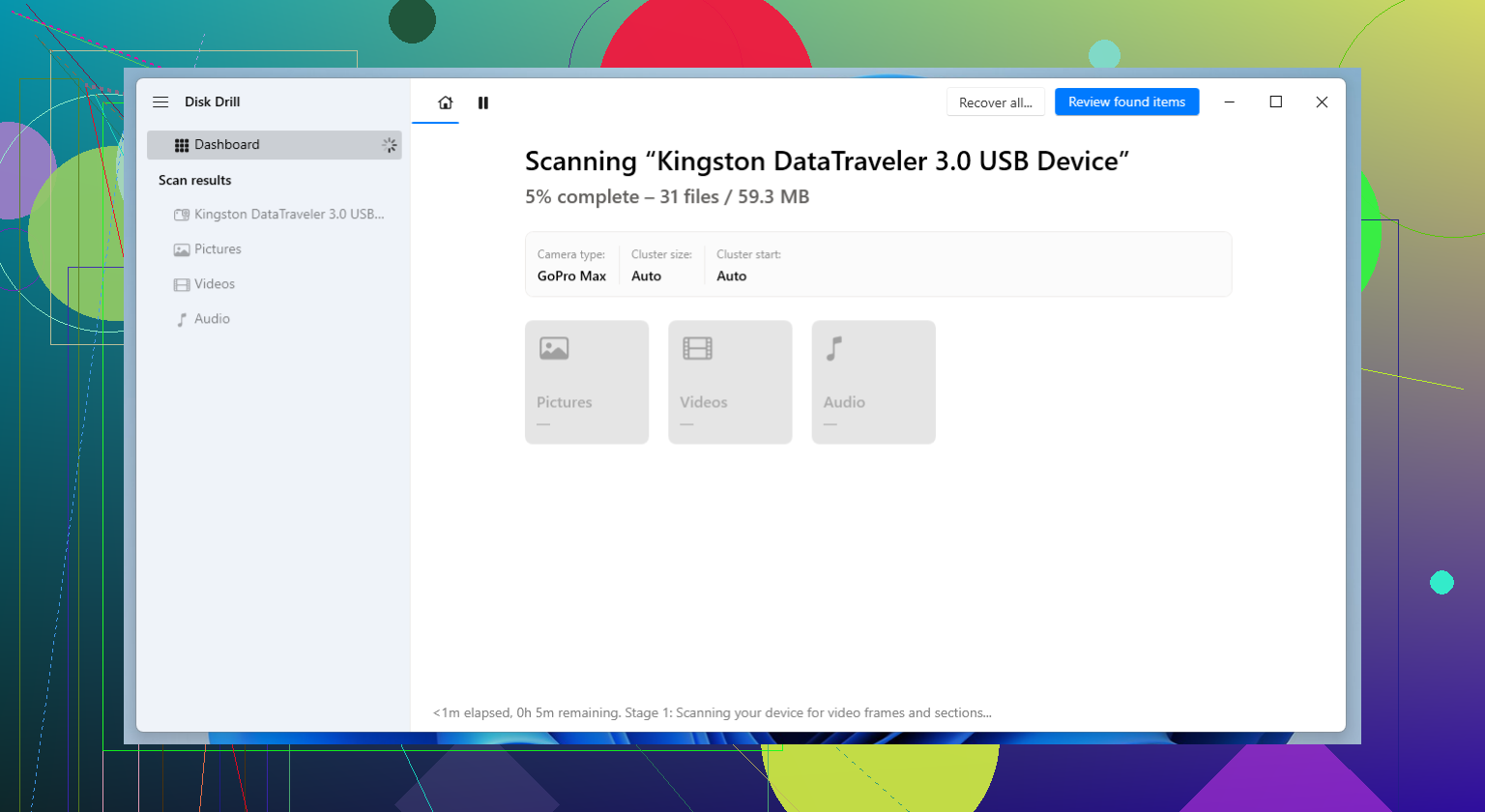
The part I kept coming back for was its Advanced Camera Recovery mode. If you’ve pulled footage off drones, action cams, or mirrorless bodies, you’ve likely seen this before. Some recovery apps bring back the file, but the video stutters, won’t open, or is chopped up. Disk Drill does a better job than most with fragmented clips. I also saw decent support for RAW formats, which matters if your card held more than JPGs.
What worked for me:
- Clean interface, easy to figure out fast
- Good support for common photo and video types
- Useful for fragmented camera video
- Preview helps before you recover a pile of junk
- Runs on Windows and Mac
What annoyed me:
- You’ll need to pay for full recovery
- Deep scans drag on big cards, especailly if the card is messy
2. R-Studio
R-Studio feels more like a tool for people who already know what they’re looking at. I wouldn’t hand it to a beginner unless they’re patient. Still, when the file system is damaged, the partition table looks wrong, or the card is in rough shape, this one starts making sense.
I used it on a badly corrupted SD card after a camera froze mid-write. Simpler apps found scraps. R-Studio found more. The catch is obvious once you open it. It looks technical because it is technical. If you don’t know your way around storage terms, it gets confusing fast.
Good stuff:
- Strong recovery results in harder cases
- Better with damaged file systems than many simple tools
- More scan and recovery controls
- Broad device and storage support
Trade-offs:
- Learning curve is rough
- The interface feels dense
- Price is higher than a lot of the usual picks
3. PhotoRec
PhotoRec is the one people keep bringing up for a reason. It’s free, open-source, and it doesn’t cap how much data you recover. I’ve used it when I didn’t feel like gambling money first, and it pulled back files from cards I thought were done.
Its approach is different. It scans for file signatures instead of leaning on the file system. So if the card was formatted or the file table got wrecked, it still has a shot. The ugly part comes later. Recovered files often come back stripped of their old names and folder layout. You end up sorting a digital junk drawer by hand. It works, but yeah, it’s a slog.
Why people keep it around:
- Free, no recovery limit
- Huge file format support
- Solid on damaged or reformatted cards
- Works on Windows, macOS, and Linux
Why some people quit halfway:
- Command-line interface throws people off
- Original filenames are usually gone
- Folder structure doesn’t come back
- Sorting output takes forever if you recovered a lot
One thing I learned the hard way, recovery software is only half the problem. The other half is what you do next so you don’t repeat it next month.
If the files matter, back them up on a schedule you’ll stick to. Not the schedule you swear you’ll start “soon.” If you shoot on SD cards, splitting a project across multiple cards saved me from bigger losses more than once. A lot of working photographers do this because one bad card then ruins part of a job, not the whole thing.
So yeah, move fast, stop writing data to the card, and keep your expectations normal. You might not get every file back. Still, if the card hasn’t been overwritten, your odds are often decent enough to try.
23 Likes
If you already shot more photos on the same SD card, some of the deleted files got overwritten. So keep expectations in check. Still, beginners do better with simple tools first.
My pick on Windows is Disk Drill. It’s easy to use, the preview is clear, and it handles common camera formats well. For family photos, that matters more than advanced menus. I don’t fully agree with @mikeappsreviewer on jumping to heavier tools unless the card is damaged. For a normal accidental delete, start simple.
What I’d do:
- Stop using the SD card.
- Put it in a card reader.
- Recover files to your PC, not back to the SD card.
- Preview before saving, so you don’t recover a pile of junk.
If Disk Drill misses too much, try Recuva next. It’s old, but dead simple and decent for straight deletions. If the card is corrupted, then move to tougher stuff.
This guide on easy SD card photo recovery software for photographers gives a decent rundown too.
One more thing, if Windows asks to fix the card, don’t do it first. That trips people up alot.
Since you already took more pics on the same SD card, I’d be a little less optimistic than @mikeappsreviewer makes it sound. Recovery is still possible, but some files are probably partially overwritten, so don’t expect a perfect miracle.
For a true beginner on Windows, I’d still lean toward Disk Drill first. Not because it’s magic, just because it’s easy to scan, preview, and recover photos without throwing a wall of storage jargon at you. That matters when you’re stressed and trying not to make things worse. If it finds the photos and previews look normal, that’s a solid sign.
I slightly disagree with @viaggiatoresolare on Recuva as the next stop for SD cards with overwritten camera data. It’s simple, yeah, but I’ve had mixed results with photo sets compared to tools built more for memory cards.
One thing I’d add that they didn’t really stress enough: if the photos are super important, make an image backup of the SD card first, then scan the image instead of the card. That way you only risk the card once. A lot of beginners skip that and regret it later.
Also, this roundup of best data recovery software recommended by real users is worth checking if you want a few Windows options side by side.
Big rule: recover to your computer, never back onto the SD card. Sounds obvious, but ppl do it all the time.
I’d split this into two cases.
If the card still reads fine in Windows, I actually agree more with @stellacadente than @mikeappsreviewer here: start with something simple, not a forensic-looking app. Disk Drill is probably the easiest beginner pick on Windows because the preview is good and it’s harder to click the wrong thing.
Disk Drill pros
- very beginner-friendly
- clear photo previews
- works well with SD cards and common camera formats
- less intimidating than pro tools
Disk Drill cons
- full recovery is paid
- deep scans can take a while
- if files were overwritten, it cannot magically rebuild them
Where I slightly disagree with @viaggiatoresolare is Recuva being the obvious second choice. For old-school deletions, sure. For camera cards that were used again after deletion, I’ve seen it be hit or miss.
My own suggestion: before running any recovery app, use a card imaging tool and make a full backup image of the SD card first if possible. Then scan that image with Disk Drill. That gives you a retry option if your first scan settings miss something.
If the recovered photos preview correctly, save them to your PC or an external drive, then sort by date and thumbnails. If previews are broken or half-gray, that usually means overwrite damage, not bad software.
So, beginner answer: Disk Drill first, then only move to harder tools if the card is corrupted or the easy scan comes up short.