I need help recovering GoPro videos and photos from an SD card after it suddenly stopped showing my footage. The card was working fine, but now some files are missing or unreadable, and these clips are really important. I’m looking for the best way to recover deleted or corrupted GoPro files from an SD card without making things worse.
I’ve been in this mess before. You get back from a trip, pull the card, and the clips are gone. It feels bad fast. The main thing is simple. What you do in the next few minutes matters more than most people think.
First steps before you try to recover anything
If this were my card, I’d stop using the GoPro right away and pull the SD card out.
No new recording. No formatting. No repair tools. No random “fix” apps from search results. When a video gets deleted or the card gets formatted, the data often sits there until new footage lands on top of it.
I’d also check the easy stuff before running recovery software:
- GoPro cloud storage, if your account has Auto Upload turned on
- The Trash or Recently Deleted area in your GoPro account
- The camera screen for any file repair prompt
- LRV preview files still sitting on the card
- A different card reader or another computer, because sometimes the card is fine and the reader is junk
Then I’d look at the card itself. If no device sees it, if it gets hot, if it drops connection over and over, if your PC hangs when you plug it in, or if the card looks damaged, I’d stop there. At that point I’d think about a recovery lab. Physical card failure is a different problem from deleting a file by mistake.
Why GoPro recovery goes sideways so often
This catches people off guard. A lot of recovery apps do okay with photos, PDFs, and office files. Video from modern cameras is rougher.
GoPro footage is not always stored as one clean block. The camera writes video, audio, previews, metadata, GPS info, and other bits at the same time. On the card, one clip might be split into a pile of fragments spread all over.
Some tools find those fragments but fail at rebuilding them into one playable file. So you end up with stuff like this:
- Files that show up but won’t open
- Recovered clips with chunks missing
- Playback corruption
- MP4 files that look normal until VLC or Premiere rejects them
I learned this the annoying way. Photo recovery is one thing. Action cam recovery is a different job.
If I were starting fresh, I’d try Disk Drill first.
The reason is pretty specific. Its Advanced Camera Recovery mode was built for fragmented camera footage. From what I saw, it uses tech tied to the older GoProRecovery and CnW Recovery tools people used for years for busted action camera files. The newer version covers more devices and more file systems, so it feels less stuck in the past.
The process is not hard:
- Put the SD card in a card reader
- Open Disk Drill
- Pick Advanced Camera Recovery
- Scan the card
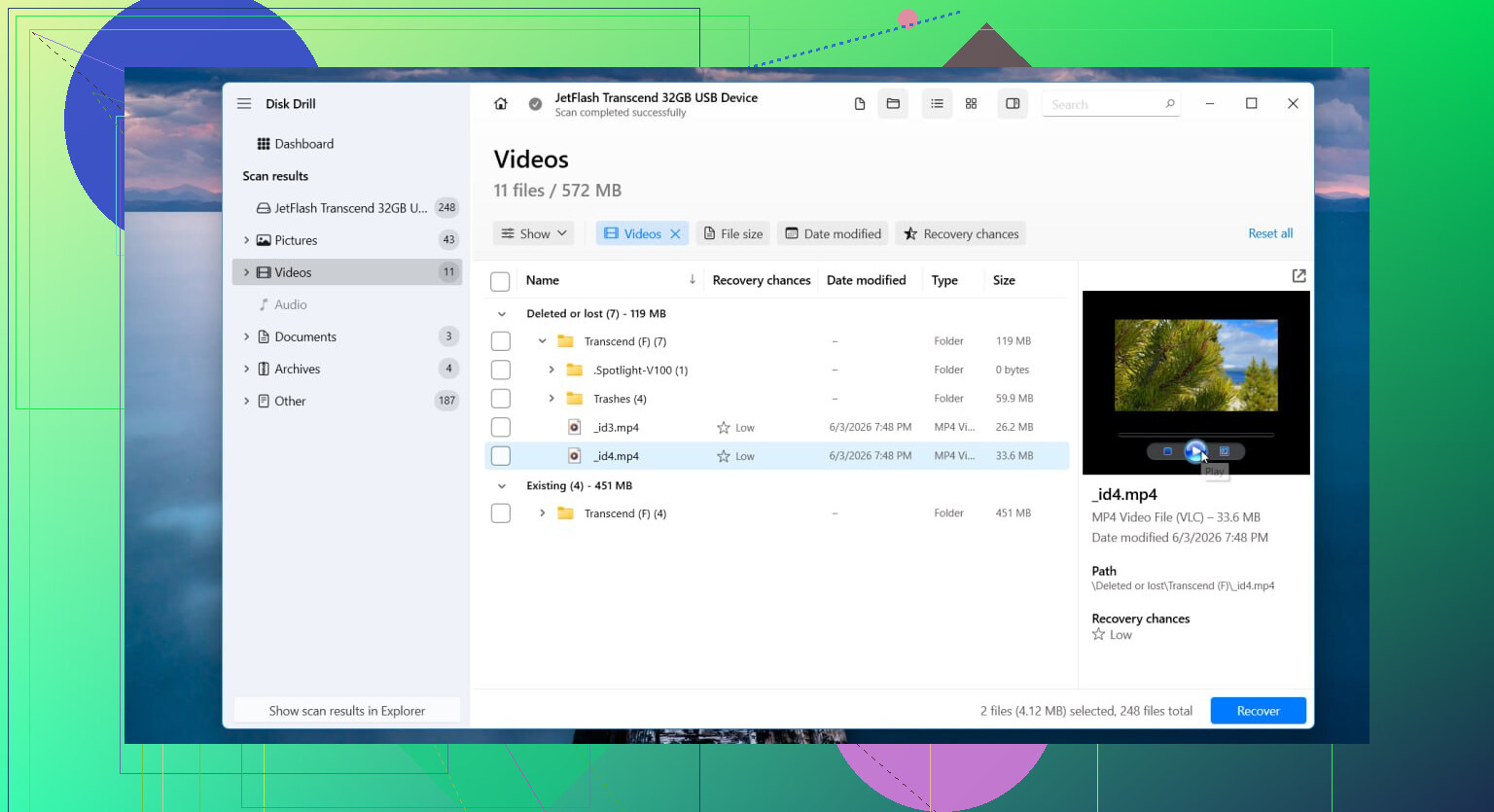
- Preview what it finds
- Save recovered files to a different drive, not back to the card
The preview part matters. A lot of tools list a recovered video and leave you guessing. Being able to check whether the clip plays before saving it spared me some wasted time.
Other options people bring up a lot
PhotoRec gets mentioned for a reason. It’s free, and it digs up a lot of data. I used it once on an old card and got a mountain of files back. The catch was sorting through the mess. For GoPro footage, especially fragmented clips, it felt clunky.
UFS Explorer is another one. It’s serious software. If you know your way around recovery tools, it might help in tougher cases. I wouldn’t call it friendly, though. The learning curve is there, and if you only want your ride footage back tonight, it might feel like too much.
So yeah, both have their place. For newer GoPro, DJI, or Insta360 footage, I’d still start with Disk Drill before spending hours in the weeds.
When I’d stop doing it myself
DIY recovery is best for logical problems. Deleted files, accidental format, file system damage, stuff like that.
I’d hand it off to a pro if any of these show up:
- The SD card has physical damage
- No device detects the card at all
- The card keeps disconnecting
- The GoPro throws card errors every time
- Recovery software fails to finish a scan
- The missing footage matters too much to risk trial and error
Labs cost more, yep. But software won’t fix hardware trouble, and it won’t replace the equipment recovery shops use when a card is dying.
If your case is simple deletion or formatting, your odds are usually better. Especially if you stopped using the card right after the footage vanished. That part gives you a shot. Once new clips go on top, things get ugly fast.
13 Likes
Skip the card reader shuffle and make an image of the SD card first if your computer still sees it. This is the part people skip, then regret later. Use a tool like USB Image Tool on Windows or ddrescue on Mac/Linux. Work from the image, not the card. If the card degrades during scanning, you still have one stable copy.
I slightly disagree with @mikeappsreviewer on one point. I would not spend much time testing the card in a bunch of devices if it keeps dropping out. Every reconnect is extra stress on failing flash memory.
For GoPro files, Disk Drill is a solid first pick because it handles camera media better than a lot of generic recovery apps. If Disk Drill finds the clips but they do not play, try repairing the MP4 container with a sample file from the same GoPro settings. Grau Video Repair Tool and restore.media are two names people use for this.
Also check for file split sets. GoPro often saves long recordings as GX010123.MP4, GX020123.MP4, etc. People think footage is missing when part 2 or 3 got hidden or renamed.
If Windows says ‘You need to format the disk’, do not click it. If the card shows 0 bytes, wrong capacity, or freezes File Explorer, stop DIY. That points to controller or NAND trouble.
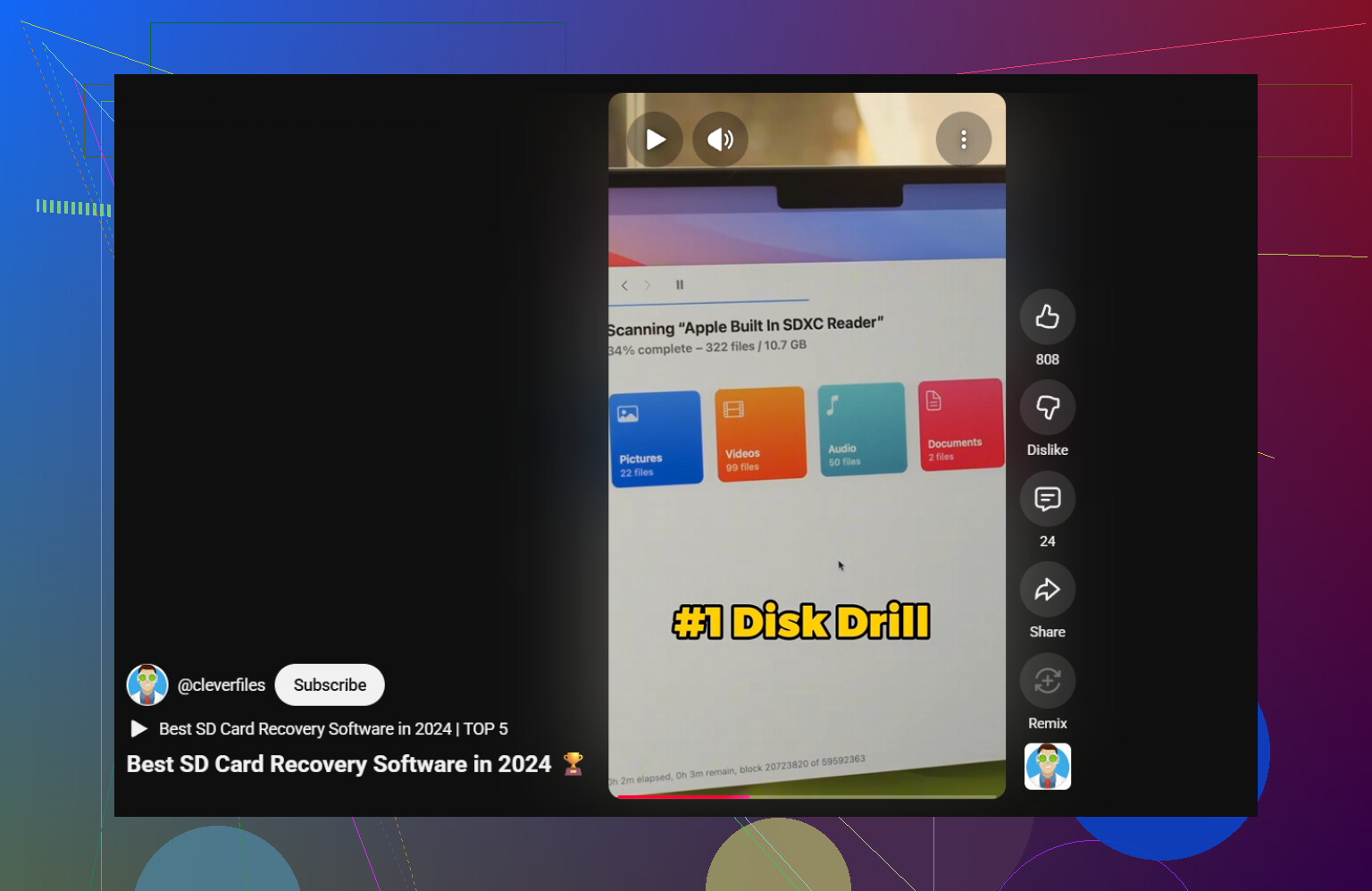
Best search phrase for this topic, GoPro SD card recovery software for deleted, unreadable, or missing videos and photos. Also, this short clip covers the basics fast, watch this quick GoPro SD card recovery tip.
One more thing, save recovered files to your computer or an external SSD, not back to the same card. Obvious, but ppl still do it.
If the footage is really that important, I’d add one step before doing what @mikeappsreviewer and @jeff suggested: check whether the files are actually there but the directory got messed up.
A lot of GoPro cards don’t “lose” clips, they lose the index. On a computer, enable hidden files and look inside the DCIM folders manually. Also check if the MP4 files suddenly became 0 KB, got weird names, or only the .LRV and .THM files remain. If you still see matching LRV preview files, that usually means the camera did record something and the main video entry got corrupted, not necissarily wiped.
I slightly disagree with trying too many “repair” actions early. CHKDSK / First Aid can make a messy card messier if the file system is already unstable. I’d avoid that until after imaging or recovery.
If the card is readable enough, Disk Drill is a solid choice for GoPro SD card recovery because it tends to do better with camera footage than generic undelete tools. But I’d also sort recovered files by creation time and size afterward. That makes it way easier to spot split GoPro chapters people think are missing.
Also, if you want more SD card video recovery discussion that’s easy to skim, this thread is useful: best ways to recover videos from an SD card.
One blunt truth: if the card starts showing wrong capacity or disconnects randomly, stop DIY stuff. That’s where people turn a recoverable card into a dead one real fast.
One thing I’d add that @jeff, @cacadordeestrelas, and @mikeappsreviewer only touched indirectly: check whether the problem is just the GoPro database, not the actual media. Some GoPros lose track of clips when the MISC folder or media index gets corrupted, so the camera shows “missing” footage even though the MP4s still exist in DCIM/100GOPRO or nearby chapter folders. I’ve seen cards where the videos were there, but the camera and even Windows thumbnails acted like they weren’t.
I’d actually avoid mounting the card in the GoPro again just to “see if it repairs itself.” Sometimes that works, sometimes it writes changes you don’t want.
What I’d do after imaging is this:
- Browse the image manually for
MP4,LRV, andTHM - Sort by size, not just filename
- Look for chaptered GoPro clips that may be out of sequence
- Test playback in VLC before assuming a file is dead
If the main MP4 is gone but the LRV exists, that usually tells you the clip once existed and recovery has a decent shot.
On software, Disk Drill is a reasonable option here.
Pros
- Good with camera media
- Easier previewing than many recovery tools
- Better interface for non-experts
Cons
- Not free for full recovery
- Can return lots of false positives in messy scans
- Less transparent than lower-level forensic tools
My slight disagreement with the others is this: I would not jump to PhotoRec unless you’re okay with a giant unsorted pile of files. Great last resort, terrible if you want your trip footage organized tonight.
If the card reports fake size, RAW, or starts vanishing mid-read, stop. That’s no longer a normal file recovery job.