Hassle-Free Way to Handle OneDrive Files on Your Computer
Alright, so here’s what’s worked for me more times than I can count: CloudMounter has been my go-to tool for turning cloud storage into something that actually fits into my desktop life. No magic, just a process that won’t make you pull your hair out.
Getting OneDrive to Behave Like a Native Drive
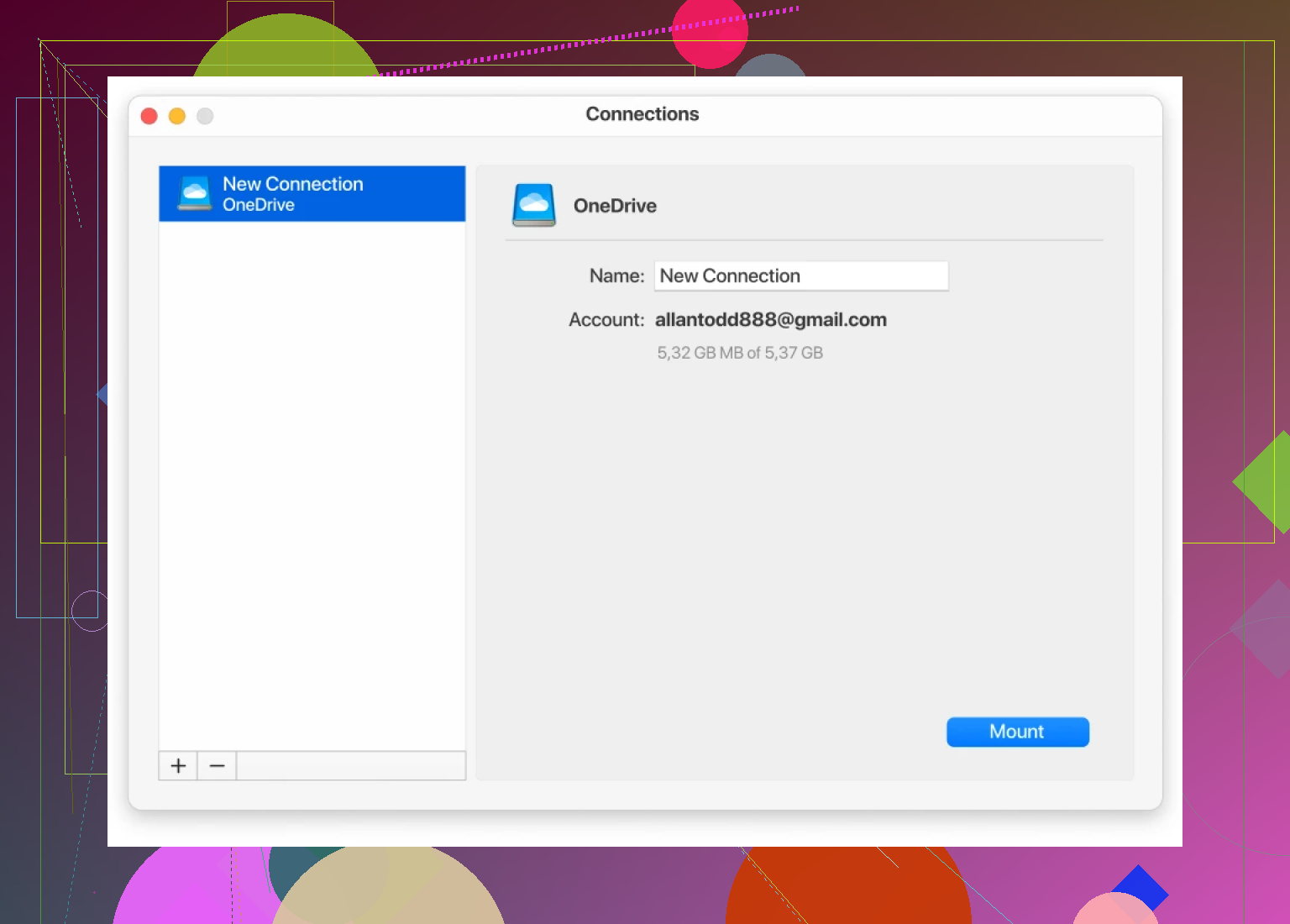
I was skeptical at first, honestly. Cloud storage getting mapped directly into Finder (Mac) or Windows Explorer felt a bit like science fiction. But after signing into my OneDrive via CloudMounter, boom—it just sits there, showing up as if it’s another hard drive. If you can find your “Downloads” folder, you’ve already got the skills needed for this.
How You Can Move Files Without All the Fuss
Picture this: you’re in Finder or Explorer, and your OneDrive pops up in the sidebar. All your cloud files? Right there, no second app window, no random browser tab lurking somewhere. Wanted those files on the Desktop? Just drag ‘em over, drop them into the folder you want—CloudMounter does the transfer work unseen, hustling away in the background.
Zero need to wrestle with browser downloads or try to wrangle OneDrive’s full client syncing your whole cloud to your disk. It’s just select, drag, drop—done.
Passing It Forward
If you run into snags or your files go missing in the shuffle, drop a reply. Stuff like this should just work, and in my experience, CloudMounter makes it feel native. Hope this shortcut saves you some time, like it did for me!