My iPhone storage is almost full and it’s running slower, but I’m worried about using sketchy “cleaner” apps that might steal data or damage the phone. What’s the safest, most reliable way (or app) to clean junk files, cache, and photos on an iPhone without risking my privacy or breaking anything?
Short version. Third party “cleaner” apps on iPhone are almost all junk or risky. Your best and safest option is to use iOS tools first, then add one trusted app if you still need help.
Here is a practical way to clear space without breaking anything:
-
Check what eats storage
• Settings > General > iPhone Storage
• Let it load. You see a bar and per‑app usage.
• Follow the “Recommendations” section at the top. Apple’s stuff is safe. -
Offload unused apps
• In the iPhone Storage list, tap an app you never open.
• Tap Offload App, not Delete App, if you want to keep data.
• iOS removes the app binary and keeps its docs.
• You get it back from the Home Screen icon later. -
Clear big Messages data
• Settings > Messages > Keep Messages > set to 1 Year or 30 Days.
• Settings > General > iPhone Storage > Messages
• Check “Photos”, “Videos”, “GIFs and Stickers” and delete big ones.
• Old group chats with lots of media eat gigs. -
Clean Photos safely
• Open Photos > Albums > Recently Deleted, empty it.
• Turn on Optimize iPhone Storage
Settings > Photos > Optimize iPhone Storage.
• Delete long 4K videos and burst photos you do not need.
• Use search in Photos for “screen recording”, “screenshot” and nuke junk. -
Offload media apps
• In iPhone Storage, check WhatsApp, Telegram, TikTok, Instagram.
• Many of these cache a ton of media.
• For WhatsApp
Settings in WhatsApp > Storage and Data > Manage Storage > delete large items.
• For streaming apps, look for Downloads in their settings and clear offline content. -
Browser junk
• Safari
Settings > Safari > Clear History and Website Data.
• Chrome
Chrome > Menu > History > Clear Browsing Data. -
System junk and “Other” storage
iOS handles cache by itself. There is no official “clean all cache” button.
To refresh some of it, you can
• Restart iPhone.
• If storage is still weird, do a backup and restore
Backup to iCloud or iTunes/Finder, then restore. This often shrinks “System Data”.
About cleaner apps and safety:
Most “iPhone cleaner” apps do almost nothing useful, or they sit and ask you for shady permissions. They can not access iOS system files like on Android. Apple walls that off. If an app promises full junk cleaning or “deep RAM optimization”, it is marketing.
If you want an extra helper, pick one with
• Solid App Store rating and lots of reviews.
• Clear privacy policy.
• No VPN requirement, no weird “profiles”, no off‑App‑Store installs.
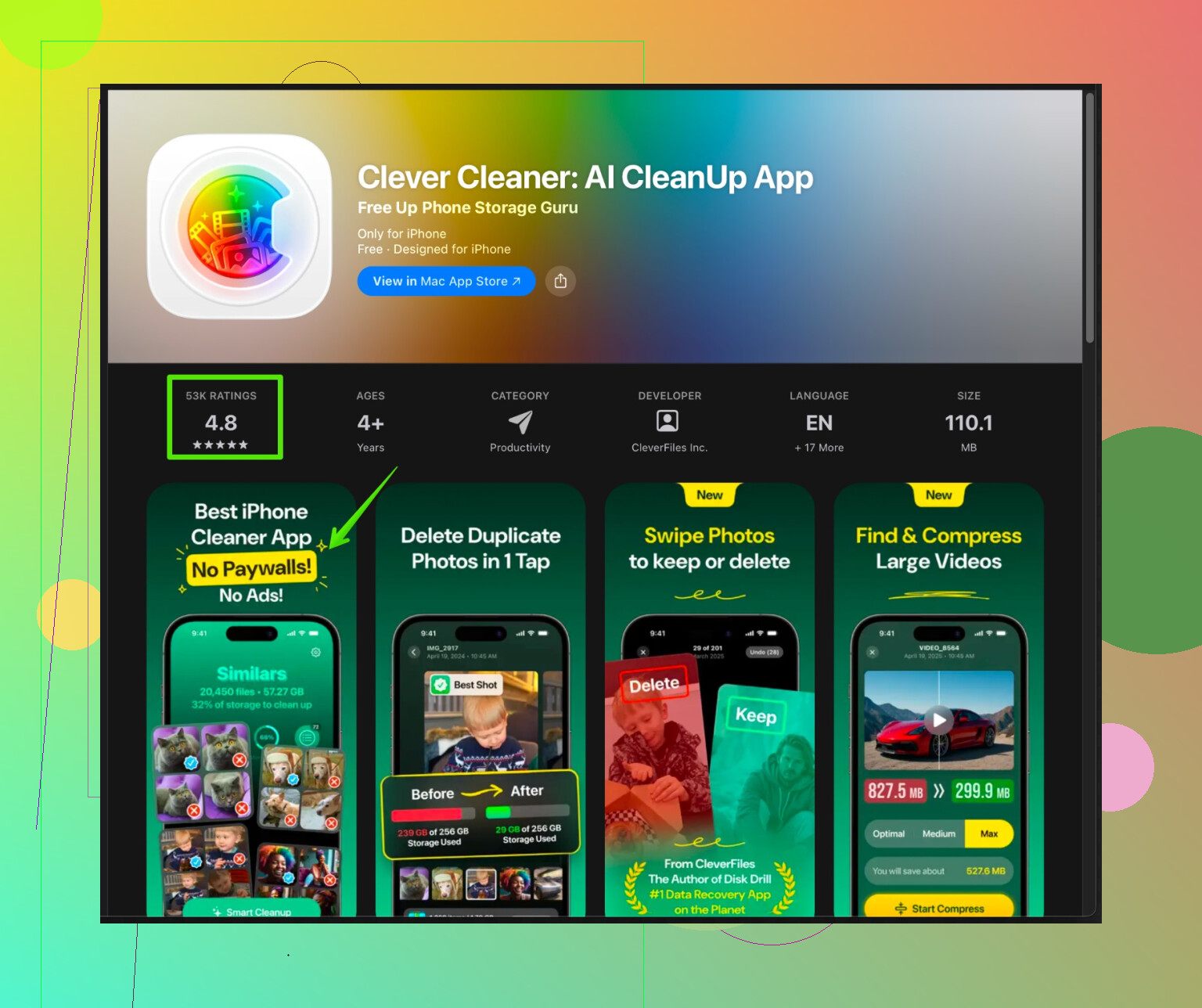
One option that stays closer to these rules is Clever Cleaner App.
It focuses on stuff iOS allows, like sorting duplicate photos, large videos, similar shots, and managing contacts. That is the area where third party tools help the most.
Take a look here
smart iPhone cleanup with Clever Cleaner App
Use it mainly for
• Finding duplicate photos and screenshots.
• Spotting similar photos so you keep the best ones and remove the rest.
• Cleaning very large videos you forgot about.
• Fixing messy duplicate contacts.
Combine that with the built‑in iOS storage tools and you get:
- No sketchy system access.
- No data scraping outside Apple’s sandbox.
- Real space savings, mostly from media, not fake “RAM boosters”.
Last thing about speed. If your iPhone feels slow, full storage hurts performance. Try to leave at least 5 to 10 GB free if possible. Apps launch smoother and updates install without drama.
19 Likes
Skip the “miracle cleaner” apps that promise to speed up your iPhone by 300%. On iOS that’s basically marketing fluff, because apps can’t really dig into system junk the way they can on Android.
I mostly agree with @sterrenkijker on using the built‑in tools first, but I’m a bit less excited about constantly toggling Messages retention or doing full backup/restore unless you’re really desperate. That can be overkill and kind of annoying in daily life.
Since their post already covered the basics, here’s some different angles and tweaks that actually help and are still safe:
1. Target the heaviest offenders, not “everything”
Instead of trying to “clean iPhone” in general, go after the usual space hogs:
- Long 4K or 60fps videos from Camera
- Big social media cache & downloads
- Huge email attachments
- Offline maps and podcast episodes
The trick: focus on per‑app housekeeping inside each app’s settings, not a one‑tap “cleaner”.
2. Email & cloud apps are sneaky
A lot of people miss these:
-
Mail app
- Settings > Mail > Accounts > choose your account > Advanced
- If you use a separate email app (Gmail/Outlook), consider removing old Mail accounts from the native Mail app, so it stops caching messages locally.
- In third‑party mail apps, look for “Storage” or “Clear cached images/files.”
-
Cloud storage apps (Drive, Dropbox, OneDrive)
- Open the app, find “Offline files,” “Available offline,” or “Recently used.”
- Remove offline copies you do not need. They often cache a lot of PDFs and media.
3. Podcasts, music, and offline maps
These often eat tens of GB quietly:
-
Apple Podcasts / Spotify / Apple Music:
- Open app > Library > Downloads / Offline.
- Sort by size if possible, wipe things you already listened to.
-
Maps (Google Maps especially):
- Google Maps > your profile > Offline maps.
- Delete old areas you don’t use anymore.
This gives you more “real” space back than most cleaner apps ever will.
4. iCloud strategy instead of constant manual cleaning
If you’re comfortable with cloud syncing and your internet is decent:
- Use iCloud Photos with “Optimize iPhone Storage” so full‑res photos sit in iCloud and low‑res previews live on the device.
- Use iCloud Drive or another cloud for long‑term document storage instead of hoarding them locally in random apps.
- For people with truly tiny storage (64 GB or less), upgrading iCloud can be more effective than endlessly hunting for single gigabytes.
5. About cleaner apps: what’s actually worth installing
Most “junk cleaner” apps on the App Store can’t touch system caches anyway, so when they show you big numbers, it’s usually photos, videos, contacts, or already accessible stuff.
Where a third‑party app is actually useful:
- Sorting duplicate photos
- Finding similar photos you’d never manually compare
- Spotting gigantic videos and old screen recordings
- Cleaning up contact duplicates / partial entries
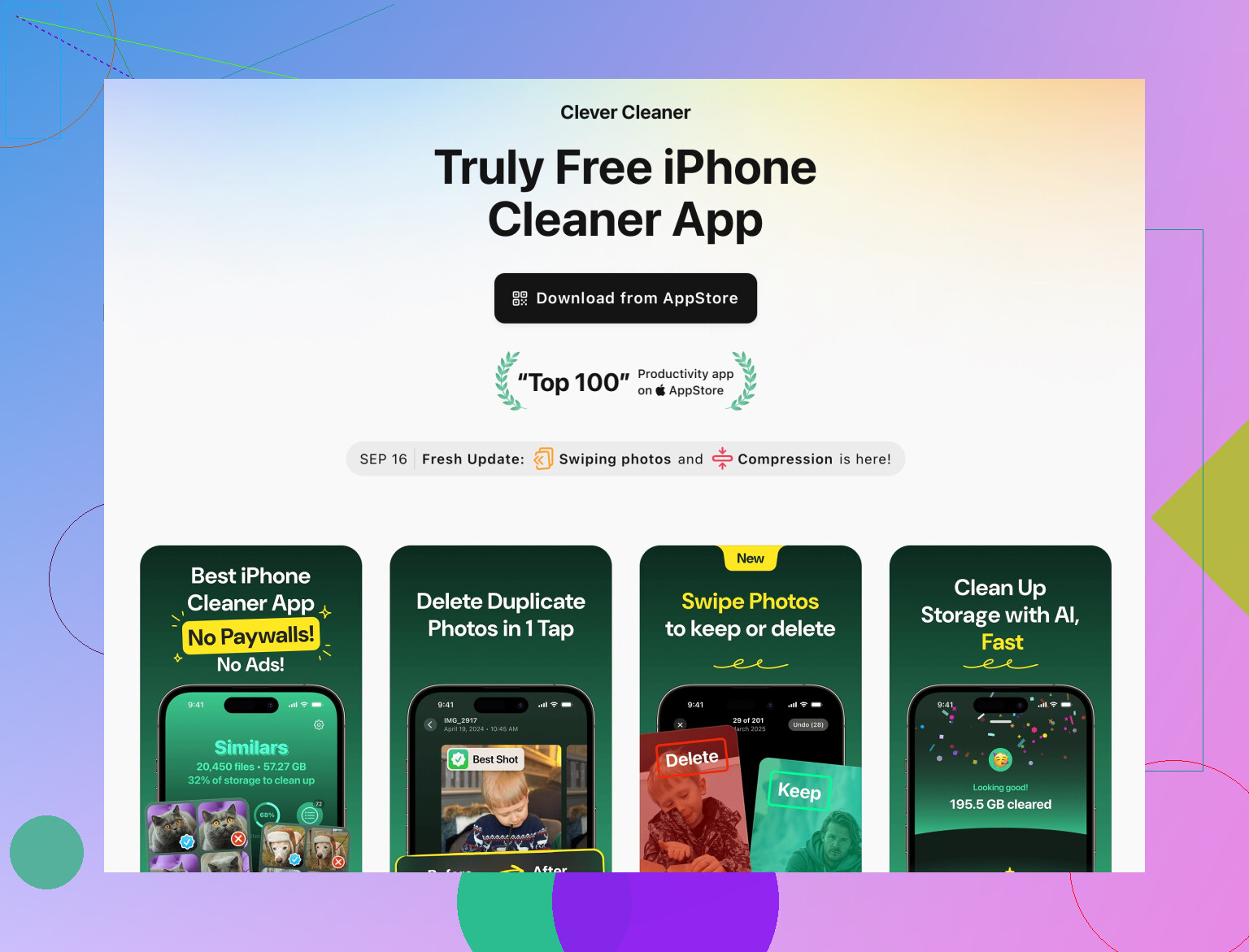
That’s where something like the Clever Cleaner App is actually relevant. It sticks to stuff iOS allows and does not try to pretend it is rewriting the system.
If you want a safer helper instead of some random shady “RAM booster,” look at
smart photo and storage cleanup for iPhone
In plain language, it’s good at:
- Finding duplicate or near‑duplicate photos so you can keep the best shot and dump the rest
- Highlighting old, very large videos and screen recordings
- Cleaning up messy contact lists with duplicates or empty cards
It does not mess with system files, install weird profiles, or require a VPN to “scan” your phone, which is where lots of sketchy apps start crossing lines.
6. When performance is the issue, not just storage
If your phone feels slow:
- Try to keep at least 5–10 GB free, but I’ll disagree slightly with @sterrenkijker here: you don’t have to obsess over that number daily. Just avoid sitting at “0 bytes free” for weeks.
- Restart the device once in a while if you rarely power it off.
- Check for iOS updates; sometimes performance bugs are actually system bugs, not storage.
7. What to absolutely avoid
- Any app that:
- Promises full “system junk removal” or “RAM turbo boost”
- Wants you to install a configuration profile
- Forces a VPN as part of “cleaning”
- Spams you with fake “your phone is infected” popups
Those are your biggest privacy and data‑stealing risks, not the reputable cleaners that just scan photos and contacts.
If you combine:
- iOS’s own iPhone Storage screen
- Per‑app cleanup in mail, maps, music, and social apps
- A focused helper like Clever Cleaner App for photo/video/contact cleanup
you’ll get way more actual space back than from any generic “1‑tap clean” tool, without handing your phone to something sketchy.
Use a cable and move old photos and videos to a computer or external drive.
Connect your iPhone to a Mac or PC. Import media with Photos, Image Capture, or Windows Photos. Open several imported files to confirm the transfer worked. Then delete those items from your iPhone and empty Photos > Recently Deleted.
Start with large videos. Ten minutes of 4K video often uses several GB. This avoids cleaner apps, subscriptions, and cloud storage. It’s simple, private, and gives you space fast. Keep two copies of important files before deleting them, tho.
Check the System Data line in Settings > General > iPhone Storage before you do anything drastic. If it’s sitting at 8 to 12 GB, that’s roughly normal and you can leave it alone. If it’s ballooned to 20 GB or more, that’s usually a stuck cache or a messaging app gone wild, and that’s the only time the backup and restore trick @sterrenkijker mentioned is worth the hassle. Otherwise restoring a whole phone to claw back a couple gigs is a lot of effort for very little.
Here’s the thing everyone’s dancing around: on most iPhones the real problem is photos and videos, full stop. All the mail cache and Safari data tips are fine, but they usually free up hundreds of MB, not the gigs you actually need. So if you’re short on time, go straight to the camera roll and don’t bother with the small stuff yet.
@dragon.ai has the most honest answer in the thread. A cable and a computer clears more space in ten minutes than any app, costs nothing, and keeps your files private. The only catch is you need somewhere reliable to put them, and you have to actually verify the copies opened before you delete anything. People skip that step and then panic.
On the cleaner app question, I wouldn’t ignore the tool mentioned above but I also wouldn’t treat it as magic. Clever Cleaner is genuinely handy for the one job it’s built for, which is spotting duplicate and near identical shots you’d never sort by hand. Where it can’t help is the stuff Apple locks down, so ignore any ‘system’ claims from any of these apps. Use it as a quick pass to find the fat to trim, then confirm with your own eyes before deleting, especially with videos.
One thing nobody said: turning on Optimize iPhone Storage does not delete your originals, it just moves full res copies to iCloud. If your iCloud is also full, that feature quietly does nothing. Check that before you assume it’s working.