My external hard drive was working fine, but now a bunch of files and folders are suddenly missing. I didn’t delete anything, and I need help figuring out if this is a connection issue, file corruption, or a sign the drive is failing. I’m trying to recover important data and want to know the safest next steps.
If Windows still sees the drive and assigns it a letter, I’d take that as a decent sign. From what I’ve seen, it often points to a file system mess, corrupted folder records, or some other logical issue, not a drive with zero pulse. I had one do this a while back. Looked empty. Used space was still there. The files were recoverable.
What I would not do first is “repair” it.
Recover your data first. Mess with fixes later.
A few things I’d avoid right now:
- Don’t format the drive, even if Windows nags you to do it.
- Don’t write anything new to it.
- Don’t run CHKDSK yet. It sometimes patches file system errors, but I’ve seen it reorganize things in a way that made file recovery worse, not better.
Before going into recovery software, I’d check a few boring things first:
- Turn on Hidden items in File Explorer.
- Look at used space on the drive. If the numbers still look close to what you expect, your files are often still sitting there.
- Swap the USB cable or try another port. I’ve had flaky cables fake a bigger problem.
If the files still don’t show and you don’t have a backup, I’d move to recovery software.
I’d start with Disk Drill. My reason is simple. It’s easier to use than a lot of the other stuff, and one feature matters a lot here: disk imaging. That gives you a full copy of the drive at the block level. If the external drive starts dropping off, crawling, or acting weird mid-scan, making an image first is safer. You scan the copy, not the original. Less wear, less risk.
This is the order I’d use:
- Install Disk Drill on your internal drive, or on some other healthy drive. Don’t install it onto the external drive with the missing files.
- Open it and pick the problem drive.
- If the drive looks unstable, use Disk Drill to make a disk image first. Then scan the image file.
- If the drive seems stable, hit Search for lost data.
- When it asks for scan type, pick Universal Scan. I’d use this one by default. It rolls multiple methods into one pass, deleted file checks, damaged file system records, lost partitions, file signatures, the whole lot.
- Let the scan finish. Big drives take time. Stopping early tends to leave useful stuff unseen.
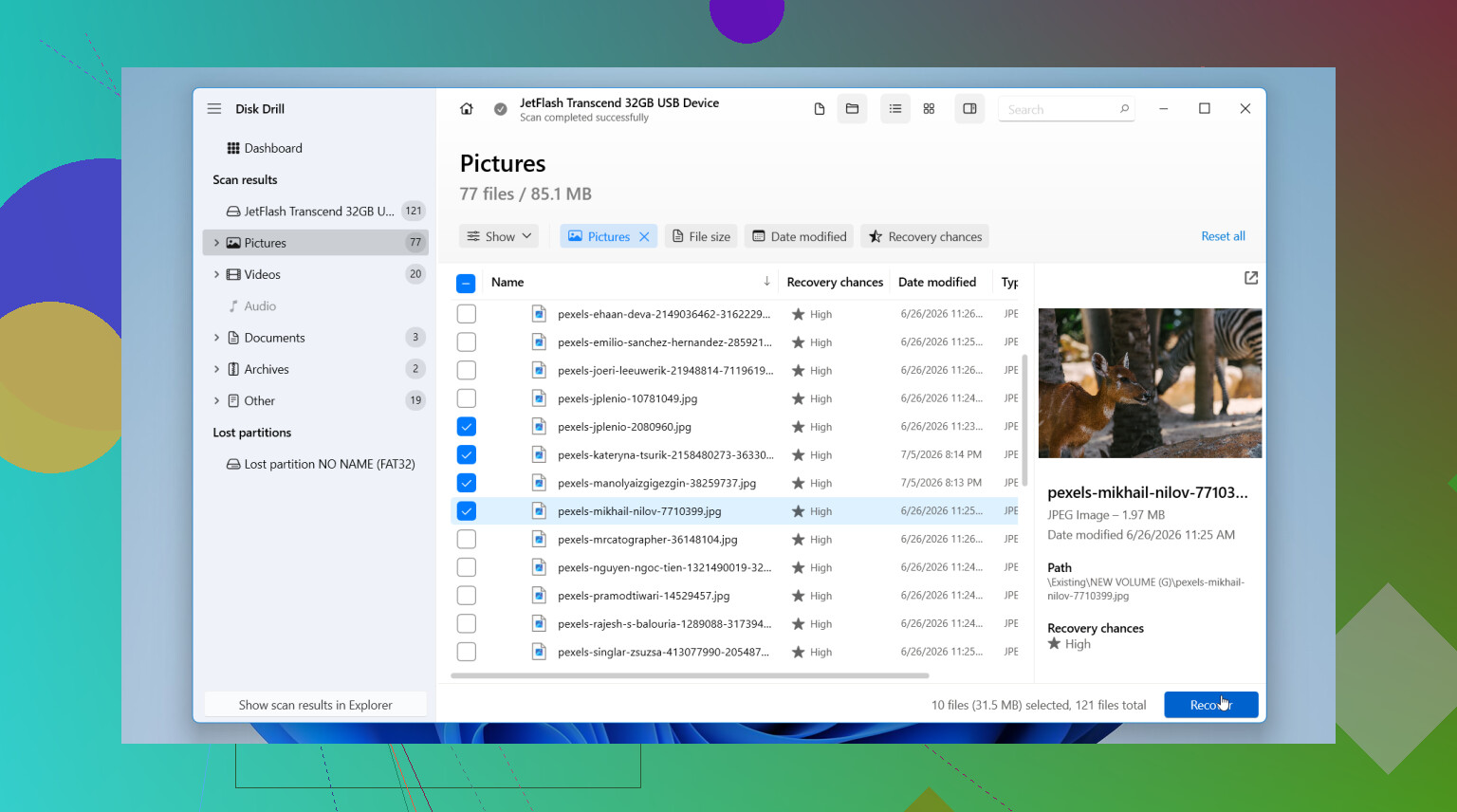
- Check the results. Preview a few important files and see if they open.
- Restore recovered files to a different drive. Not back onto the same external disk. Never there.
If you’re on Windows, there’s also a free recovery limit of up to 100 MB, which is enough to test whether your stuff shows up before spending money.
After your files are safe, then I’d think about repair or reformatting. If the drive keeps acting strange after tht, I wouldn’t trust it again for anything important. I’d replace it.
The one time I’d stop all DIY steps is when the drive shows physical failure signs. Clicking noises, grinding, random disconnects every few minutes, huge delays opening folders, or the drive vanishing from Windows. At that point I’d unplug it. Software won’t fix damaged hardware, and repeated scans sometimes push a weak drive further downhill.
If the data matters a lot, family photos, job files, old projects, anything you can’t redo, I’d skip home recovery and go straight to a pro recovery lab. They have tools and hardware access regular software doesn’t. It costs a lot, yeah, but for irreplaceable data, I think it’s the safer path.
17 Likes
If the drive still mounts and shows the old used space, I lean logical failure before dead hardware. @mikeappsreviewer is right on the big risk stuff, don’t write to it, don’t format it. I differ a bit on one point though. I would check the SMART health first, before a long recovery scan, because it tells you if the disk is degrading.
Do this in order.
- Open Disk Management. See if the partition size looks normal.
- Check SMART with CrystalDiskInfo or smartctl. Watch Reallocated Sectors, Pending Sectors, CRC errors.
- If SMART looks bad, stop poking at the drive and image it first.
- If SMART looks clean, check for file system issues like a RAW partition, bad directory entries, or a missing mount point.
- Test the drive on another PC. If the same folders are gone, it’s the drive, not Windows.
- Look in Event Viewer, Windows Logs, System. Disk errors often show there.
A lot of ‘missing files’ cases turn out to be one of these:
- damaged MFT or directory records on NTFS
- bad USB bridge in the enclosure
- power issue from a weak port
- malware flipping hidden/system attributes
- early bad sectors
For recovery, Disk Drill is a solid pick since it handles deleted entries plus damaged file system scans in one place. If you need a plain-English guide on how to recover files from a corrupted hard drive, this helps too, see how to recover files from a corrupted hard drive.
One more thing. If this is an external HDD with a detachable enclosure, remove the disk and test it in another SATA-to-USB adapter. I’ve seen the enclosure be the whole problem. Kinda annoying, but it happens a lot.
I mostly agree with @mikeappsreviewer and @yozora, but I’d add one angle they didn’t really lean on enough: check whether this is an attribute/permissions problem before assuming the file system is busted.
I’ve seen externals look “empty” when the folders were still there but:
- the files got marked hidden/system
- the current Windows user lost permission to view them
- the folder path got weirdly long or glitched and Explorer just acted dumb
A couple things to check that are low-risk:
- Open Command Prompt and run:
attrib -h -s /s /d X:\*.*
replace X with the drive letter
That can unhide stuff if malware or Windows weirdness flipped attributes.
-
Right click the drive, Properties, Security tab. Make sure your account can actually read the folders.
-
Try accessing the drive in a different file manager, not just Explorer. Sometimes Explorer lies, honestly.
-
If this happened right after plugging it into a TV, Mac, NAS, or weird adapter, that can matter. Some devices don’t “delete” files, but they absolutely can mess up directory visibility.
Where I slightly disagree with the “don’t do anything except recovery” camp is this: very small, read-only checks are fine. Looking at permissions, attributes, and directory visibility is not the same as running CHKDSK and letting Windows go all cowboy on the file table.
If the used space is still there and the drive is stable, recovery software is the next move. Disk Drill makes sense here, mostly because it’s easy to preview what’s actually recoverable before you commit to anything. That matters when you’re trying to figure out if the files are truly gone or just not visible.
Also, if you want a real-world external hard drive recovery example, this is worth a look: external hard drive data recovery success story
If the drive starts clicking, freezing, or disconnecting, stop. At that point it stops being a “missing files” problem and starts being a “this drive may be dying rn” problem.
One angle I’d add that @yozora, @suenodelbosque, and @mikeappsreviewer only touched indirectly: check whether the folders were moved into FOUND.000, renamed to gibberish, or are only missing in Explorer’s index. I’ve seen externals look “empty” while the data was still reachable by direct path or visible in Everything/Total Commander, which points more to shell/index weirdness than full-on loss.
Also, slight disagreement with the “SMART first always” idea: for some USB enclosures, SMART passthrough is flaky or fake, so a “good” result does not clear the drive.
What I’d do that is low-risk:
- Try browsing the drive from command line with
dir /a - Search for known filenames from the root
- Check if the files show in another file manager
- See if the drive’s used space suddenly dropped. If yes, deletion/metadata damage is more likely than hidden files
If you need recovery, Disk Drill is reasonable.
Pros:
- easy previews
- can scan partitions and raw signatures
- imaging option is useful
Cons:
- free recovery on Windows is very limited
- deep scans can return messy filenames/folder structure
- not the cheapest option if you need full recovery
If it finds your files with decent previews, recover to another disk only. If the drive starts hanging during simple folder browsing, I’d stop DIY and clone first or go pro.