My hard drive suddenly shows up as RAW instead of NTFS, and I can’t open any of my files. I really need help figuring out how to convert a RAW disk to NTFS without formatting it or losing important data. If anyone knows safe recovery steps or tools that actually work, I’d appreciate the advice.
I’d leave the RAW to NTFS conversion alone until your important files are copied out. When Windows tells you to format, it usually means it stopped recognizing the file system. It does not always mean the files are gone. I’ve seen drives show up as RAW while the data was still sitting there, with the partition size looking normal, but NTFS was damaged enough for Windows to give up on it.
The order I’d follow is simple. Recover first. Fix it later.
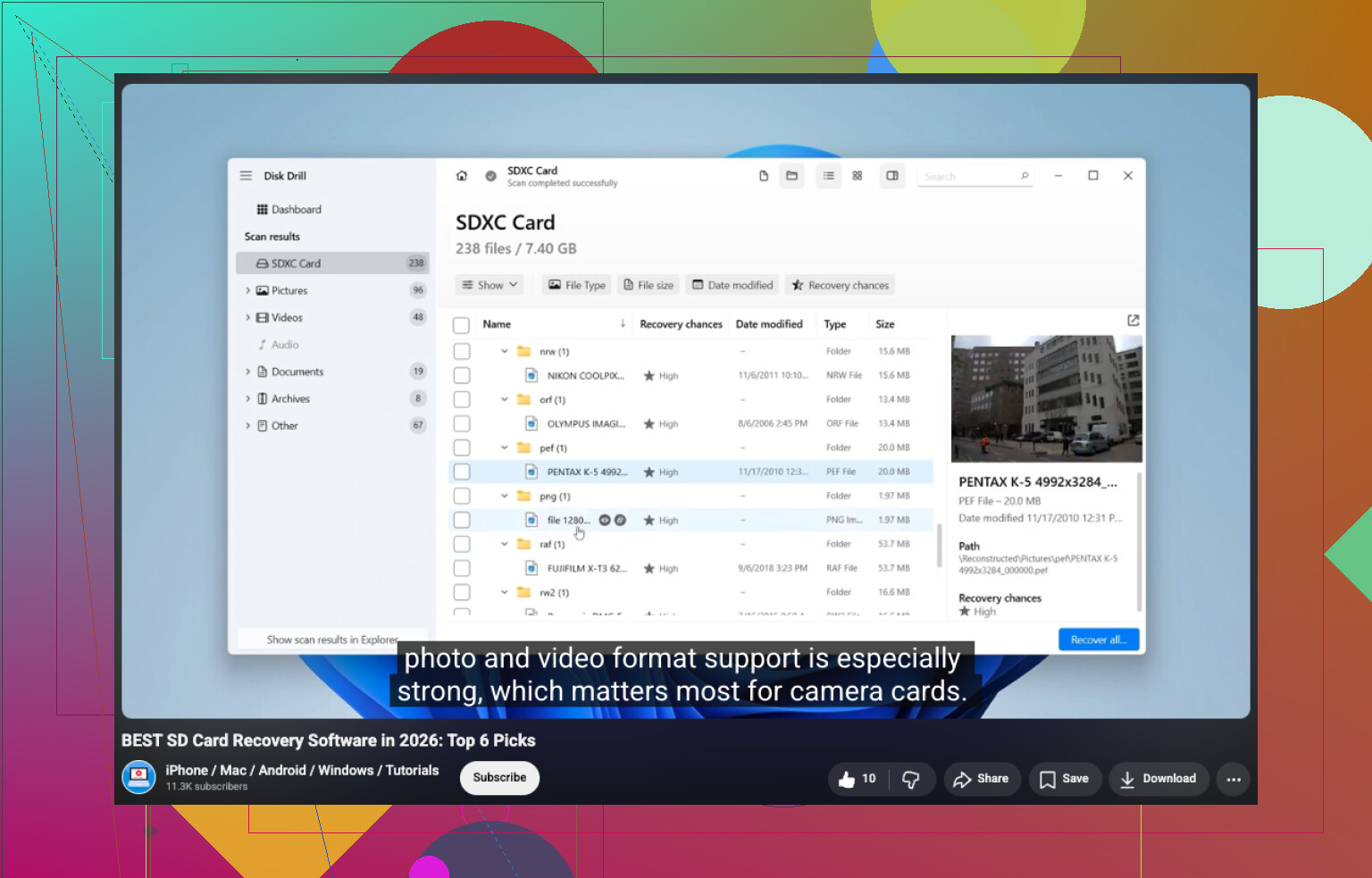
If the drive still shows the right capacity, I’d scan it before doing anything else. Disk Drill is the easy starting point. It usually spots RAW partitions on its own and runs a few recovery methods in one pass, so you don’t have to poke around a bunch of menus. Pick the RAW drive, run the scan, wait it out, then look through what it finds. I liked the preview part because you can open photos, docs, videos, and see if they’re readable before you recover them. Put recovered files on a different drive. Don’t write them back to the broken one. That’s where people make things worse.
If Disk Drill comes up short, I’d try UFS Explorer next. I’ve had it pull files other tools missed. DiskGenius is worth a look too, mostly because it mixes file recovery with partition recovery stuff. If your data matters, compare the results from more than one tool before you touch the disk structure.
Once your files are safe somewhere else, then deal with the RAW partition itself. What you do next depends on what failed.
- Format it to NTFS if your goal is only to reuse the drive.
- Restore the partition if the partition table got messed up and the data still seems to be there.
- Run CHKDSK only after recovery, and only if this looks like light NTFS corruption. It repairs file systems. It is not a recovery tool.
- Replace the drive if SMART alerts, bad sectors, or repeated read errors keep showing up. At that point I wouldn’t trust the hardware.
The big mistake, from what I’ve seen, is firing off repair commands too early. Anything which writes changes to the file system can shrink your recovery chances. Pull the data first. After that, repair it, reformat it, or retire the drive if it’s dying.
17 Likes
Do not try to ‘convert’ RAW to NTFS in place. Windows has no safe button for ths. If the disk turned RAW, your NTFS metadata got damaged or the partition table did.
I agree with @mikeappsreviewer on one part, copy data out first. I disagree a bit on repair timing. If the drive is healthy and this is a simple partition flag issue, TestDisk is worth trying before a full file recovery scan. It does not recover by file type first, it tries to restore the lost NTFS partition structure. When it works, you get your folders back with names intact, which is faster.
My order:
- Check SMART with CrystalDiskInfo. If health is bad, stop using the drive.
- Clone the disk first with HDD Raw Copy Tool or ddrescue if read errors show up.
- Try TestDisk on the clone, look for NTFS boot sector backup and partition repair.
- If TestDisk fails, use Disk Drill and recover files to another drive.
- Only after data is safe, format to NTFS.
Do not run format, chkdsk, or assign-write tools first. Those steps wreck recoverey more often than people admit.
If you want a plain overview of top data recovery tools for 2026, this helps:
best data recovery software for 2026 explained
Short version, repair the structure if the disk is healthy. Recover files if it is not.
There really is no magic “convert RAW to NTFS without data loss” button in Windows. RAW usually means Windows can’t read the file system, not that the files are automatically gone. That part I agree with from @mikeappsreviewer and mostly with @yozora too.
Where I slightly disagree is this: people jump way too fast into partition repair tools when they are not sure whether the drive is physically stable. If the disk is clicking, disconnecting, freezing Explorer, or reading at snail speed, stop trying to fix structure stuff first. A flaky drive can turn a recoverable mess into a worse one real fast.
What I’d do different:
- Check Event Viewer for disk errors and watch if the drive keeps dropping offline
- If it’s an external drive, swap cable, port, and enclosure first. I’ve seen a “RAW drive” end up being a bad USB bridge, lol
- If the data matters, make a sector-by-sector image before experimenting
- Mount that image in recovery software instead of hammering the original disk
For file recovery, Disk Drill is a solid choice because it handles RAW drives well and lets you preview recoverable files before saving them elsewhere. That preview matters more than people think. If your docs and photos open in preview, that’s a very good sign. Save everything to a different drive, not back to the problem disk.
One more thing: if this happened after a sudden unplug, crash, or power loss, sometimes the issue is just NTFS boot sector or MFT damage. In those cases, repair may work, but only after you’ve secured the important stuff. CHKDSK first is still a gamble, and yeah, people keep learning that the hard way.
If you want more background, this Reddit guide on converting a RAW hard drive to NTFS without losing files is worth a read.
Short version: don’t “convert” it in place. Recover or image first, then repair or format after. That’s the safest path, even if it’s a bit annyoing.
I’m a little less absolute than @yozora and @viajantedoceu on one point: if this is an internal drive and the size, serial, and SMART all look perfectly normal, sometimes the problem is not the file system at all. I’ve seen RAW caused by a flaky SATA cable, bad USB-SATA adapter, or enclosure chipset lying to Windows. So before touching software, reconnect it directly if you can.
A few checks that complement what @mikeappsreviewer already covered:
- Open Disk Management and note whether the partition still shows the expected size.
- Check Device Manager for I/O or controller weirdness.
- Try reading the drive from a Linux live USB. If Linux mounts it, don’t “repair” anything in Windows yet.
- If BitLocker was ever enabled, confirm it didn’t lose its unlock state. Encrypted volumes can look broken when they are just locked.
About Disk Drill specifically:
Pros:
- very easy for RAW partitions
- good preview, which helps verify file quality before recovery
- decent for mixed file types like photos, docs, video
Cons:
- deep scans can be slow
- file-name/folder recovery is not always as clean as structure-based repair
- not the cheapest option if you only need one recovery job
So my take is: rule out connection issues first, then recover files with something like Disk Drill if the partition still won’t mount, and only after that rebuild or reformat. “Converting” RAW to NTFS in place is the wrong mental model here. You’re either restoring damaged NTFS metadata or extracting the data and starting fresh.