I’m trying to show photos from my iPad on the TV after dinner. The TV is across the room. The nearest outlet is behind the couch. Do you actually use wireless screen mirroring or a cable for iPad to TV? Why does that setup work better for you?
My pick is DoCast for an iPad that needs to connect to a TV without AirPlay, while built-in Screen Mirroring is the simpler choice when AirPlay is available. I would keep HDMI for situations where I do not want to use Wi-Fi. That is how I sort the options: start with what the TV supports, then decide whether I need the whole iPad screen or just the photos and videos on it.
The distinction between mirroring and sending media matters more to me than which button starts the connection. Mirroring puts the iPad screen on the TV. If I only want to show photos or play a video, I would send those directly instead. That works more smoothly than mirroring everything, and it avoids using the whole-screen option for a job that does not need it. I use the DoCast mirroring app for that choice between screen mirroring and sending media.
Before choosing a wireless method, I would rule out the cable question. HDMI is the straightforward alternative if Wi-Fi is not part of the plan. The adapter depends on the iPad: newer models with USB-C need a USB-C to HDMI adapter, while older models with Lightning need Apple’s Lightning to HDMI adapter. After connecting it, select the matching HDMI input on the TV. The iPad screen then appears there. I would check the connector rather than treat “iPad adapter” as a complete description. It is not much of a description when the plug does not fit.
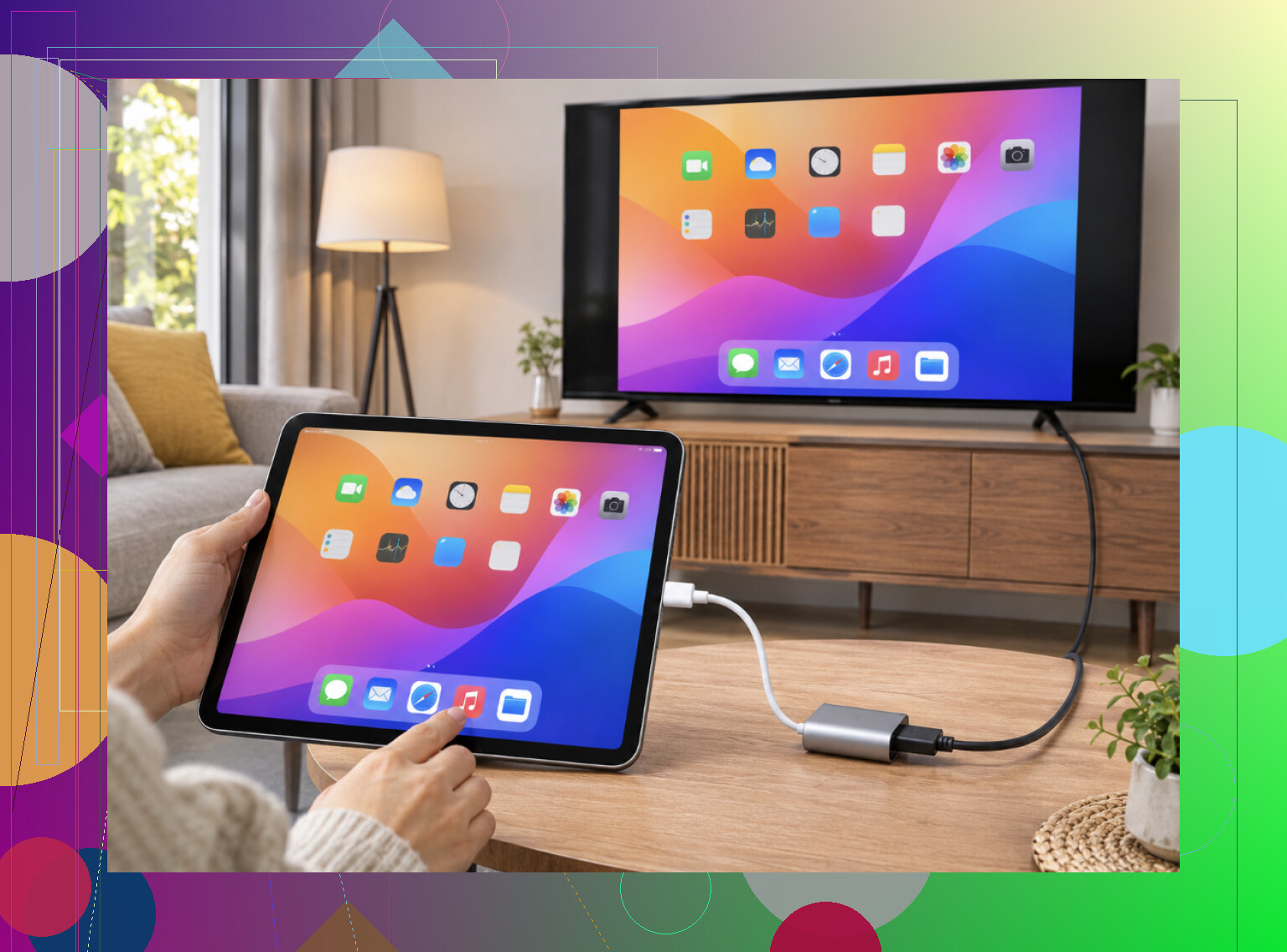
The cable’s drawback is also plain. I am physically connected to the TV, which limits where I can keep the iPad while using it. That may be fine, but it is a different arrangement from a wireless connection. I would not dismiss HDMI just because an app is available, and I would not buy an adapter merely to avoid checking whether the TV already supports AirPlay. For me, the cable earns its place when I specifically want to leave Wi-Fi out of the setup.
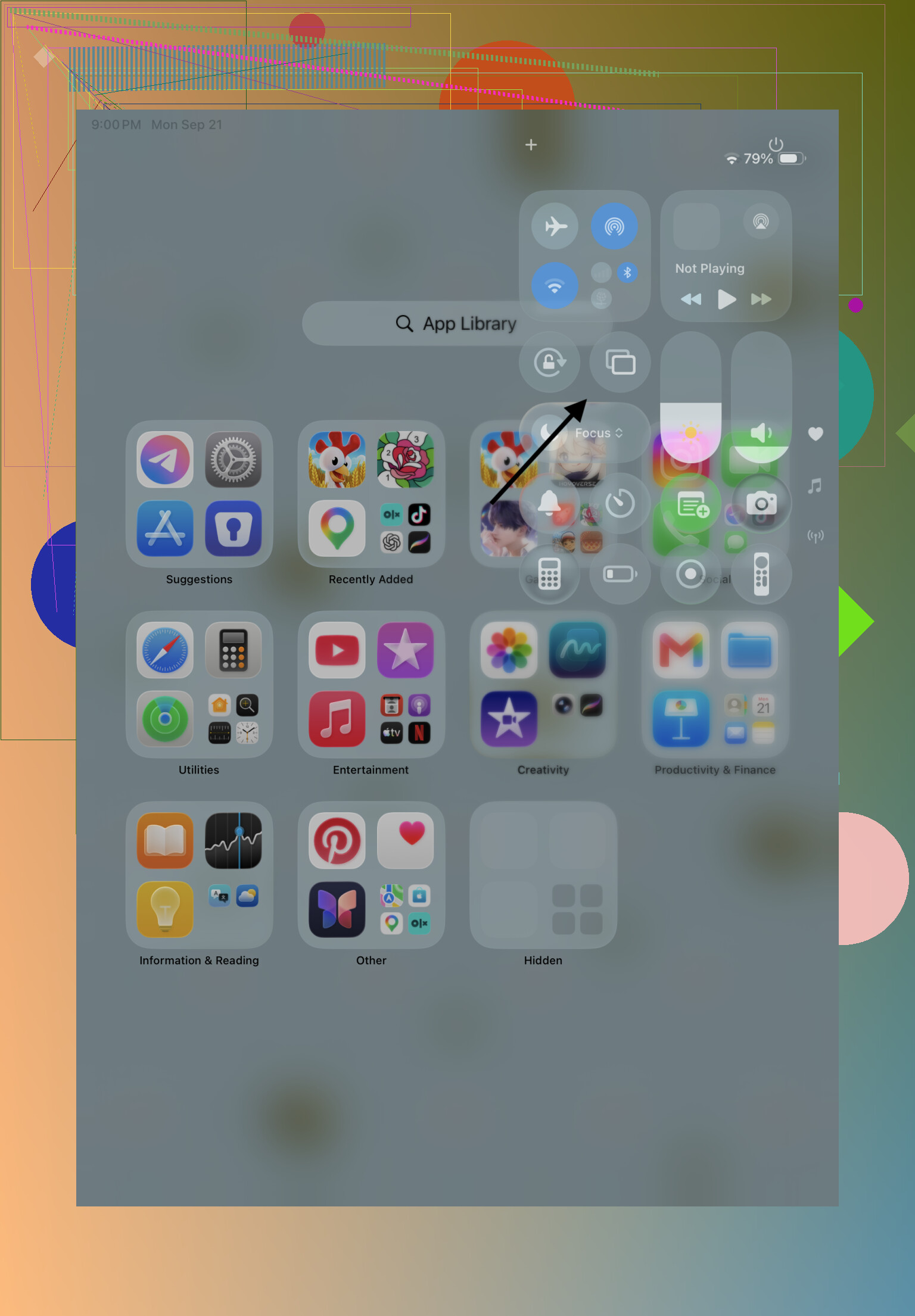
For wireless use, I keep the iPad and TV on the same Wi-Fi network. Then I check the built-in route before opening another app. On the iPad, open Control Center and tap Screen Mirroring. If the TV appears in the list, select it. That is the short route, and there is no reason to make it longer. The catch is compatibility: this method depends on the TV having AirPlay. I would not assume every smart TV offers it just because it has apps and a remote with too many buttons.
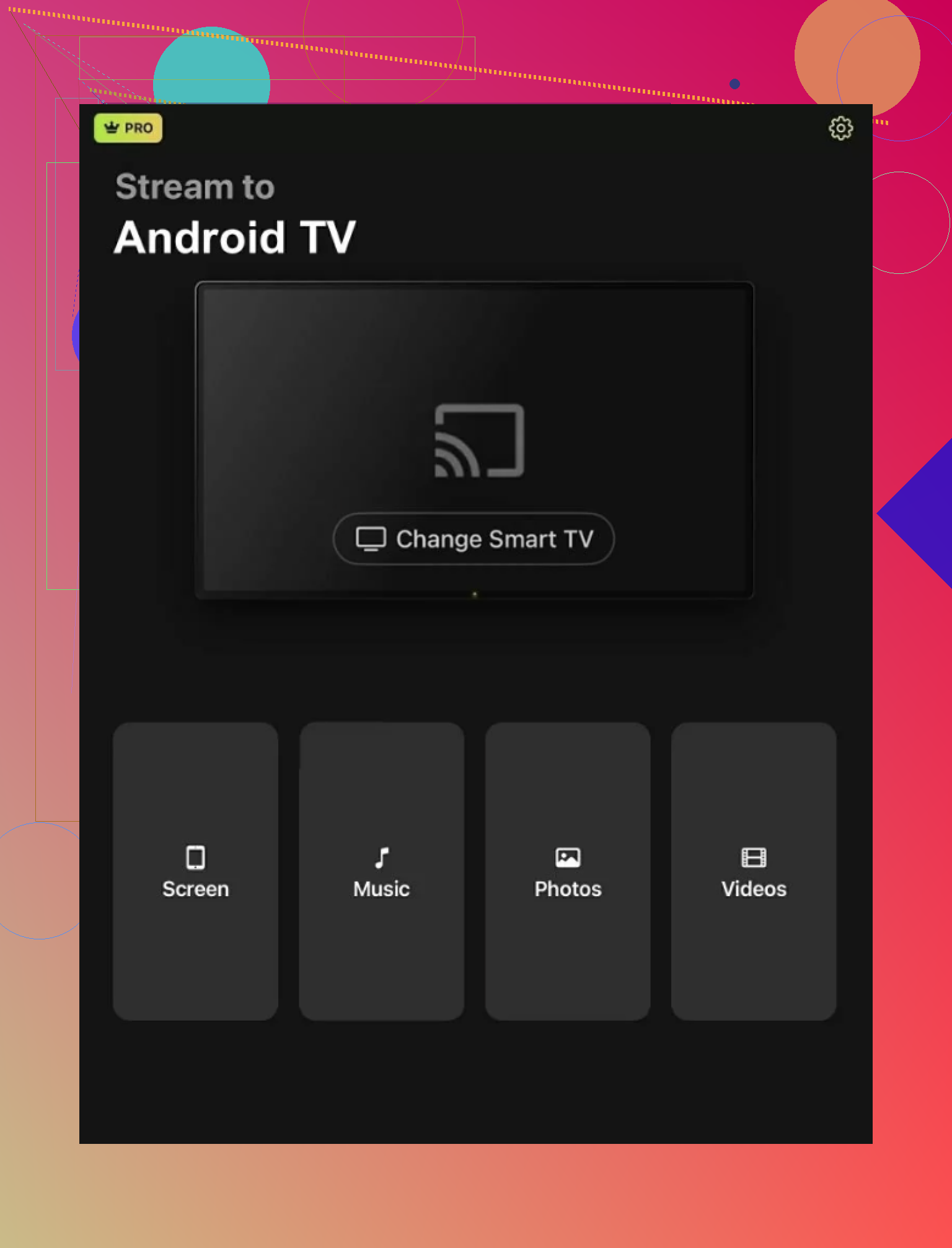
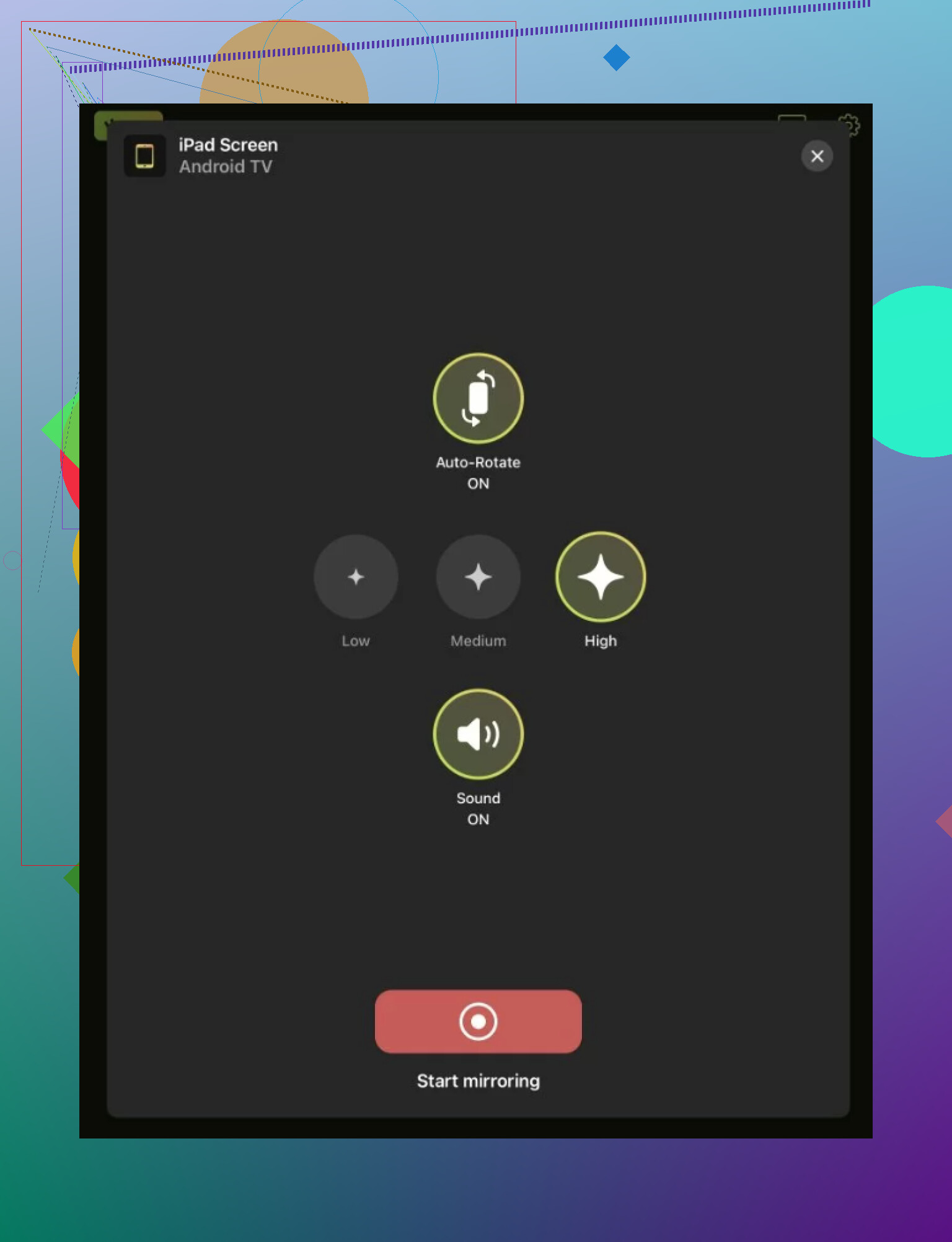
If the TV is not listed, I move to the app route. DoCast supports Chromecast, Roku, Fire TV, and most smart TVs, so it covers options beyond AirPlay. The process is to open the app, select the TV, and tap Start mirroring. It does not require extra hardware for that wireless setup, and getting started is quick. I still read “most smart TVs” as most, not every TV ever sold. That wider compatibility is why I keep the DoCast app as my fallback.
One detail I would not mistake for a failed connection is black space at the sides of the picture. The iPad screen and the TV are different shapes, so side bars are normal. Getting the screen onto the TV does not make their proportions match. I would leave that separate from the choice of connection method rather than judge the setup by whether every inch of the television is filled.
My verdict is to use AirPlay when it is already available, choose DoCast when I need broader wireless support, and use HDMI when I want no Wi-Fi involved. For my own wireless fallback, I would stick with DoCast.
11 Likes
Avoid using an HDMI cable to extend the reach of your iPad across the walkway. I’d recommend going for wireless. Whilst it is good to ensure your TV can support it, I’d be more concerned about where you would have to run the cable. Ensure you charge your iPad before dinner, so that you are not tied to that plug either. If you cannot get wireless to work then place the iPad next to the TV with a short cable. This means one person can manage the photos.
Don’t show all of your pictures. Create an album specifically with the photos you want everyone to see. The wireless option would be best in the room so you can remain seated and everyone can take turns with the iPad. I do agree with sending the pictures rather than mirroring. Don’t spend too long trying to decide on apps. Do a few pictures before dinner and if it works leave it.
Turn off notifications and place the iPad on a nice looking photo. Whilst connected, you can see what will be shown on the TV. This means you know what your guests will be seeing whilst someone is playing with the iPad.
I would go for a wireless connection but whilst it is connected the iPad should be used to control the photos. However, if you are likely to use it for messages or anything else during the meal then it does become an issue. As it is being mirrored in full screen mode anything you switch to will be included in the presentation. Using a cable will not help with this.
Whilst having the photos in a different album is a good idea, it is still not completely private as they can opt out. I wouldn’t be quite as enthusiastic about sharing the iPad around but if you are happy to then it is easier to keep it with one person and let people ask for the next photo.
Whilst setting it up, make sure you accidentally exit the photo view once whilst you are on your own. This is a great way to test what will happen with your chosen method. Will the photo stay on screen, will it change or will it stop playing? Don’t assume that sending photos will be the same as mirroring.
Overall I would go for a wireless connection and keeping the iPad on the photos. If however you need to do something private on the iPad make sure you disconnect first.
Try not to spend money on hardware for your post-dinner slideshow. I would go for a wireless solution (assuming your TV can connect), but I wouldn’t get any adapters or apps unless you plan on doing it regularly.
Although the cable solution does make sense if you have the cable and adapter already, otherwise you are just paying for a second setup to save the first setup for your post-dessert activity. You can still hand round the iPad.
If it’s a regular family photo night then I would invest some time into making sure you can set it up on the TV again. If it’s an occasional thing then I would put a strict time and budget limit on it. Not based on how easy it is to get the outlet at the back of the couch, but how regularly you would actually use it.
It doesn’t matter about the outlet at the back of the couch. The iPad can easily run a photo slide show for hours. If you are using a cable though you might want to consider what outlet it is. However I wouldn’t use such an arrangement for something that you would get out once in a while.
Something nobody’s said clearly: if your TV has AirPlay, you don’t even need full screen mirroring for photos. Open the Photos app, pick the album, hit share, and AirPlay sends the slideshow straight to the TV. No notifications leaking through, no risk of your messages popping up mid-dinner, which is the whole worry @thread.vim raised. Mirroring the entire screen is overkill when the TV can just play the photos directly. That solves the privacy thing without disconnecting every time you want to check something.
Where I’d push back on the wireless cheerleading: it depends heavily on your Wi-Fi. If a bunch of phones are streaming at the table, photos can take a second to load and video stutters. Usually fine for stills, less fun for clips. The DoCast route makes sense as a fallback if your TV is a Roku or Fire TV with no AirPlay, but I wouldn’t install anything until you’ve confirmed the built-in option fails first. Try AirPlay cold tonight, and only reach for an app if the TV genuinely isn’t showing up.
But make sure you have tested it properly. Start the photos, take the iPad over to your seat and see that you can easily flick through the photos from your actual seating position. If this is the case, then I would suggest using a wireless solution for your room. A short lead next to the TV will also serve as an alternative.