Sharing iPhone Photos on Your TV: A Comprehensive Guide
Want to cast your photos from iPhone to TV ? Depending on your specific TV setup, there are different ways to make it happen. Here’s how you can do it, whether you’ve got an Apple TV, a Chromecast, or even just a trusty HDMI cable.
1. AirPlay: The Seamless Option for Apple Ecosystem Users
AirPlay is a convenient choice for those with devices like Apple TVs or modern Smart TVs from brands such as LG, Samsung, Sony, or Vizio that are AirPlay-compatible. If this sounds like your setup, the process is super straightforward.
Simple Steps to Follow:
- Network Check: Ensure both your iPhone and TV are connected to the same Wi-Fi network.
- Open Photos: Dive into the Photos app to find your favorite snapshots.
- Select Your Picture: Pick an image you want displayed on your TV.
- Share Button Time: Tap the Share icon (that square symbol with an upward arrow).
- AirPlay It: Look for and select the AirPlay option.
- Pick Your Device: From the list of devices detected, choose your TV.
- Voila! Your chosen photo will now light up your TV screen.
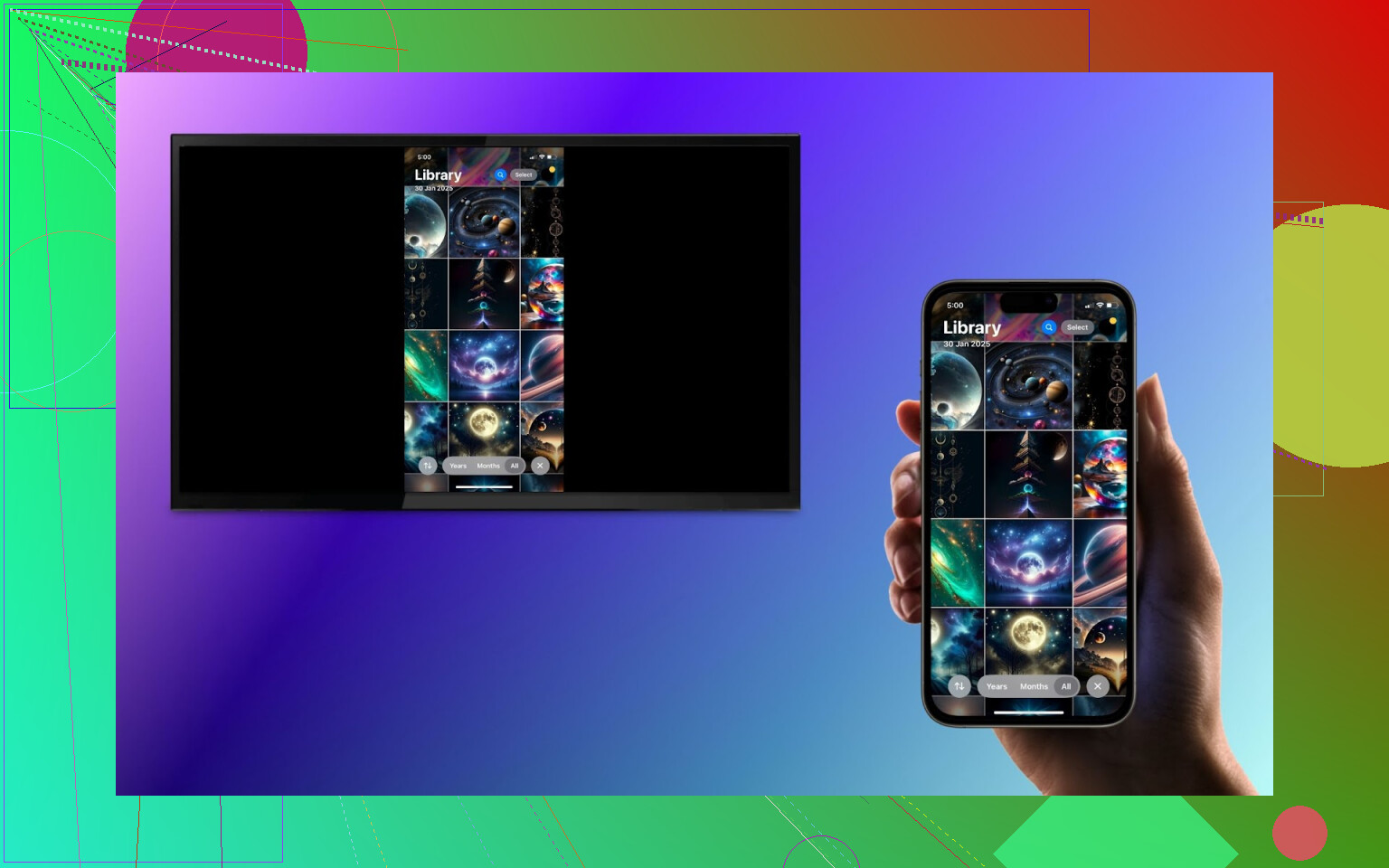
2. Third-Party Apps: Perfect for Chromecast, Fire TV, and More
Don’t have a TV that speaks the AirPlay language? If you’re on team Chromecast, Fire TV, or another streaming platform, third-party apps like DoCast come to the rescue.
Here’s What to Do:
- Get the App: Download DoCast from the App Store—it’s super lightweight and user-friendly.
- Match the Network: Connect both your iPhone and TV to the same Wi-Fi network (this is mission-critical).
- Open Connections: Launch the app and follow the prompts to sync it with your TV.
- Choose Photos: Use the app’s interface to pick and cast your pictures.
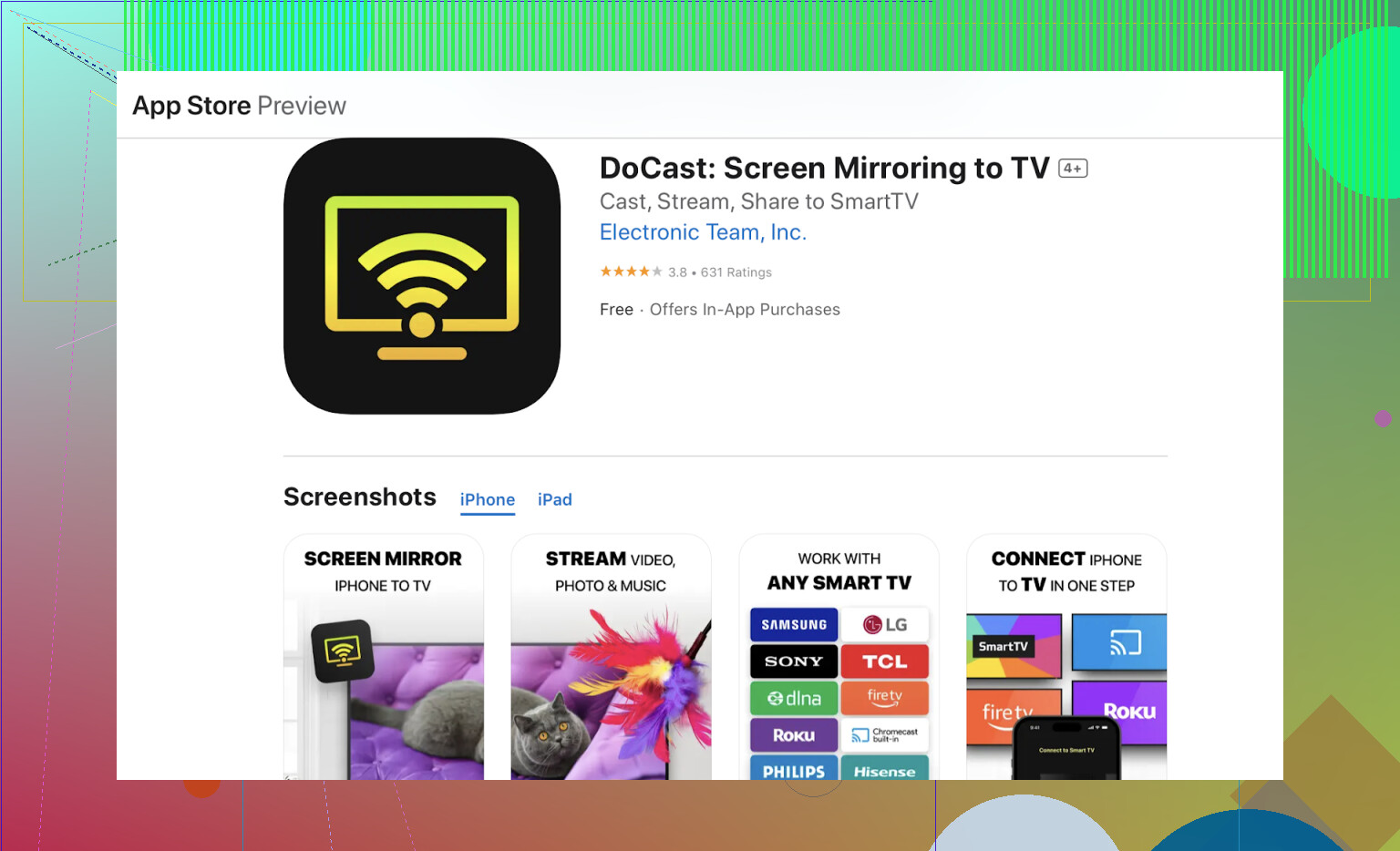
Pro tip: Many other apps exist for casting photos to Chromecast or Fire TV. Research the most suitable one for your preferences if DoCast isn’t your cup of tea.
3. HDMI Cable and Adapter: The Wired Option
Going old-school? If wireless isn’t working for you or your TV doesn’t have casting capabilities, a wired connection via an HDMI adapter gets the job done reliably.
Follow These Steps for Success:
- Grab the Right Gear: Purchase a Lightning to HDMI adapter (grab Apple’s official version or a high-quality alternative).
- Hook It Up: Connect your adapter to the Lightning port on your iPhone.
- HDMI Link: Plug one end of an HDMI cable into the adapter and the other into your TV’s HDMI input.
- Input Switcheroo: Set your TV to the HDMI port you’re using.
- Screen Mirror: Your iPhone screen—including everything, not just photos—will now be mirrored on the TV.
This is a fantastic option for anyone seeking reliability without worrying about Wi-Fi connections or apps glitching halfway through.
Final Thoughts
Whether you’re hosting a family movie night, showing off vacation photos, or presenting slides, the right casting option can transform your media experience. From AirPlay to HDMI cables, choose the method that fits your TV and personal needs!