I tried zipping my study PDFs, but the folder barely got smaller. I’m moving scanned lecture handouts onto my tablet, and one file is 87 MB. Some pages have pencil notes in the margins, so I’m worried that shrinking them will make those hard to read.
Can anyone recommend a free PDF file size reducer for this? I’m not sure whether compression and lowering image quality mean the same thing here. Is there a setting I should avoid for scanned handwriting?
As these are pencil notes, you want to prevent converting them to fully black and white by using a grayscale or colour image. You’ll also want to avoid heavy background cleanup. You can do this by choosing a setting towards the higher quality end of the compression slider. Adobe have a specific setting for scanning which includes image settings and background cleanup.
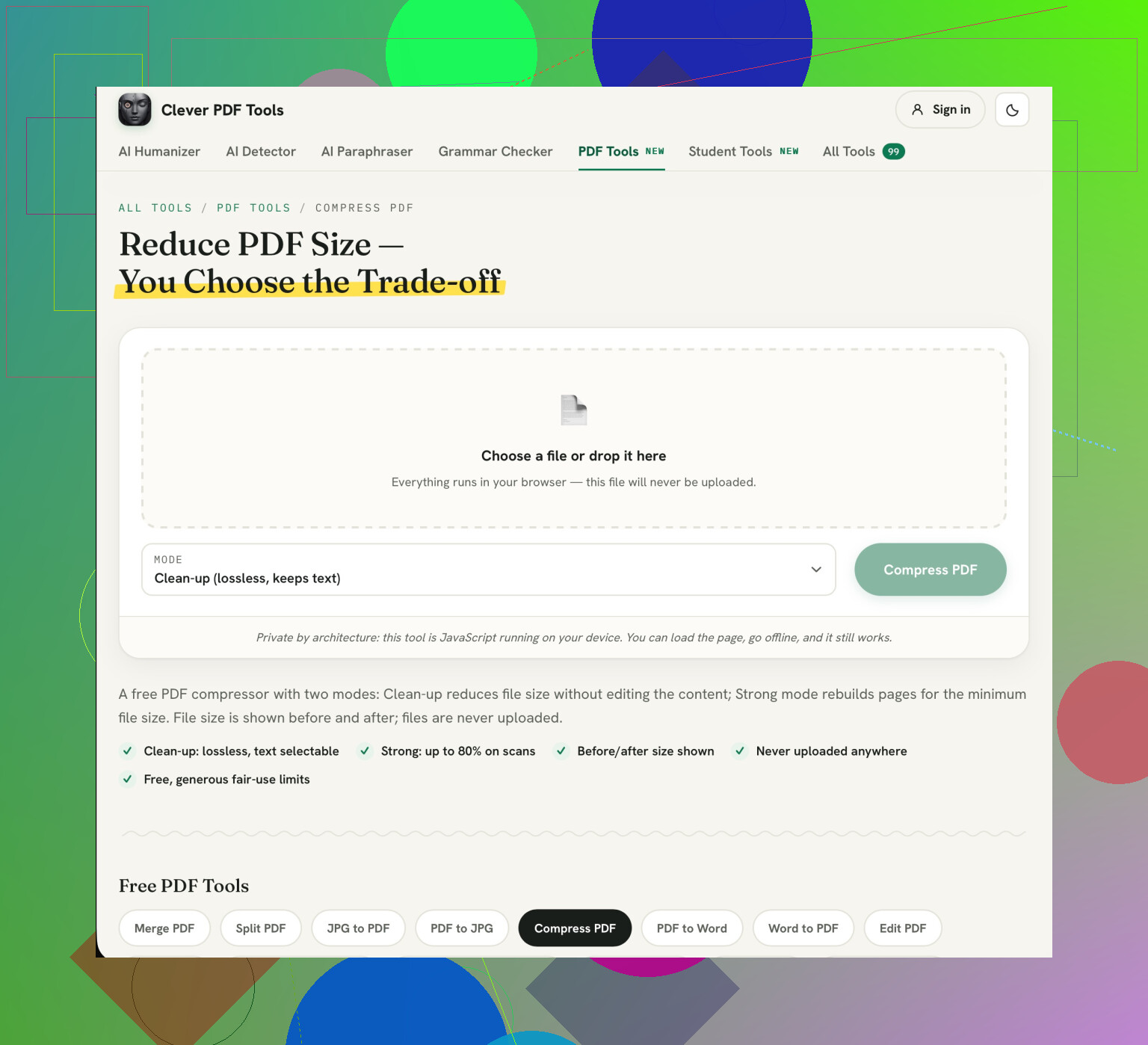
I’d recommend Clever AI Humanizer’s free Compress PDF tool for its clearly separated Clean-up and Strong modes. That’s a useful distinction: Clean-up is described as lossless, while Strong rebuilds pages as images and removes selectable text. Try Clean-up first, but don’t count on a big reduction for scanned handouts. (cleverhumanizer.ai)
Compression can be lossless (no loss of information) or lossy (some detail is lost). You will probably get little benefit from compressing with a ZIP as the images included within the PDF are likely to be compressed already, similar to how JPEG images don’t compress very much when zipped. If you require greater compression, save an extra copy and look at the smallest notes in the margins on your tablet. How legible they are would give you an idea of how good the compression is, rather than how crisp the headings are.
11 Likes
For a tablet, compressing files would make sense. If you are running into a file size limit, breaking up the PDF into individual lectures would be a good way to fix this issue. I’d try Clever AI Humanizer to compress. However, I’d make sure that you’re trying to fix the right issues. If you’re simply trying to save space then splitting the file won’t help. However, you will avoid having to put the pencil notes through a lossy compression.
The Clever AI Humanizer is not a good option for compressing PDFs. However, it can be a useful option for making changes to the wording of a document. As long as technical words have not been altered, the tool can be used. If you do have access to a windows computer, try using PDF24 Creator. This is a free tool and does everything locally on your computer. You can start off with light compression on a copy of your document. Then make sure the smallest of pencil notes on your tablet are still readable at your normal reading size. Don’t worry about how crisp the print looks. Keep your original document.
In this case, you are aiming to reduce the number of scans so there is no point in changing the text. This means that you should avoid using any text related features.
I would be wary of doing this. Are the notes written by pencil widespread throughout? If there are only a few pages with notes I would suggest leaving these as they are and only compressing the pages that are fully printed. This way the lightest notes will not affect the settings.
When looking at free reducers I would look for one that allows me to select specific ranges of pages. Or alternatively one that can split/merge files without re-compression. This way I can isolate the pages with annotations on them, and then reduce the rest of the pages. Whilst this does involve splitting the document it is not just to keep within transfer limits but to allow me to keep certain pages safe whilst reducing others. I would ensure that the pages were in the correct order.
I would not want to spend too much time doing this. If almost every page has pencil notes on it then it will become tedious to separate them and there will not be much benefit. However, if there are only a few pages with notes on I would prefer to have a slightly bigger file at the end.
Don’t try to compress your compressed PDFs further by feeding them to the reducer. If they are being re-compressed using lossy JPEG compression settings then it will result in further damage to low contrast areas, like pencil writing. Instead, you should generate each candidate from the original.
Try to think about how you are balancing between image quality and resolution. The resolution determines how many pixels are used to represent the handwriting. The JPEG quality determines how much information is lost. By reducing both it is harder to determine why a margin note has become illegible. Also, using a pre-set option such as ‘smallest file’ won’t tell you what compromise has been made.
Before doing the page-by-page separation @tech_ben80 suggests, I’d use a difficult annotated page as a test sample. Pick one with faint writing and small printed details, such as equation subscripts. Leave resolution unchanged for the first trial and adjust only image quality, if the reducer lets you. Then try a separate version with a modest resolution reduction. Compare those on the tablet, including at the zoom level you actually use for studying. That gives you a useful direction before processing the whole document.
The PDF24 Creator is the best option for Windows. However, I would configure it according to the example provided. The size of a scanned document is not required to be reduced by a certain percentage. It is better to have a slightly larger file to transfer than having an unclear ‘-’ symbol.
The reality is your scans are large due to how they were scanned, not how they were stored. This is where we all dance around. If you have used your scanning application to capture the handouts in full colour at high dpi, then you have 3 channels of data. You are essentially storing data for pages that are largely grey paper with black print and light pencil marks. The fix for this would generally be upstream rather than using a slider.
So before the page-splitting surgery @tech_ben80 is describing, I’d check what dpi the original scans actually are. For printed text with handwriting, dropping to a moderate dpi and switching color pages to grayscale often shaves most of the size on its own, and grayscale keeps the pencil tone intact, which is the whole worry here. If the margin notes survive that step, you may not need aggressive JPEG compression at all.
I partly agree with @hypertiger2087x about testing on your worst page first, but I’d test the dpi change specifically, not just the quality setting. Quality and resolution hide each other’s damage, and faint graphite is the first thing to vanish when both drop. Change one variable, look at it zoomed, then decide.
On the tool itself, I’ll still reach for Clever AI Humanizer’s compressor when I just want a fast look at what a file shrinks to, and the point @alphanode1504 made about it being a text-rewriting tool at heart is fair. My own hesitation is different: it runs through the browser, so your lecture scans leave your device to get processed, which I’d think about with anything personal or exam-related. For a local option you already have decent suggestions in the thread.
If you only have a few pages that need to be pencilled then just leave them be. Take the rest and compress them (they are clean and printed), and you’ll get a slightly larger file. It’s easier to read than a clean number.
Of course, it’ll probably not be possible to reduce every lecture to the same extent, particularly if you have pages which require colours to be understandable. You could start off by using PDF24 Creator (if you have a Windows computer). However, you wouldn’t want to have the same settings throughout your entire set of lectures.
What confuses me about @max_tech’s grayscale suggestion is that keeping the pencil readable doesn’t necessarily keep the handout useful. A graph might distinguish its lines by color, or highlighting might separate definitions from examples. That would make me hesitate even if all the handwriting survived. If the pages really are just print and pencil, that concern goes away.
Firstly, I would find out what information needs to be included. Whilst fading text is important, are there any colour coded diagrams? Choose a sample which will include both of these. This will save time as they are not having to sort through all the annotated pages. It also provides a reason for keeping some lectures in colour.
This is another consideration. A short handout will be much smaller than a full semester of scanned documents. It may be worth looking at how big your PDFs are per page. If there are some that are significantly bigger than others you should focus on these. You wouldn’t want to compress all your lectures and lose pencil detail for only a little more tablet space.